
All sections
IntroductionGetting StartedLocation ManagementDisplay LocationShortcodes ReferenceLocation ArchiveLocation base Product DisplayOrder & CartUI CustomizationPayment & ShippingTax & DiscountLocation based reviewSEOEmail & NotificationUser ExperienceStore locator mapReports & AnalyticsInvestment CalculationRole Management and Access ControlDashboardStock CentralProduct FilterAdvanced SettingsImport & ExportAPI & Webhooks IntegrationDebuging / Troubleshooting
On this page
If shipping or payment methods are missing at checkout, the store rules are usually the cause. These rules are PRO. Work through the checks below.
Common causes
- The rules are off. Check Enable Location-Based Shipping and Enable Location-wise Payment.
- The plugin picks the store. With Inventory Based, Proximity Based or Manual Assignment with Optional Location Selection off, both rules are turned off and greyed out, with the note “Disabled while Manual, Inventory-Based, or Proximity-Based assignment is enabled without optional selection.”
- No method exists. The shipping switch is greyed out until WooCommerce has a shipping method.
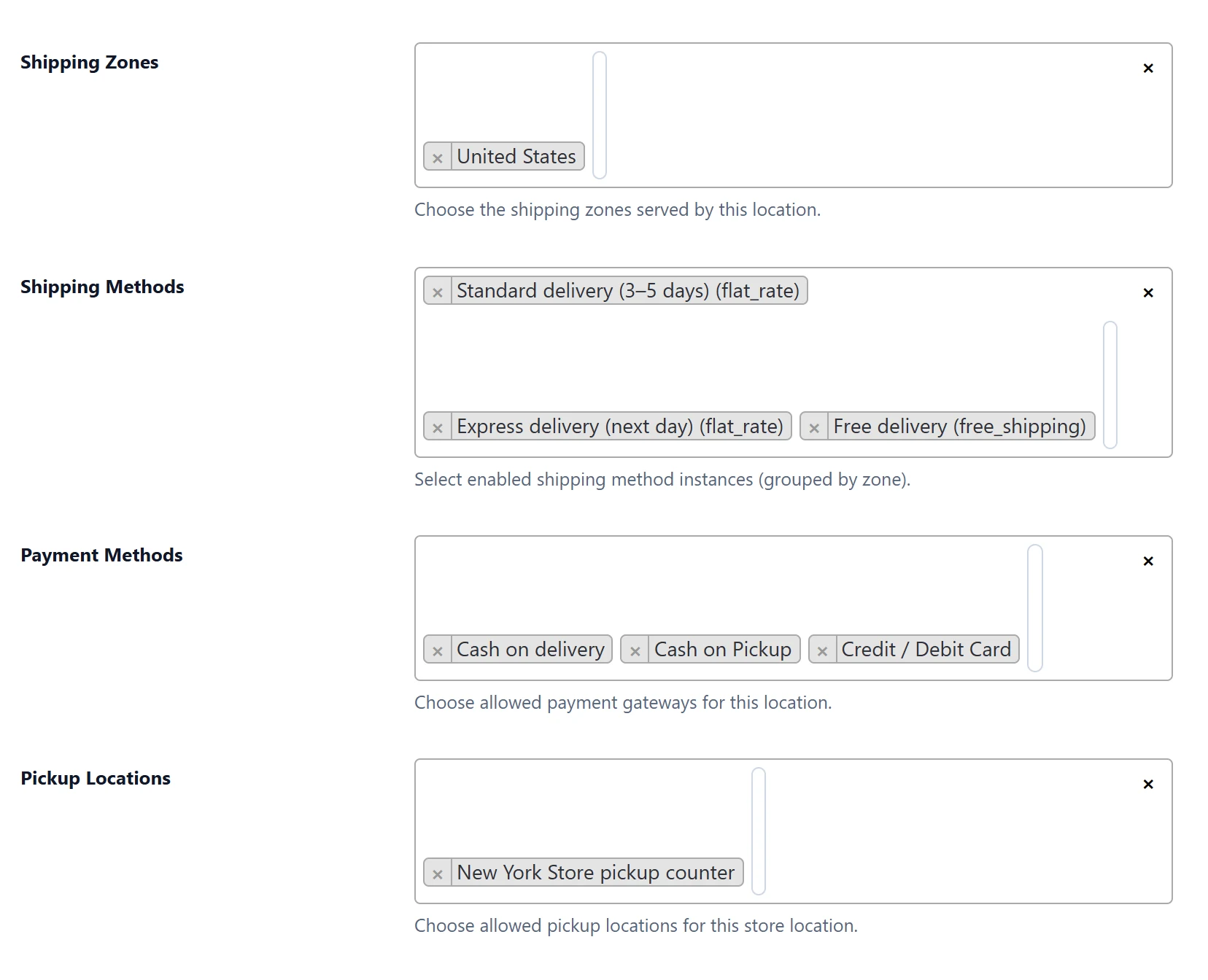
- The store’s lists leave it out. A store’s Shipping Zones and Shipping Methods limit what appears. A zone you pick removes other zones’ rates, and a method you pick removes the other methods in that zone.
- Empty lists mean no limit. A store with nothing chosen shows every method.
- Transfer pricing. With Nearest with inter-hub transfer cost, the store filter is not applied.
- Mixed carts and payment. A payment method must be allowed by every store in the cart.
- Pickup. With Enable Location Pickup on, pickup follows the store’s Pickup Locations.
Check step by step
- Go to WooCommerce > Settings > Shipping. Add a zone and a method, such as a flat rate of $5 for California, or free shipping over $500.
- Go to Location Manage > Locations, edit the store, and check its Shipping Zones, Shipping Methods and Payment Methods. Click Update.
- Go to Settings > Location Wise Everything, and check the Shipping and Payments tabs.
- Test with an address inside the zone.
WooCommerce also has a “Locations not covered by your other zones” zone, which you can use for everywhere else.
Still missing?
- Switch to a default theme and turn off other checkout plugins, to look for a conflict.
- Test on a staging copy before changing your live shop.
- If you contact us, send the store’s settings, the address you tested and screenshots of checkout.
The shipping guide and payment guide explain each setting.