
All sections
IntroductionGetting StartedLocation ManagementDisplay LocationShortcodes ReferenceLocation ArchiveLocation base Product DisplayOrder & CartUI CustomizationPayment & ShippingTax & DiscountLocation based reviewSEOEmail & NotificationUser ExperienceStore locator mapReports & AnalyticsInvestment CalculationRole Management and Access ControlDashboardStock CentralProduct FilterAdvanced SettingsImport & ExportAPI & Webhooks IntegrationDebuging / Troubleshooting
On this page
If a product shows at a store where it should not, or is missing where it should be, the cause is usually one of the settings below.
Common causes
- Strict Location Filtering is Disabled, so all products show.
- No store is chosen, so all products show.
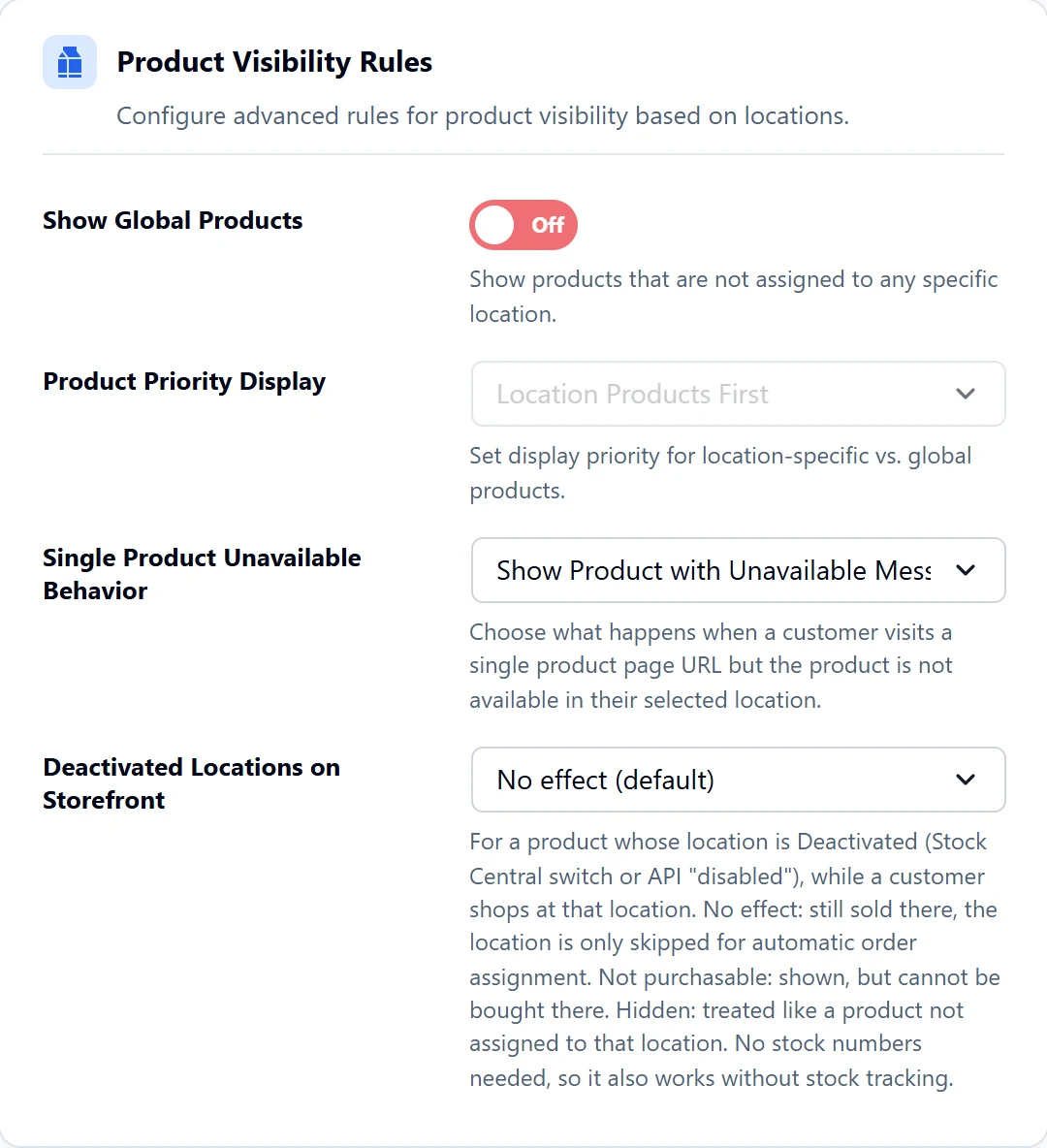
- The product has no store. It is hidden, unless Show Global Products is on.
- Deactivated Locations on Storefront is Hidden, and the product is turned off at that store.
- Show Out of Stock Products is Hide Completely, and it is out of stock there.
- Single Product Unavailable Behavior shows a 404 page or a message.
- You are logged in as a location manager, who sees only their stores.
- A cookie or cache is showing an old store.
Check step by step
- Edit the product and check the Locations box, then click Update.
- Go to Settings > Product Visibility and check the settings above.
- Test in a private window, after choosing the store.
- Clear your WordPress, CDN and browser caches.
- Look for errors in the browser console, by pressing F12.
- Check that a cookie consent plugin is not blocking the store cookie, and that your site uses HTTPS.
- Try a default theme, in case your theme changes the product list.
The location filtering guide and global products guide explain these settings. If you contact us, send the product, the store and your visibility settings.