
All sections
IntroductionGetting StartedLocation ManagementDisplay LocationShortcodes ReferenceLocation ArchiveLocation base Product DisplayOrder & CartUI CustomizationPayment & ShippingTax & DiscountLocation based reviewSEOEmail & NotificationUser ExperienceStore locator mapReports & AnalyticsInvestment CalculationRole Management and Access ControlDashboardStock CentralProduct FilterAdvanced SettingsImport & ExportAPI & Webhooks IntegrationDebuging / Troubleshooting
On this page
These PRO settings choose what store page addresses look like. Go to Location Manage > Settings > Location Info Management and find Location URL Settings. You can see store addresses on the live demo.
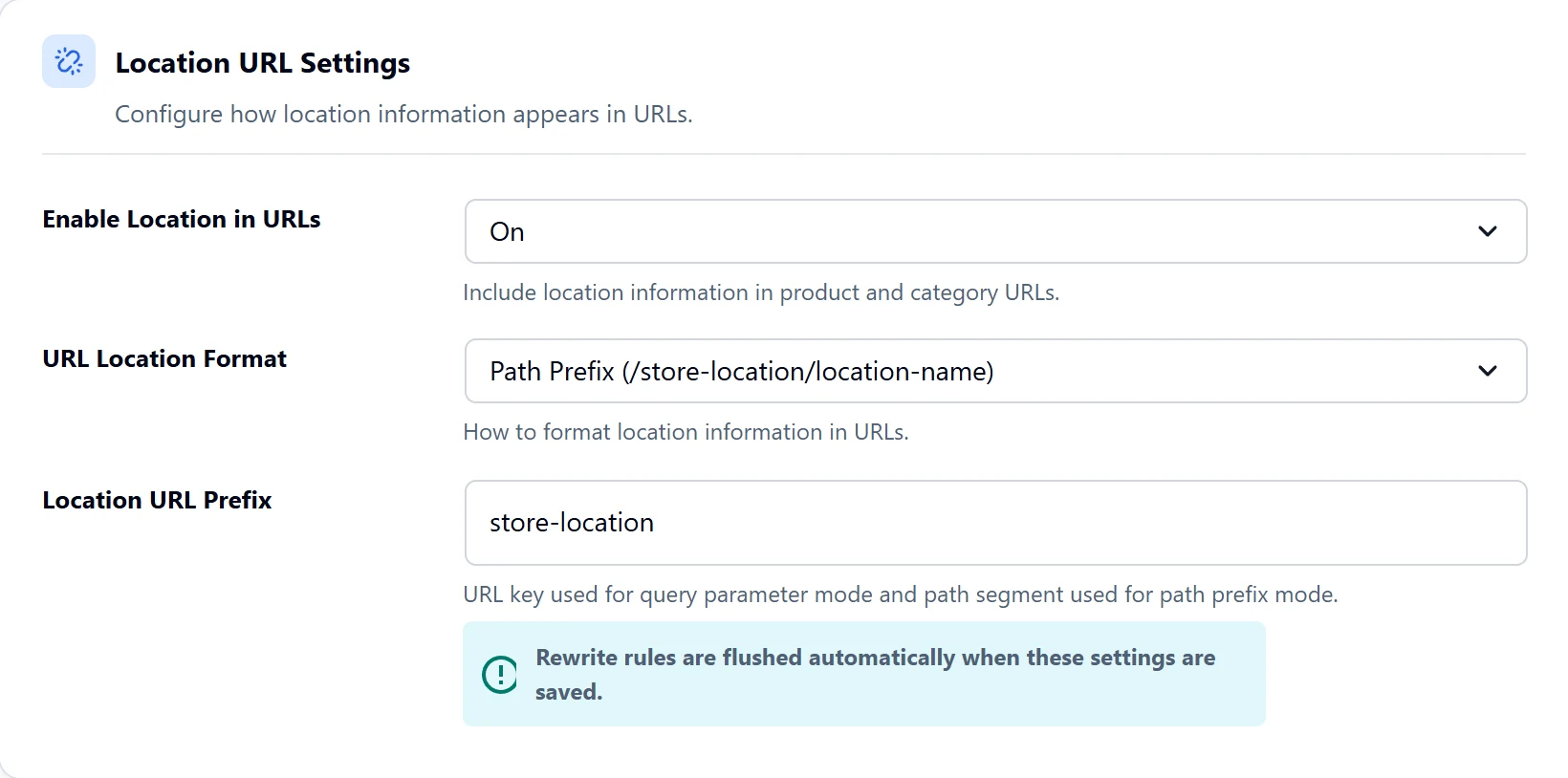
The settings
| Setting | What it does | Default |
|---|---|---|
| Enable Location in URLs | Gives each store a public page. | Off |
| URL Location Format | How the address is built, as shown below. | Query Parameter |
| Location URL Prefix | The word in the address. If left empty, or set to a word WordPress already uses, such as p, s, page or cat, it falls back to store-location. | store-location |
Query or path?
- Query Parameter adds the store after a question mark:
yourstore.com/?store-location=new-york. - Path Prefix makes it look like a folder:
yourstore.com/store-location/new-york/. This reads more cleanly.
With the prefix store, these become ?store=new-york or /store/new-york/. A child store includes its parent in a path address, such as /store-location/usa/new-york/.
The settings screen says the location is included in product and category addresses too. At present we have not seen this happen. The settings change store page addresses.
If a page is not found
Address rules refresh when you save. If a store page still shows “Page not found”, go to Settings > Permalinks and click Save Changes.