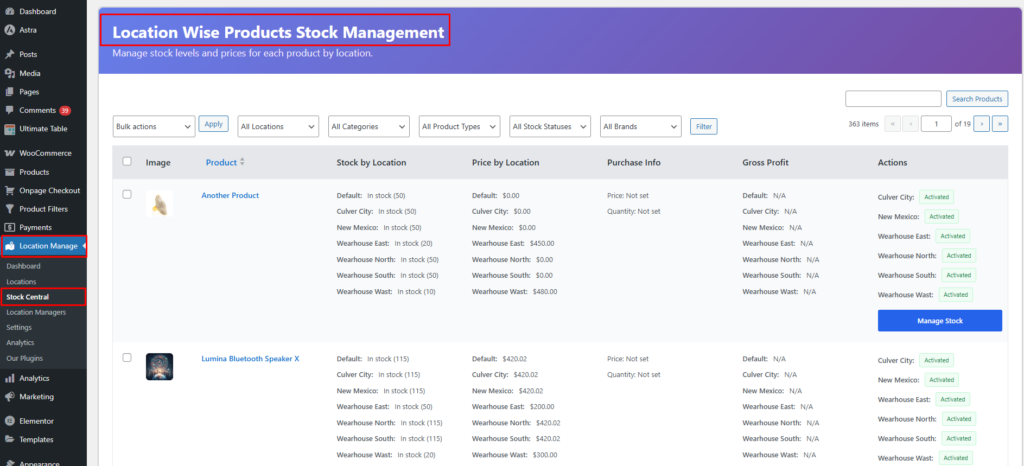
Stock Central provides a centralized interface to manage stock, pricing, backorders, and locations for all WooCommerce product types—without opening individual product edit pages. All key actions are handled via a single, smart popup modal that adapts to the product type and context.
Where to Find Stock Central
WordPress Admin → Multi Location Product & Inventory → Stock Central
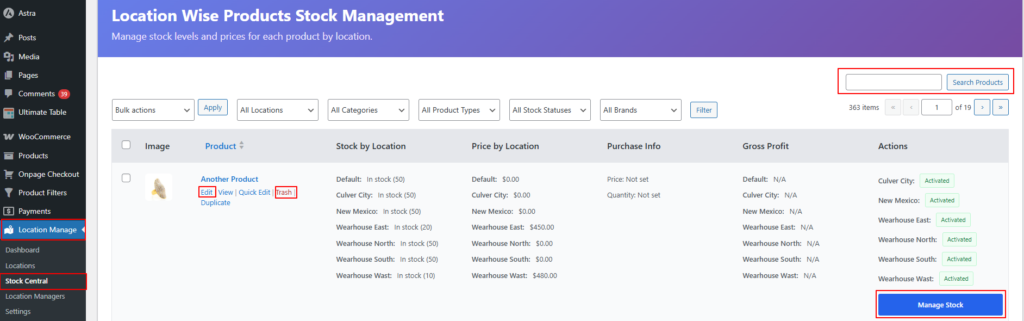
Main Features
Product Search – Search by product name or SKU
Edit / Quick Edit – Update stock and pricing instantly
Delete / Trash – Remove product stock data (with confirmation)
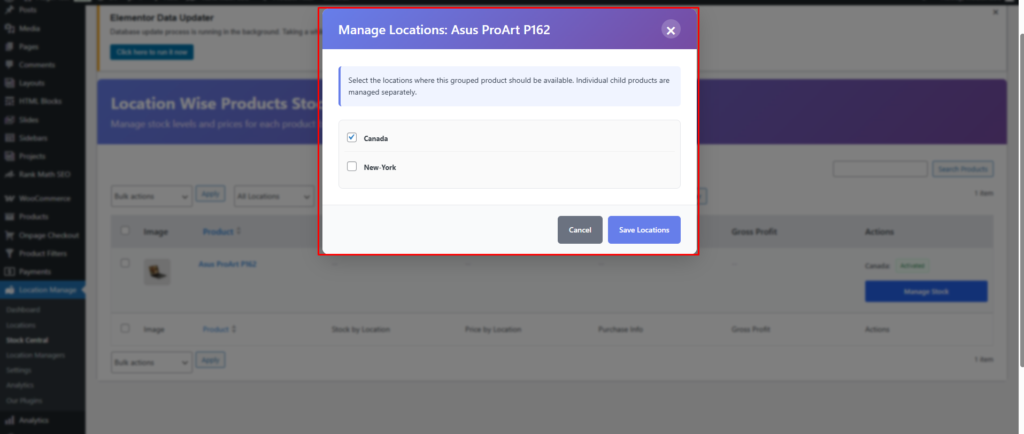
Location Management – Assign, manage, or add locations
Important: Quick Edit, Manage Location, and Add Location all open the same popup modal. The button only changes the entry point—the UI and functionality are shared.
Stock Central Table Overview
Each product row provides:
Product name & type (Simple / Variable / Grouped / External)
SKU
Stock status
Assigned locations
Action buttons:
Quick Edit
Manage Location
Add Location
Delete
Popup Modal (Shared for All Actions)
The popup modal is context-aware and adjusts automatically based on:
Product type
Selected variation (if applicable)
Selected location
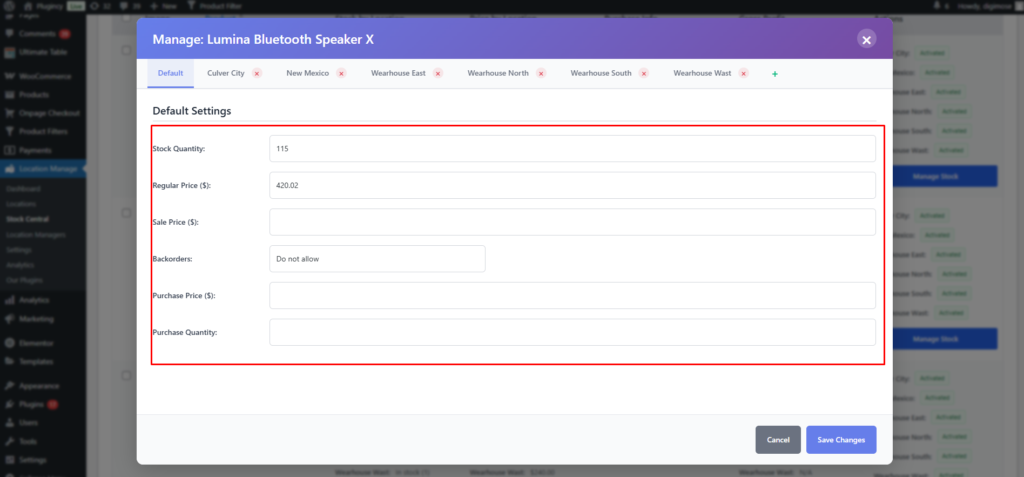
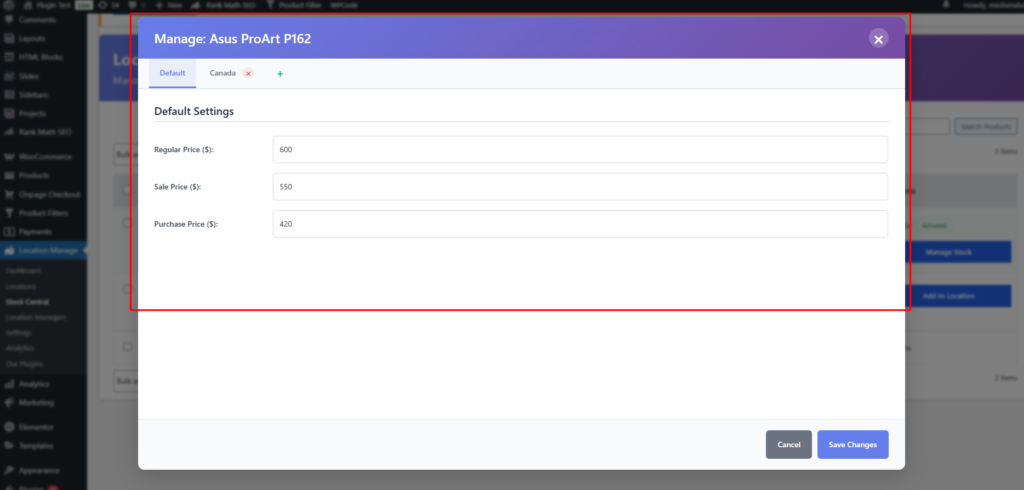
1. Default Settings (Global)
These settings apply globally and act as fallbacks when no location-specific values are defined.
Fields
Stock Quantity
Regular Price ($)
Sale Price ($)
Backorders: Do not allow
Purchase Price ($)
Purchase Quantity
Example
Stock Quantity: (empty / numeric)
Regular Price ($): 0.01
Sale Price ($): (empty / numeric)
Backorders: Do not allow
Purchase Price ($): (empty / numeric)
Purchase Quantity: (empty / numeric)
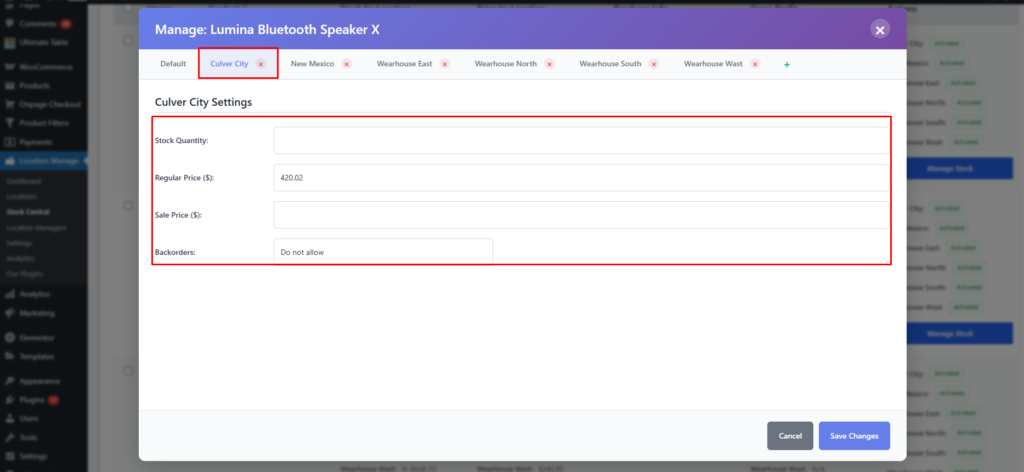
2. Location-Specific Settings
When a location is selected, a dedicated section appears:
{Location Name} – Settings
Stock Quantity
Regular Price ($)
Sale Price ($)
Backorders
Example
Stock Quantity: 4
Regular Price ($): 0.01
Sale Price ($): 28.85
Backorders: Do not allow
Location values override Default Settings for that specific location.
Product Type Behavior
Simple Products
Full support for:
Global (Default) settings
Location-wise stock & pricing
Multiple locations can be managed individually.
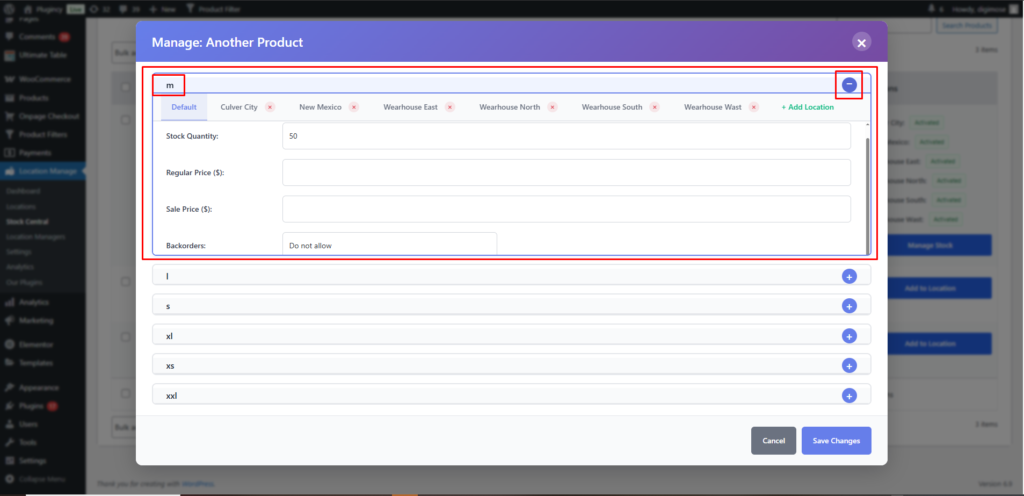
Variable Products
For variable products, the modal becomes Variation + Location aware.
The Stock Central page is used to quickly manage stock, pricing, backorders, and location availability. The notes below explain how these values affect product availability, checkout, and order stock changes.
Main WooCommerce Stock vs Location Stock
WooCommerce has a default stock field for each product. This plugin adds separate stock values for each store location.
When location-wise inventory is enabled, the selected customer location decides which location stock should be used for product availability, cart validation, and order stock deduction.
Stock Type
Purpose
Main WooCommerce stock
The default/global product stock value used by WooCommerce.
Location-wise stock
The stock available for a specific store, warehouse, branch, or pickup location.
For location-based selling, keep the location-wise stock values accurate because customers buy from the stock assigned to their selected or assigned location.
Disabling a Product for a Specific Location
If a product should not be sold from a specific location, you can disable or remove that location assignment for the product instead of deleting the product from WooCommerce.
Example:
Product
Location
Result
Basic T-Shirt
New York
Available for New York customers
Basic T-Shirt
London
Unavailable for London customers
Basic T-Shirt
Toronto
Available for Toronto customers
This is useful when a product is available in some branches, warehouses, or countries but not in others.
What Happens When the Selected Location Has No Stock?
If the selected location has no stock, the product behavior depends on your WooCommerce stock settings, plugin display settings, and location-wise backorder settings.
Condition
Possible Result
Location stock is 0 and backorders are disabled
The product cannot be purchased from that location.
Location stock is 0 and backorders are enabled
The customer may still be able to place the order as a backorder.
Product is not assigned to the selected location
The product may be unavailable for that location.
Another location has stock
The customer may need to switch location, or the order may be assigned based on your order assignment settings.
When Stock Is Reduced
When an order is placed, stock is reduced from the location assigned to the order or order item. The assigned location depends on your order assignment method, such as customer-selected location, inventory-based assignment, proximity-based assignment, or manual assignment.
Example: If a customer buys 2 units from the New York location, the New York location stock is reduced by 2.
Refund, Cancel, and Restock Behavior
If an order is cancelled, refunded, or manually restocked, stock should be restored to the same location that was originally used for that order.
Example: If an order reduced 3 units from the London location, restocking that order should return 3 units to London.
Note: For full details about order stock deduction, cancellation, refund, and restock behavior, see the How Stock Is Reduced and Restored? guide under the Stock Central documentation section.
Best Use Cases
Bulk stock updates across locations
Fast pricing changes per store/location
Managing complex variable products
Central inventory control for multi-store setups
Stock Central is designed for speed, clarity, and scale—giving you full control of multi-location inventory from one powerful screen.