
Store locations can be organized using a parent-child structure. This helps you group multiple stores, warehouses, branches, or pickup points under a larger region.
For example, you can create a parent location for a country or city, then add individual branches as child locations.
Example Structure
United States
    New York Store
    California Store
    Texas Warehouse

United Kingdom
    London Store
    Manchester Store
This structure is useful when your store operates in multiple countries, cities, regions, or warehouse groups.
When to Use Parent and Child Locations
Use parent-child locations when:
- You have many locations.
- You want to group stores by country or region.
- You want to make location selection easier for customers.
- You want to organize admin settings more clearly.
- You manage warehouses under larger distribution zones.
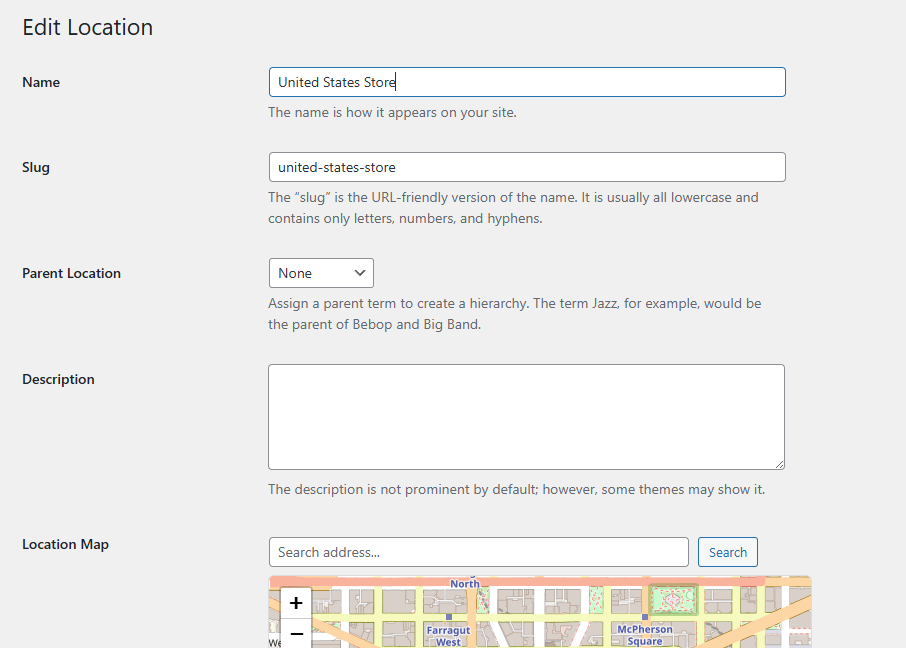
Creating a Parent Location
To create a parent location:
- Go to Location Manage > Locations.
- Add a new location.
- Enter the parent location name, such as United States or London Region.
- Leave the parent field empty.
- Add any required details.
- Click Add New Location.
Creating a Child Location
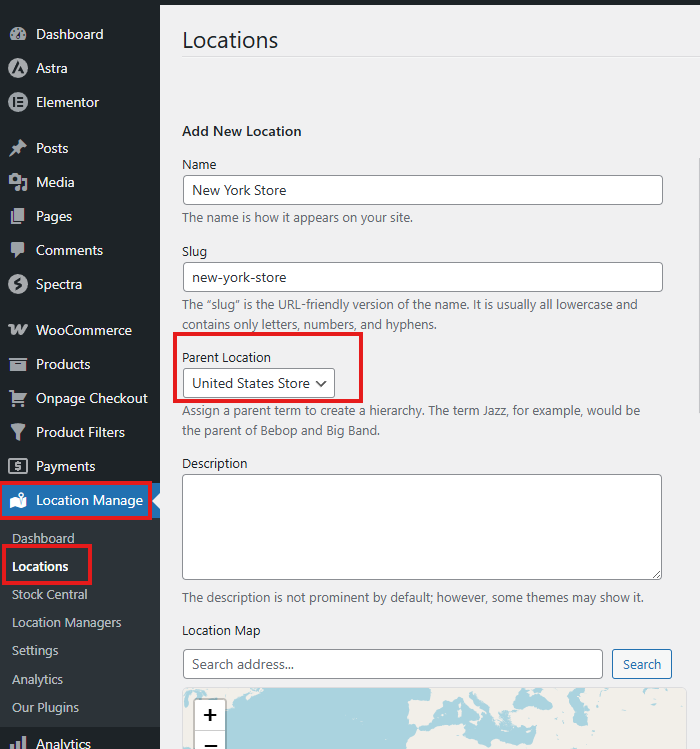
To create a child location:
- Go to Location Manage > Locations.
- Add a new location.
- Enter the child location name, such as New York Store.
- Select the parent location from the parent dropdown.
- Add address, contact, map, and other location details.
- Click Add New Location.
Example Use Cases
Country and branch structure
Canada
    Toronto Store
    Vancouver Store
    Montreal Warehouse
City and pickup point structure
New York
    Manhattan Pickup Point
    Brooklyn Pickup Point
    Queens Warehouse
Warehouse network structure
East Coast Warehouses
    New Jersey Warehouse
    Boston Warehouse
Best Practices
- Use parent locations for regions, countries, or groups.
- Use child locations for actual stores, warehouses, or pickup points.
- Avoid creating too many unnecessary levels.
- Keep location names clear and customer-friendly.
- Test the frontend location selector after creating parent-child locations.