
All sections
IntroductionGetting StartedLocation ManagementDisplay LocationShortcodes ReferenceLocation ArchiveLocation base Product DisplayOrder & CartUI CustomizationPayment & ShippingTax & DiscountLocation based reviewSEOEmail & NotificationUser ExperienceStore locator mapReports & AnalyticsInvestment CalculationRole Management and Access ControlDashboardStock CentralProduct FilterAdvanced SettingsImport & ExportAPI & Webhooks IntegrationDebuging / Troubleshooting
On this page
If the store selector does not appear, or does not change the store, check these causes in order.
Common causes
- The plugin picks the store. With Inventory Based, Proximity Based or Manual Assignment with Optional Location Selection off, the selector shortcodes and the product page selector are hidden from shoppers. Admins see “When manual assignment strict mode is enabled, the location selector shortcode will not be displayed (Admin Only).”
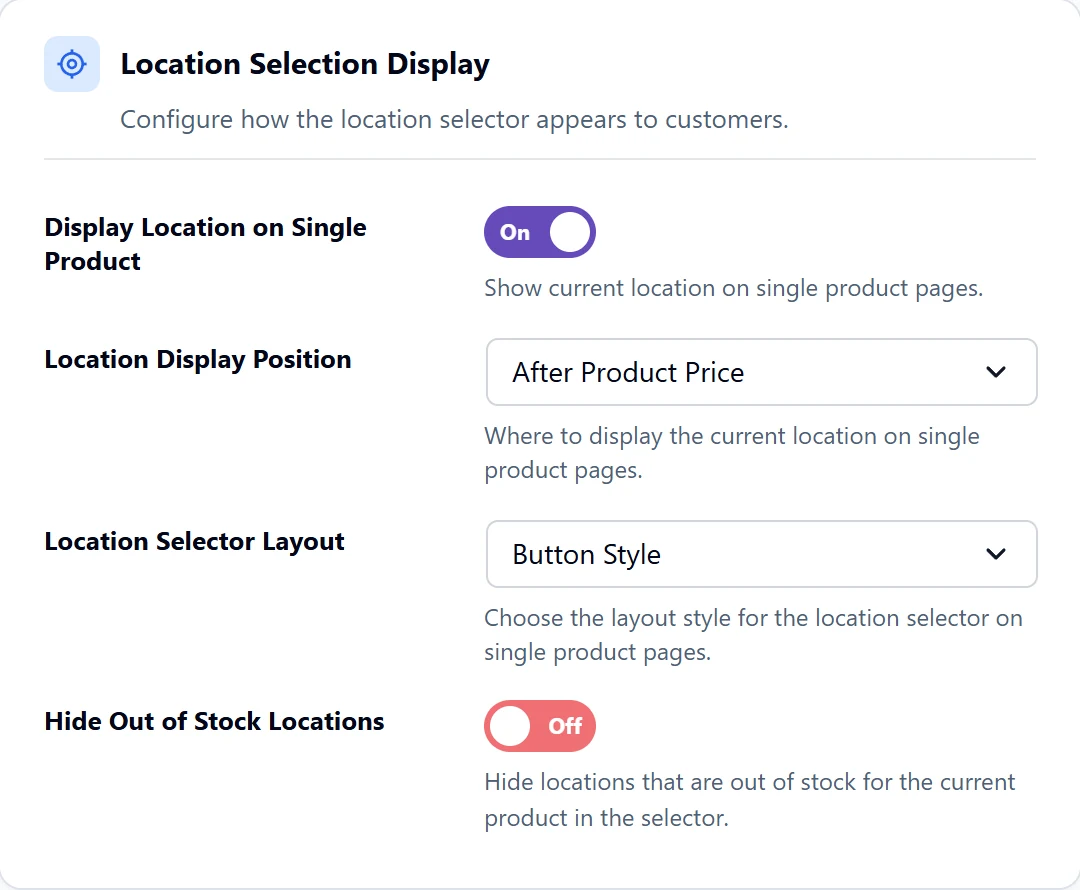
- The product page selector is off. Check Display Location on Single Product.
- The store is inactive. Inactive stores are left out.
- There are no stores, or none the product is assigned to.
- Hide Out of Stock Locations is on, and the product is out of stock at every store.
- Nothing asks the shopper. With the popup off and no shortcode placed, there is nothing to choose with.
- Cookie or cache. The choice is kept in a cookie, and a cache can serve an old page.
The three layouts
Location Selector Layout sets the product page look: List View, Button Style or Select Dropdown. It applies to product pages only. Shortcodes have their own options.
Check step by step
- Check your order assignment method.
- Put
[mulopimfwc_store_location_selector]on a plain page and view it while logged in as admin. Read any notice. The shortcode works on any page or post. - Go to Settings > Location Info Management and check Location Selection Display.
- Clear your cache, then test in a private window.
- Look for errors in the browser console, by pressing F12.
- Check that cookies are allowed, and try a default theme.
If you place the shortcode in an HTML widget, use a Shortcode block or widget instead. The selector shortcode guide lists its options.