
All sections
IntroductionGetting StartedLocation ManagementDisplay LocationShortcodes ReferenceLocation ArchiveLocation base Product DisplayOrder & CartUI CustomizationPayment & ShippingTax & DiscountLocation based reviewSEOEmail & NotificationUser ExperienceStore locator mapReports & AnalyticsInvestment CalculationRole Management and Access ControlDashboardStock CentralProduct FilterAdvanced SettingsImport & ExportAPI & Webhooks IntegrationDebuging / Troubleshooting
On this page
This PRO feature lets each store use its own WooCommerce tax class. For example, a store in a tax-free zone can use a Zero rate class. You can see it on the live demo.
Set it up
- Go to WooCommerce > Settings > General, tick Enable tax rates and calculations and save.
- Open the Tax tab and add rates for each class, such as Standard, Reduced rate and Zero rate.
- Go to Location Manage > Locations, edit a store, choose its Tax Class and click Update.
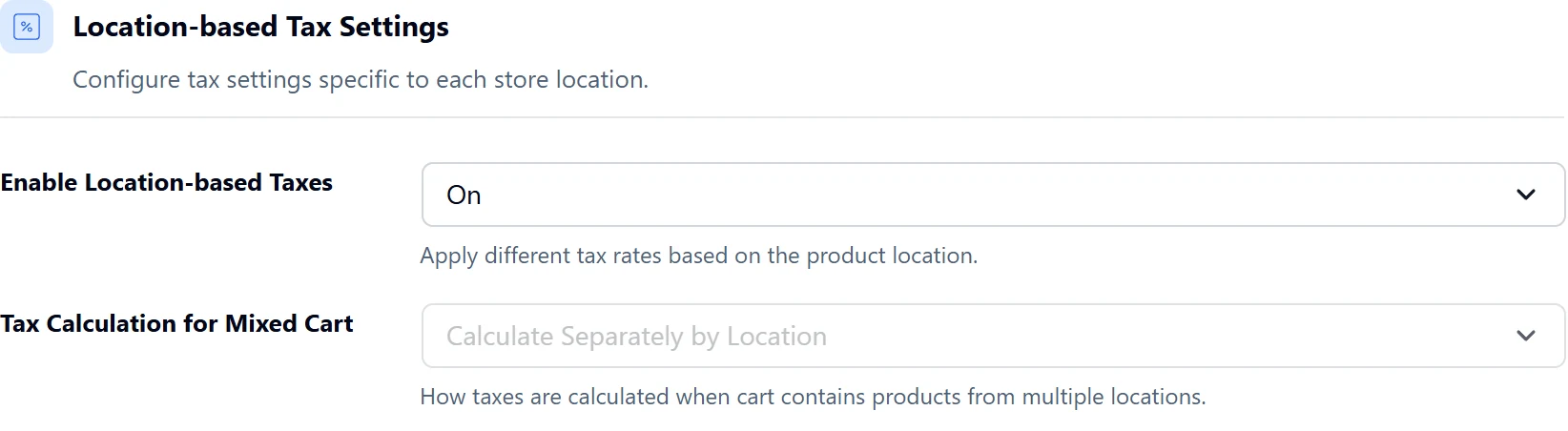
- Go to Location Manage > Settings > Location Wise Everything > Tax, turn on Enable Location-based Taxes and save.
- Test by switching store and checking the tax at checkout.

How it works
- A store’s tax class replaces the product’s own class for products from that store.
- In the cart, each item uses its own store’s class.
- A store left on Standard keeps each product’s own class.
- The rate itself still comes from your WooCommerce tax tables for that class.
The tab also has Tax Calculation for Mixed Cart, but at present it is always greyed out and has no effect.
Why it may be greyed out
- WooCommerce taxes are off. The screen links to the setting.
- The plugin picks the store, with Inventory Based, Proximity Based or Manual Assignment with Optional Location Selection off.