
All sections
IntroductionGetting StartedLocation ManagementDisplay LocationShortcodes ReferenceLocation ArchiveLocation base Product DisplayOrder & CartUI CustomizationPayment & ShippingTax & DiscountLocation based reviewSEOEmail & NotificationUser ExperienceStore locator mapReports & AnalyticsInvestment CalculationRole Management and Access ControlDashboardStock CentralProduct FilterAdvanced SettingsImport & ExportAPI & Webhooks IntegrationDebuging / Troubleshooting
This guide covers keeping stock per store and getting alerts before it runs out. You can see stock per store on the live demo.
The settings
Go to Location Manage > Settings > Inventory.
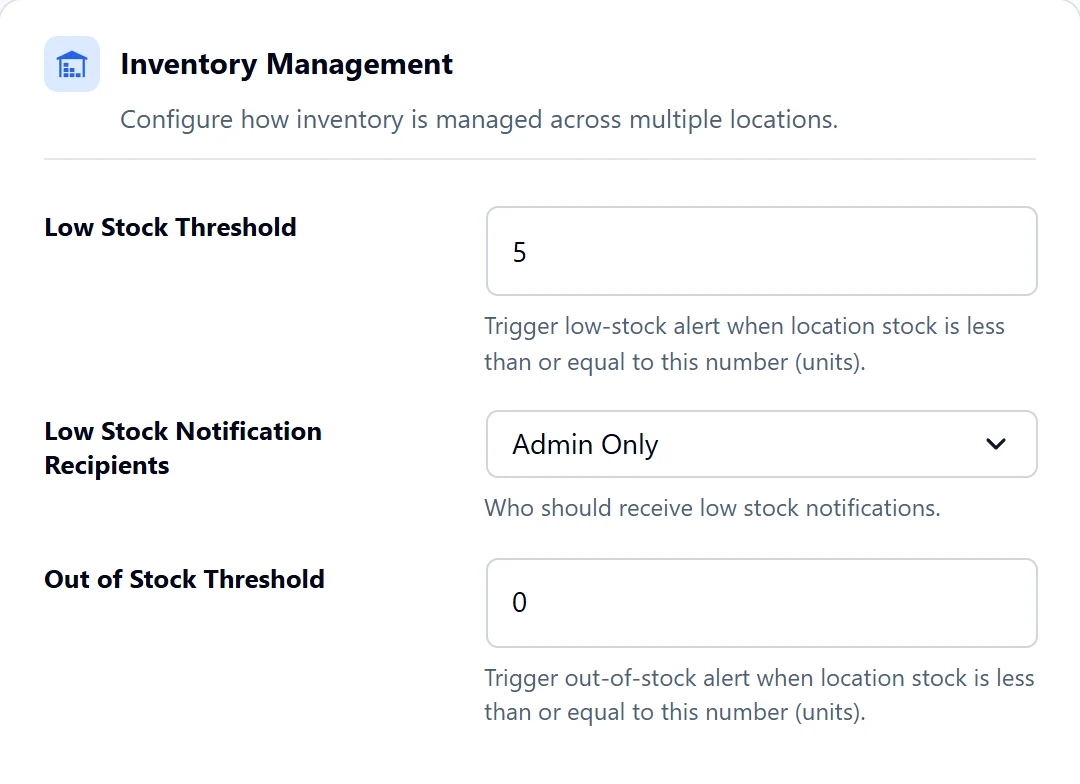
| Setting | What it does | Default | Version |
|---|---|---|---|
| Enable Location Stock | Keeps stock per store. | On | Free and Pro |
| Low Stock Threshold | Sends an alert at this number or fewer. 5 means at 5 or lower. | 5 | PRO |
| Low Stock Notification Recipients | Who gets the email. | Admin Only | PRO |
| Out of Stock Threshold | Sends an out of stock alert at this number or fewer. | 0 | PRO |
Each store can have its own thresholds. Leave them empty to use these. The alerts are explained in our low stock alert guide.
Set the stock
- Edit a product, or open it in Stock Central.
- Enter the stock for each store.
- Save, then choose each store on the product page to check.
Keep WooCommerce stock on
WooCommerce’s own stock setting, under WooCommerce > Settings > Products > Inventory, must be on. Otherwise orders do not lower store stock, and the plugin warns you.
The total and the stores
In Pro, a product’s total stock must cover all the stores, and it is reset to their sum whenever a store’s stock changes. For example, a product with 4 variations at 2 stores, holding 50 of each variation at each store, has 400 units in total.