
The Store / Location Archive Page feature allows customers to view all products available at a specific store or warehouse location. Each location automatically gets its own archive page where only products assigned to that location are displayed.
Enable Location Archive Settings
Before accessing the Location Archive page, you must enable location URLs.
- From your WordPress dashboard, go to Location Manage > Settings > Location Info Management.
- Scroll down to find the setting named Location URL Settings.
- Toggle the option labeled Enable Location in URLs to On.
- Choose a URL Location Format:
- Query Parameter: Adds location information as a query string in the URL.
- Path Prefix: Adds location information as a prefix in the URL path.
- Set your Location URL Prefix.
- Click Save Changes.
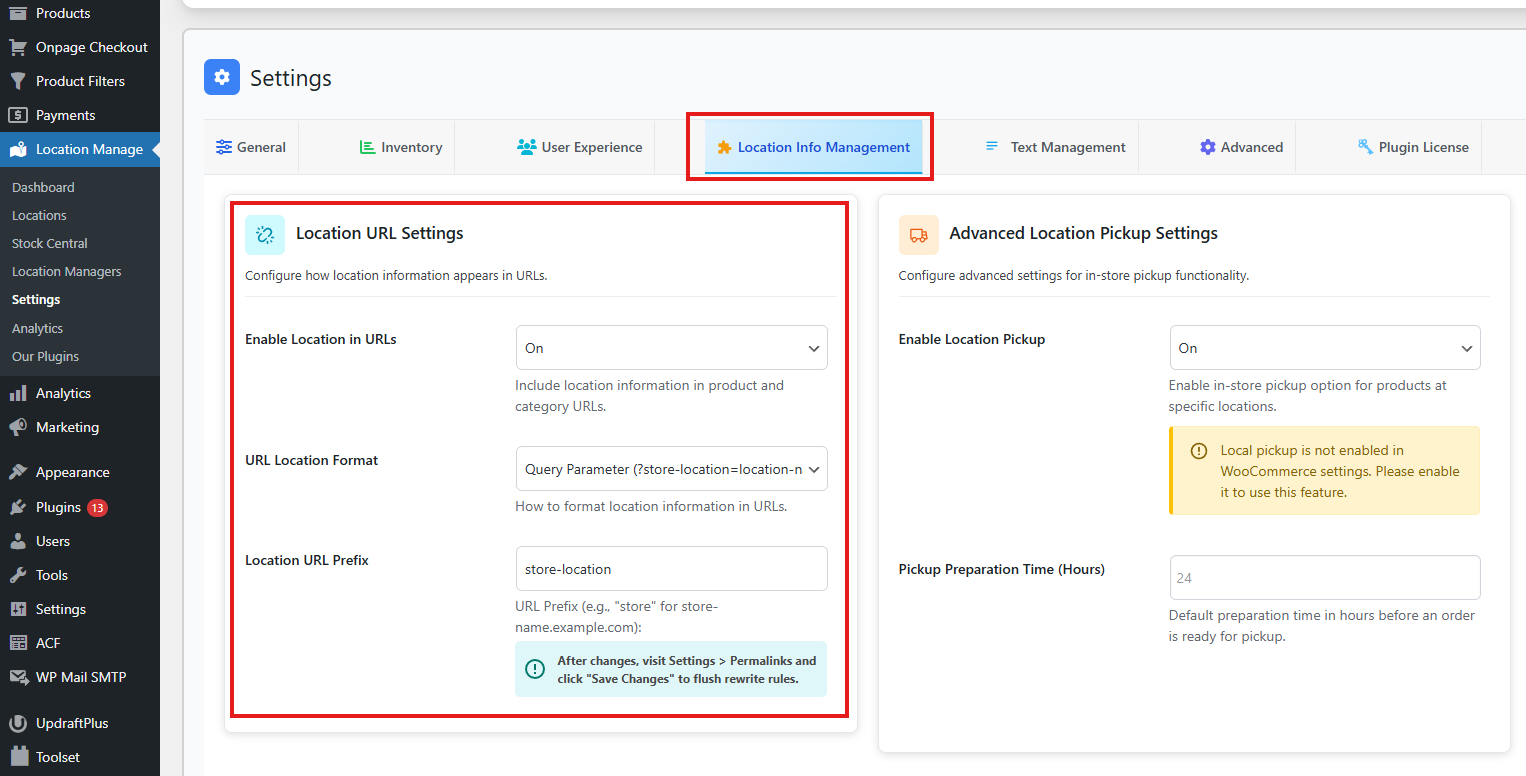
Enabling these settings ensures that each location has its own dedicated archive page accessible via URL.
Step 1: Accessing the Location Archive Page
- Go to your WordPress dashboard.
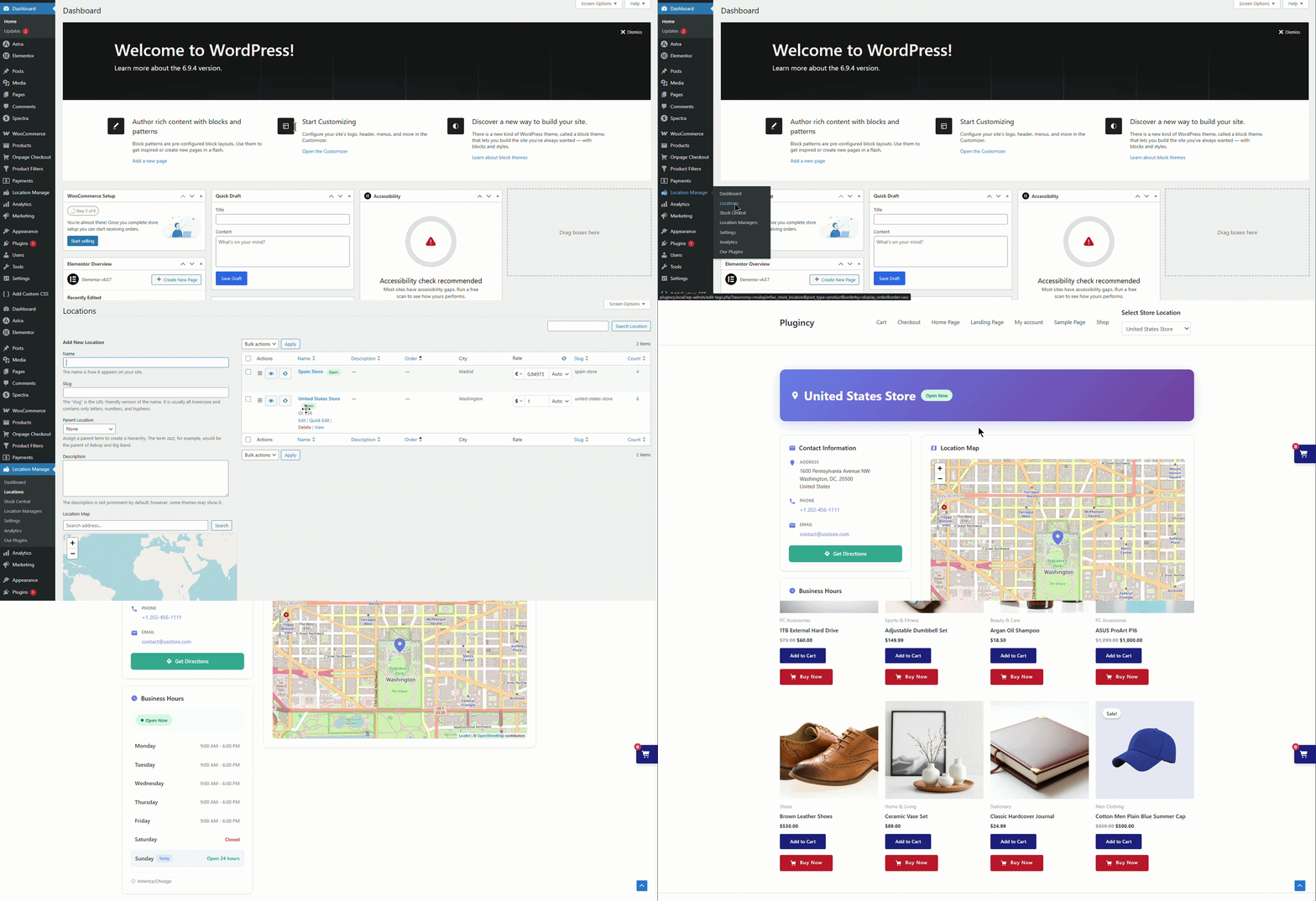
- Navigate to Location Manage → Locations.
- You’ll see a list of all your created store locations.
- Hover over any location name and click the View link.
- This will open the Location Archive Page for that specific location on the frontend.
Step 2: What the Archive Page Displays
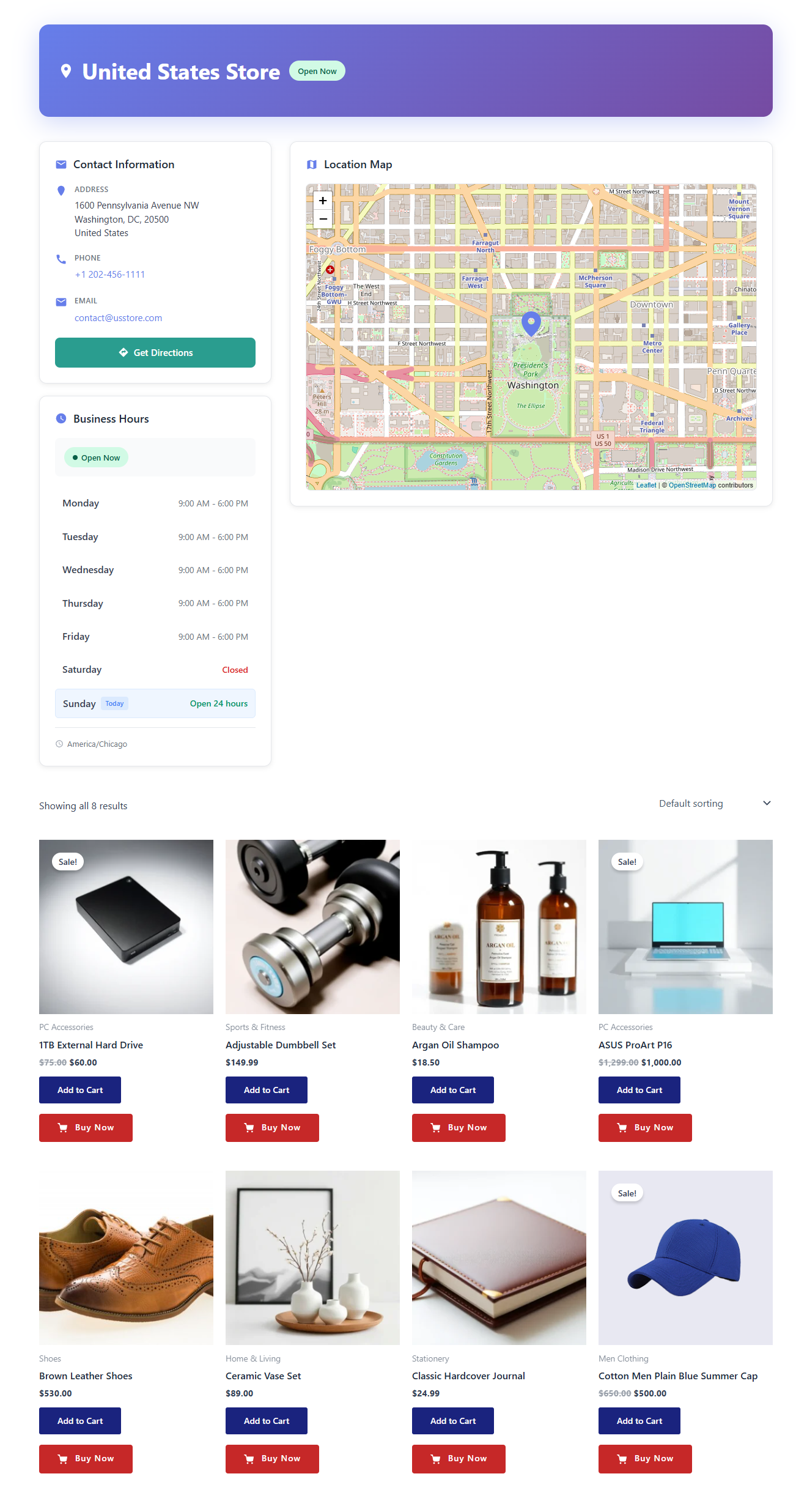
Each location archive page includes:
- All products assigned to that particular location.
- Default WooCommerce product layout and pagination.
- Stock and availability data filtered by the selected location.
- Optional location information or description (if added when creating the location).
Fix Archive Page Issues
Sometimes the archive page may not open correctly or may redirect elsewhere. This issue can be resolved by refreshing permalink settings.
- From your WordPress dashboard, go to Settings > Permalinks.
- Do not make any changes.
- Simply click Save Changes.
- Try visiting your location archive page again.
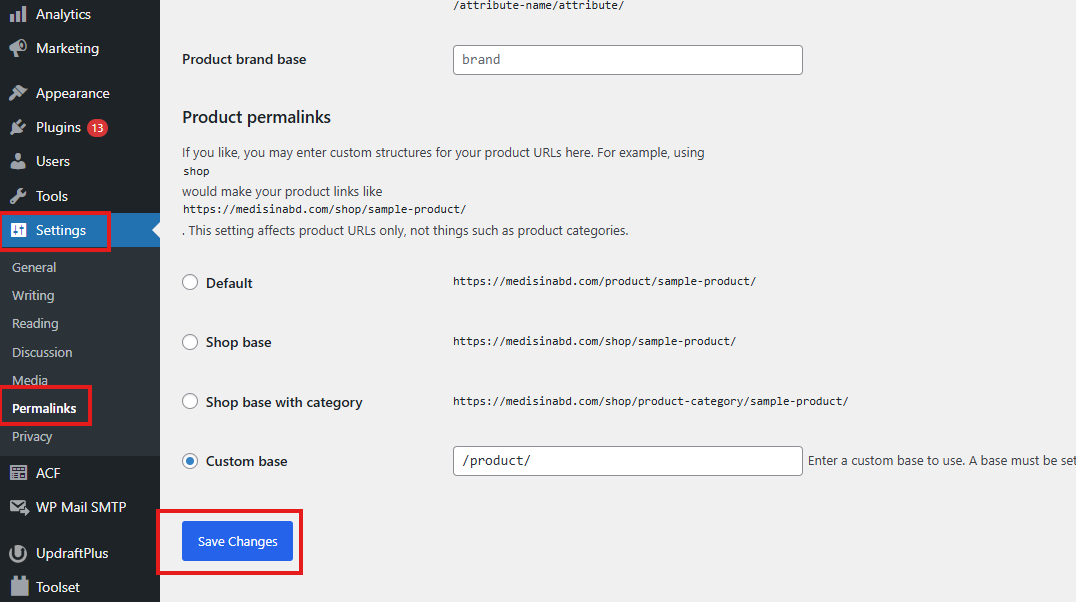
Refreshing permalink settings ensures that the Location Archive page loads correctly.
Step 3: Customizing the Archive Page
You can customize the design and content of the location archive pages using your theme or page builder.
Options include:
- Editing the template file
taxonomy-mulopimfwc_store_location.phpin your theme. - Adding custom headers, banners, or sidebars for each location.
- Using CSS or hooks to modify layout or product display style.
Example custom CSS:
.location-archive-page h1 {
  text-align: center;
  margin-bottom: 20px;
}

.location-archive-page .products {
  display: grid;
  grid-template-columns: repeat(auto-fill, minmax(220px, 1fr));
  gap: 20px;
}
Step 4: SEO and Navigation
Each store or location archive has a unique URL, helping search engines index location-specific product pages for better SEO.
You can link these location pages in menus, widgets, or footers to help customers easily browse by location.
Pro Tip
- Use descriptive location names (e.g., “New York Warehouse” or “Downtown Store”) for better SEO.
- Add a featured image and short description for each location to enhance the archive page appearance.
- If using caching or SEO plugins, make sure location archive URLs are included in your sitemap.