
The Order Fulfillment settings control how customer orders are assigned to specific locations for processing and delivery.
This ensures orders are fulfilled efficiently based on inventory availability, customer choice, proximity, or manual admin control.
How to Access Order Fulfillment
To configure this feature:
- Go to Location Manage → Settings → Order & Cart
- Then find Order Fulfillment
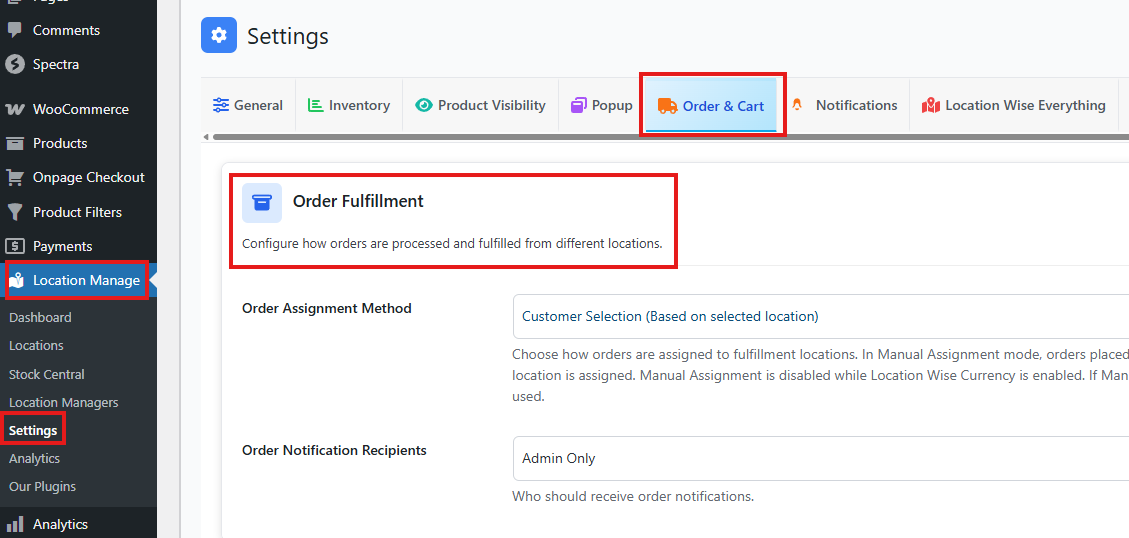
Order Assignment Method
Choose how orders are automatically assigned to fulfillment locations.
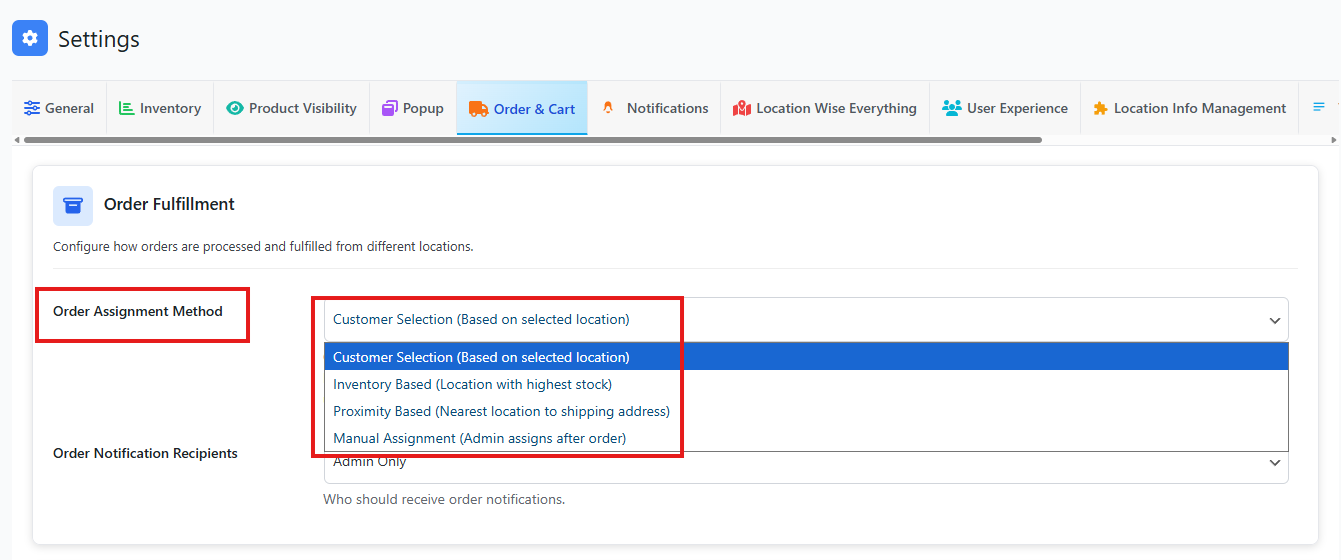
Available Options
1. Customer Selection (Based on Selected Location)
- Orders are assigned to the location selected by the customer during checkout.
- Ideal for store pickup or customer-preferred fulfillment.
- If no location is selected, the system follows the default fallback behavior.
Best for: Click & Collect, user-driven location choice.
2. Inventory Based (Location with Highest Stock)
- Orders are assigned to the location that has the highest available stock for the ordered products.
- Helps balance inventory across locations.
- Reduces out-of-stock scenarios and improves fulfillment speed.
Best for: Warehouses and centralized inventory systems.
3. Proximity Based (Nearest Location to Shipping Address)
- Automatically assigns the order to the closest location based on the customer’s shipping address.
- Uses location latitude and longitude for distance calculation.
- Reduces delivery time and shipping costs.
Best for: Local delivery and multi-city operations.
4. Manual Assignment (Admin Assigns After Order)
- Orders placed without a selected location are set to On Hold.
- Admin manually assigns a fulfillment location from the order details.
- No automatic location assignment occurs.
Best for: Custom workflows, high-value orders, or manual review processes.
If the Location Wise Currency option is enabled, you will not be able to select the Manual Assignment option.
To make Manual Assignment selectable:
- Go to Location Manage > Settings > Inventory.
- Turn off the Location Wise Currency option.
- Return to the assignment settings.
Now, the Manual Assignment option will be available for use.
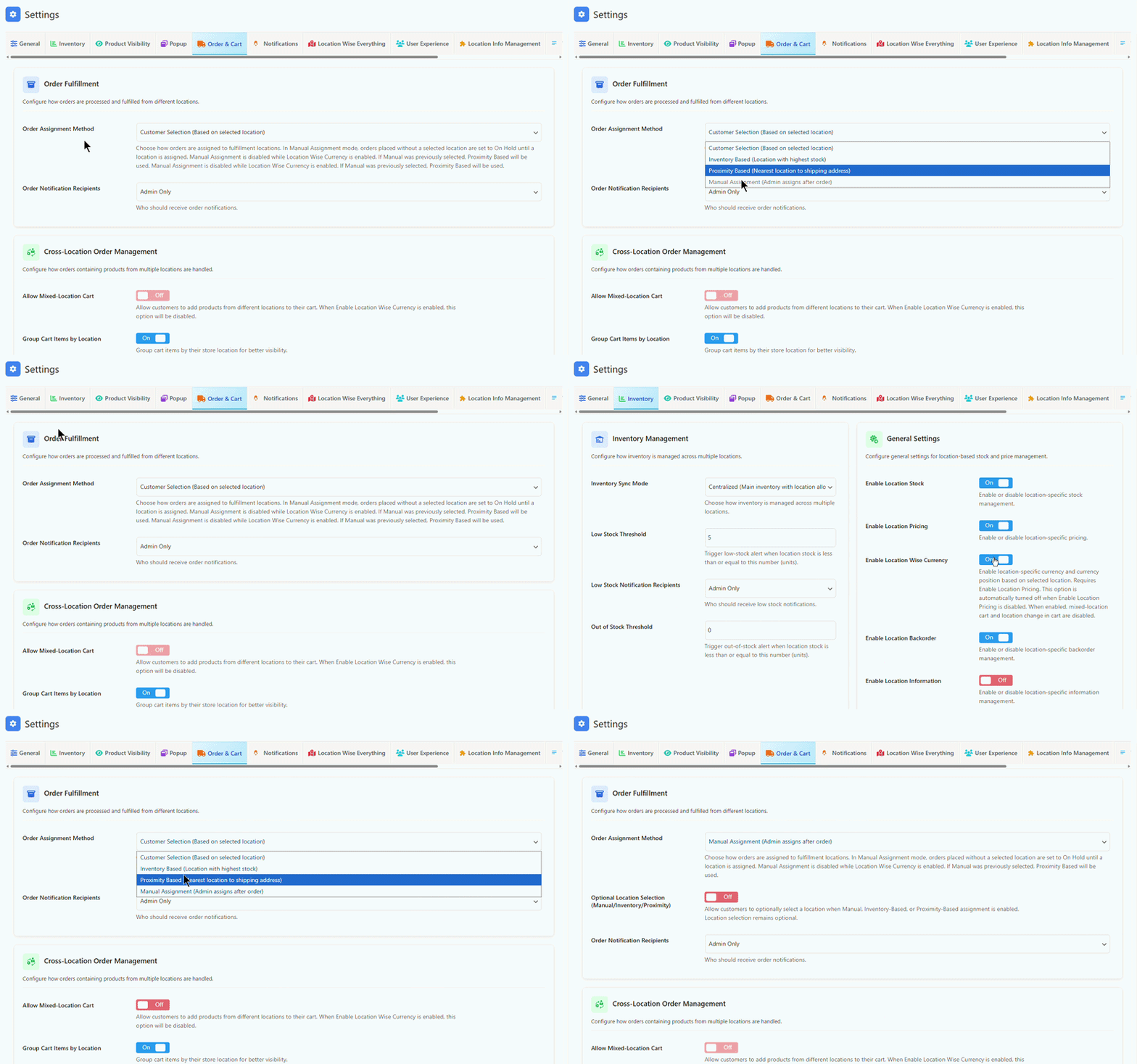
⚠️ In Manual Assignment mode, orders remain On Hold until a location is assigned by an admin.
Choosing the Right Order Assignment Method
The plugin supports multiple order assignment methods. Each method is designed for a different fulfilment workflow. Use the table below to choose the best option for your store.
| Assignment Method | Best For | How Location Is Selected |
|---|---|---|
| Customer Selection | Customers choose the store, branch, warehouse, or pickup location before ordering. | The selected frontend location is used for the order. |
| Inventory Based | Stores that want to fulfil orders from the location with the best available stock. | The plugin checks stock availability and assigns the order to a suitable location. |
| Proximity Based | Stores that want to fulfil from the nearest branch, warehouse, or store. | The plugin uses the customer’s shipping address or distance-based logic. |
| Manual | Stores where admins review and assign orders after checkout. | The admin assigns the order location later from the order screen. |
If you are not sure which method to use, start with Customer Selection when customers should choose the location, Inventory Based when stock availability is most important, Proximity Based when distance matters, and Manual when the admin team decides after the order is placed.
Manual Strict Mode
Manual assignment can be used when the admin wants to assign the order location after checkout. In a strict manual workflow, customers do not need to select a location before placing the order.
This is useful for stores where fulfilment decisions are handled internally by the admin, warehouse team, or order manager.
Important: Some frontend location-based features may be limited in strict manual workflows because the order location is not selected by the customer during shopping or checkout.
Optional Location Selection
Optional location selection can be used with manual, inventory-based, or proximity-based assignment workflows.
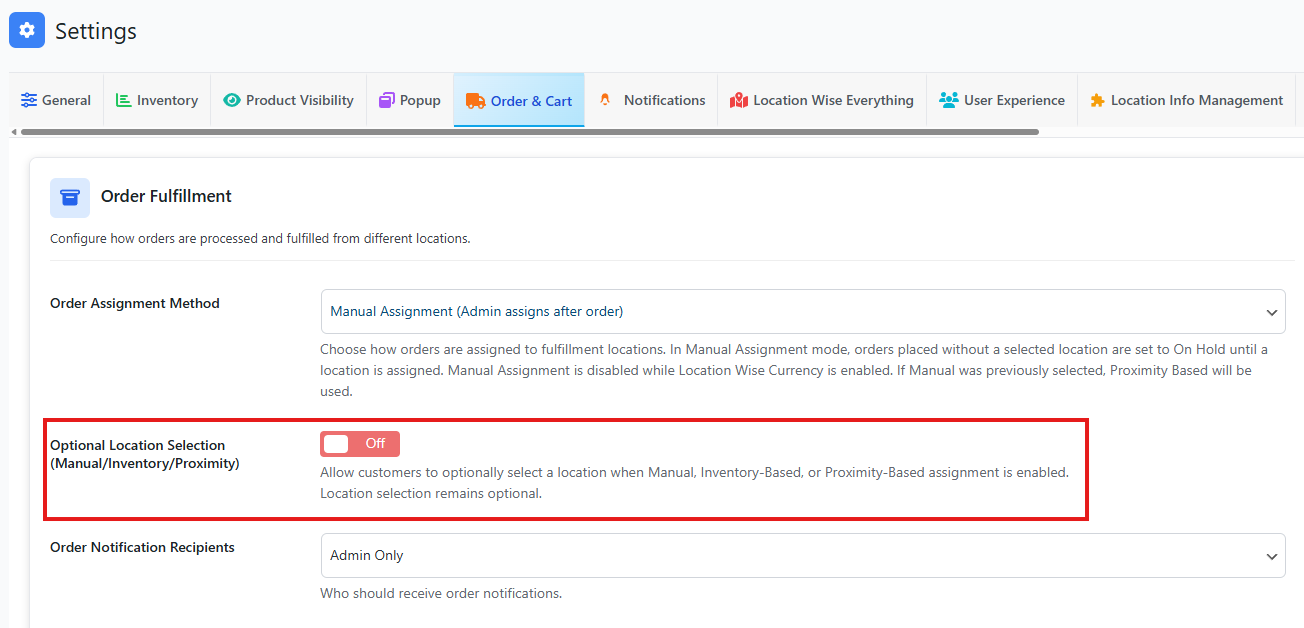
This allows customers to select a preferred location, while still allowing the plugin or admin to assign the final fulfilment location based on your order assignment method.
| Assignment Method | Optional Location Selection Use Case |
|---|---|
| Manual | Customer can choose a preferred location, but admin can assign the final order location later. |
| Inventory Based | Customer can choose a preferred location, but the plugin can still use stock availability when assigning the order. |
| Proximity Based | Customer can choose a preferred location, but nearest-location logic can still be used for fulfilment. |
Use optional location selection when you want to collect the customer’s preferred location without making it the only possible fulfilment location.
Order Notification Recipients
Choose who receives notifications when an order is placed or assigned.
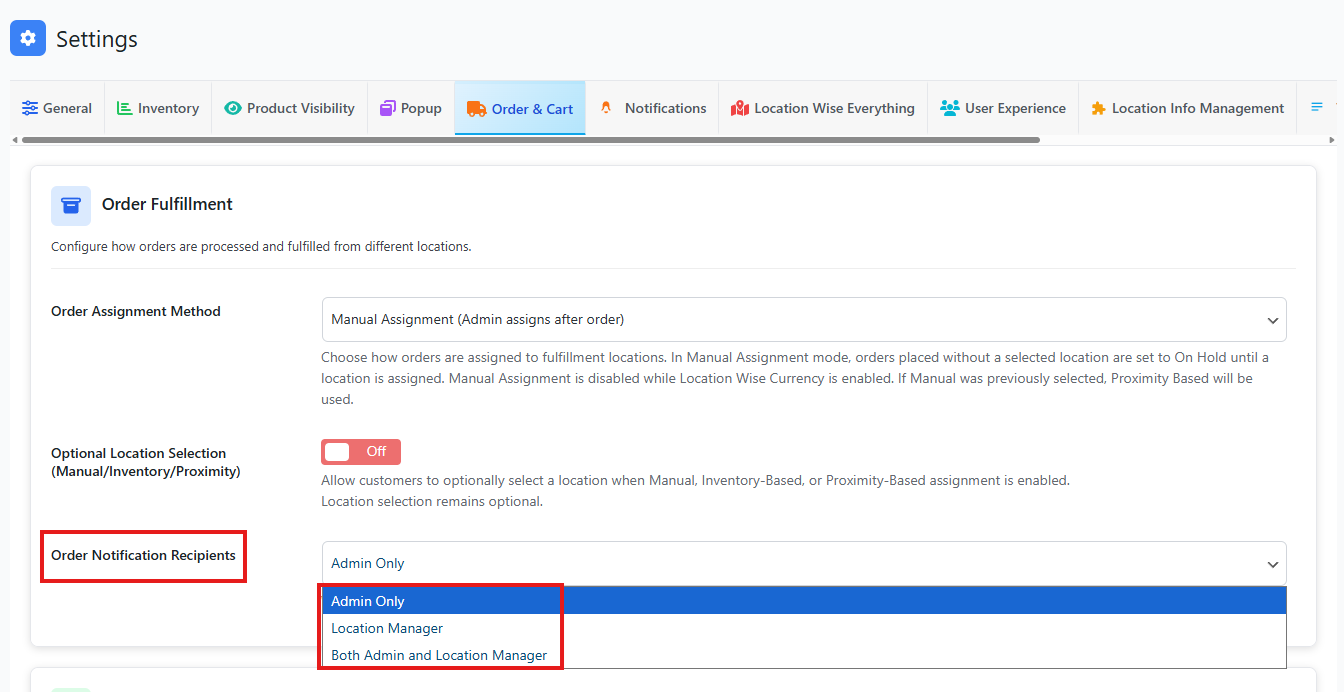
Available Options
1. Admin Only
- Notifications are sent only to the site administrator.
- Suitable for centralized order management.
2. Location Manager
- Notifications are sent only to the assigned location manager.
- Ensures faster processing at the fulfillment location.
3. Both Admin & Location Manager
- Notifications are sent to both the admin and the assigned location manager.
- Provides full visibility and coordination.
Recommended for: Multi-manager operations and large teams.
Behavior Notes
- Order assignment occurs immediately after checkout unless Manual Assignment is enabled.
- Location assignment affects:
- Inventory deduction
- Order notifications
- Fulfillment responsibility
- Works seamlessly with Location Managers, Stock Thresholds, and API/Webhook updates.
What Happens If No Location Can Fulfil the Order?
If no location has enough stock or no valid location can be selected for the order, the result depends on your stock, backorder, cart, and order assignment settings.
| Condition | Possible Result |
|---|---|
| No location has enough stock | The product may be unavailable for checkout, or the order may require manual review. |
| Backorders are enabled for a location | The order may still be allowed as a backorder for that location. |
| Manual assignment is enabled | The order can be placed and assigned later by an admin, depending on your settings. |
| Product is disabled for the selected location | The product should not be available for that location. |
For best results, test your checkout flow with products that are in stock, out of stock, backorder-enabled, and disabled for selected locations.
What Happens If the Cart Contains Products From Multiple Locations?
If the cart contains products from multiple locations, the final behavior depends on your mixed-location cart and order splitting settings.
| Setup | Result |
|---|---|
| Mixed-location cart disabled | The customer may be restricted to products from one selected location. |
| Mixed-location cart enabled | The cart can contain products assigned to different locations. |
| Group cart by location enabled | Cart items can be displayed in groups based on location. |
| Split order by location enabled | The plugin can split checkout into location-based orders, if supported by your settings. |
If your store allows products from multiple locations in one cart, review your mixed cart, grouped cart, and split order settings carefully.
Location-Wise Currency and Order Assignment
Location-wise currency affects order assignment and cart behavior because each selected location may use a different currency, price, exchange rate, and checkout context.
When location-wise currency is enabled, some mixed-location workflows are restricted to prevent multi-currency checkout conflicts.
| Feature | Behavior With Location-Wise Currency |
|---|---|
| Mixed-location cart | Disabled |
| Change location in cart | Disabled |
| Split order by location | Disabled |
| Manual assignment | Limited; handled as proximity-based internally to keep location and currency consistent. |
Use location-wise currency when customers should shop from one selected location using one currency. Use mixed-location cart and split order when all locations share the same checkout currency.
For more details, see Feature Compatibility Matrix: Location Currency, Mixed Cart, Cart Switching, and Split Orders.
Common Use Cases
- Multi-warehouse order routing
- Nearest-store delivery automation
- Admin-controlled fulfillment workflows
- Location-specific order responsibility tracking