
The Multi Location Product & Inventory Management for WooCommerce plugin provides an Export option in its dashboard. This allows you to download product and inventory reports in two formats: CSV and HTML. Each format is useful in different situations.
In this guide, we’ll walk through how to export your WooCommerce product and inventory data using both CSV and HTML formats, explain when each option is most useful, and show you how to download the report directly from the plugin dashboard. Let’s get started.
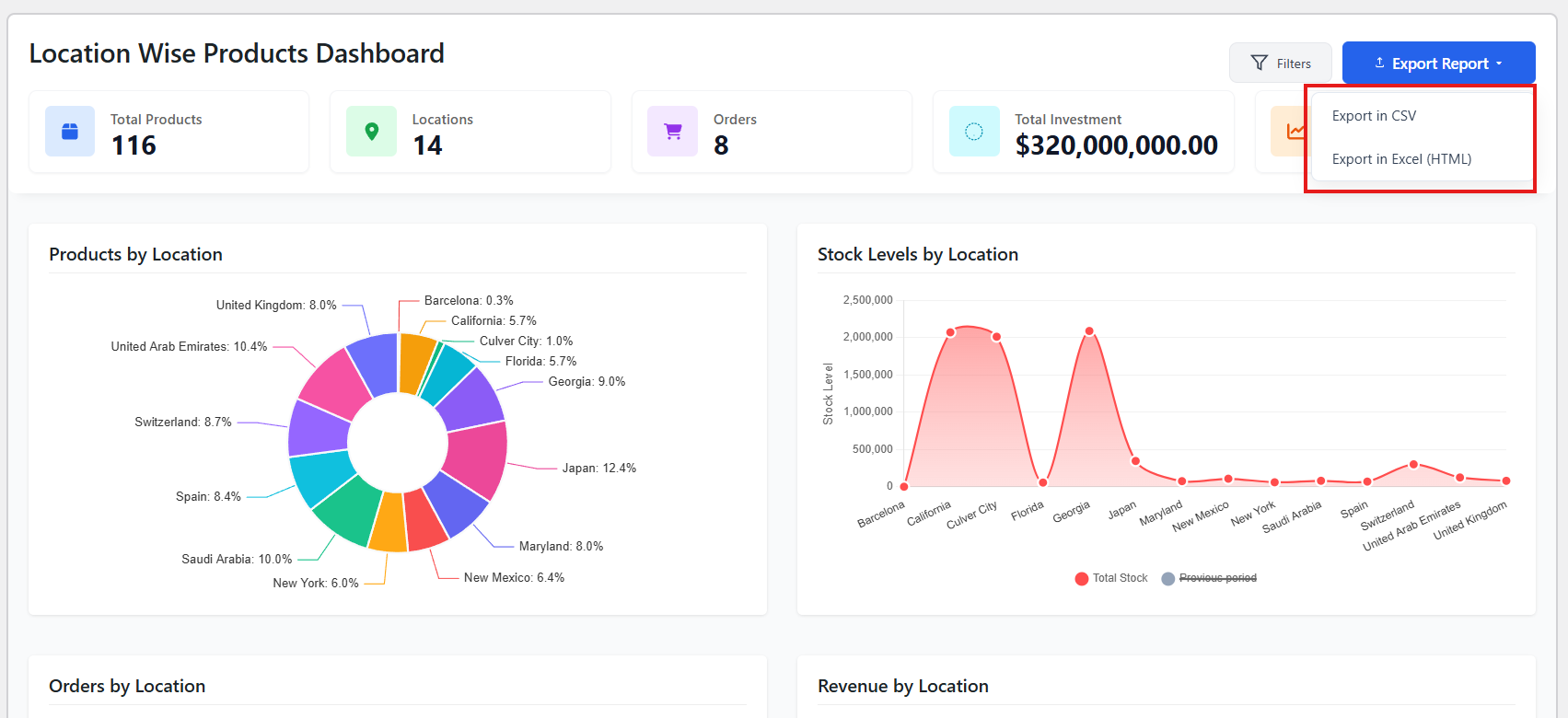
CSV Export
- What it is: CSV stands for Comma-Separated Values. It’s a plain text file where data is arranged in rows and columns.
- Why use it:
- Works perfectly with spreadsheet tools like Excel or Google Sheets.
- Easy to filter, sort, and analyze numbers.
- Ideal for sharing raw data with your team or importing into other systems.
- Example use case: Exporting monthly inventory levels to calculate stock turnover in Excel.
HTML Export
- What it is: HTML is the format used for web pages. Exporting in HTML creates a report that looks like a styled webpage.
- Why use it:
- Quick to view in any browser.
- Easy to print or share as a formatted report.
- Useful when you want a clean, readable snapshot without needing Excel.
- Example use case: Exporting a weekly inventory summary to share with management in a visually readable format.
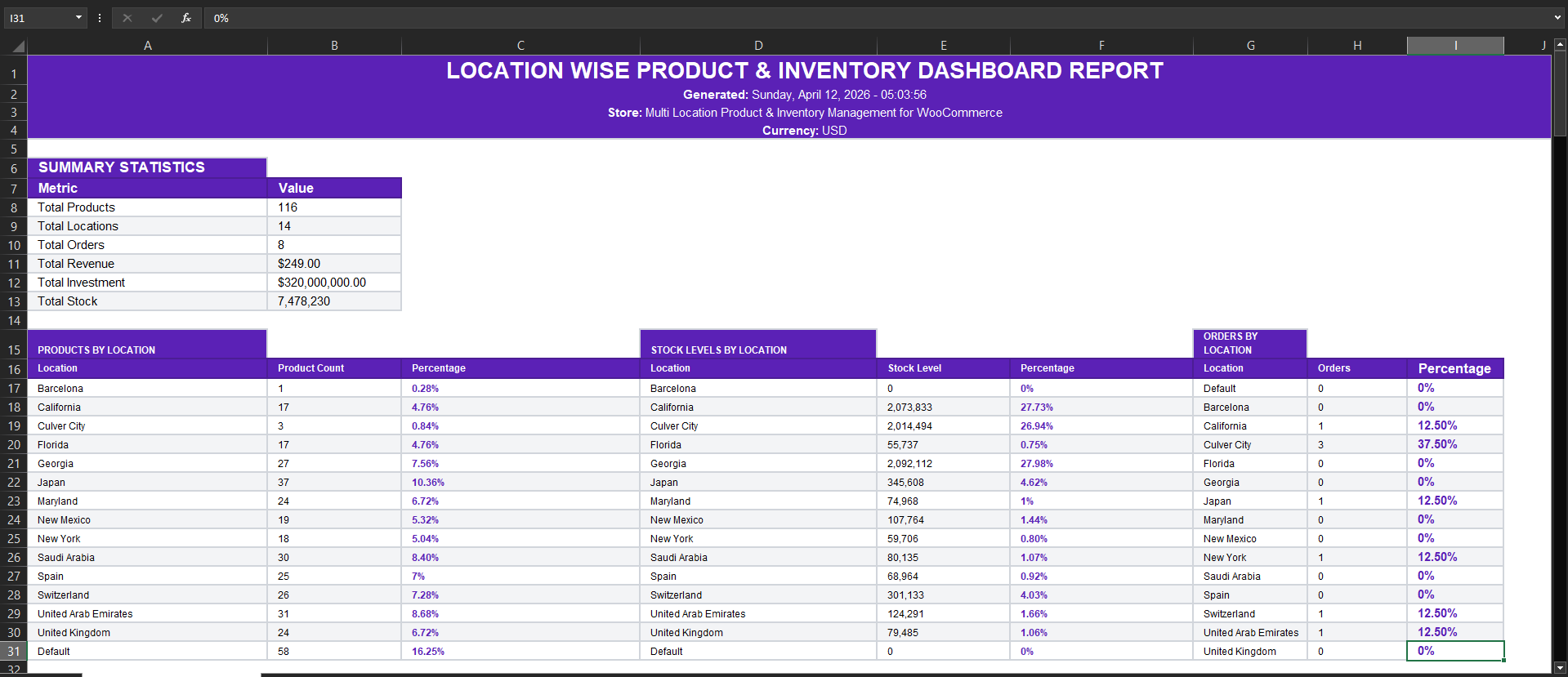
Recommended Reporting Cadence
Exporting reports regularly helps you stay on top of inventory changes across multiple locations. A simple cadence to follow is:
- Daily: Quick HTML export for store managers to check stock levels.
- Weekly: CSV export for operational teams to analyze sales and restocking needs.
- Monthly: CSV export for finance or business analysis (profit margins, turnover rates).
Suggested image placement:
- A simple infographic or calendar-style visual showing Daily → Weekly → Monthly export cycles.
Workflow Summary
- Go to the plugin dashboard.
- Select Export.
- Choose either CSV or HTML depending on your needs.
- Save or share the file with your team.