
All sections
IntroductionGetting StartedLocation ManagementDisplay LocationShortcodes ReferenceLocation ArchiveLocation base Product DisplayOrder & CartUI CustomizationPayment & ShippingTax & DiscountLocation based reviewSEOEmail & NotificationUser ExperienceStore locator mapReports & AnalyticsInvestment CalculationRole Management and Access ControlDashboardStock CentralProduct FilterAdvanced SettingsImport & ExportAPI & Webhooks IntegrationDebuging / Troubleshooting
On this page
Each store can have its own page in your shop, listing that store’s products and details. This PRO guide shows how to turn the pages on and find them. You can see a store page on the live demo.
Turn it on
- Go to Location Manage > Settings > Location Info Management and find Location URL Settings.
- Turn on Enable Location in URLs.
- Choose a URL Location Format, as our guide to location URL settings explains.
- Click Save Changes.
- Go to Location Manage > Locations, hover over a store and click View.
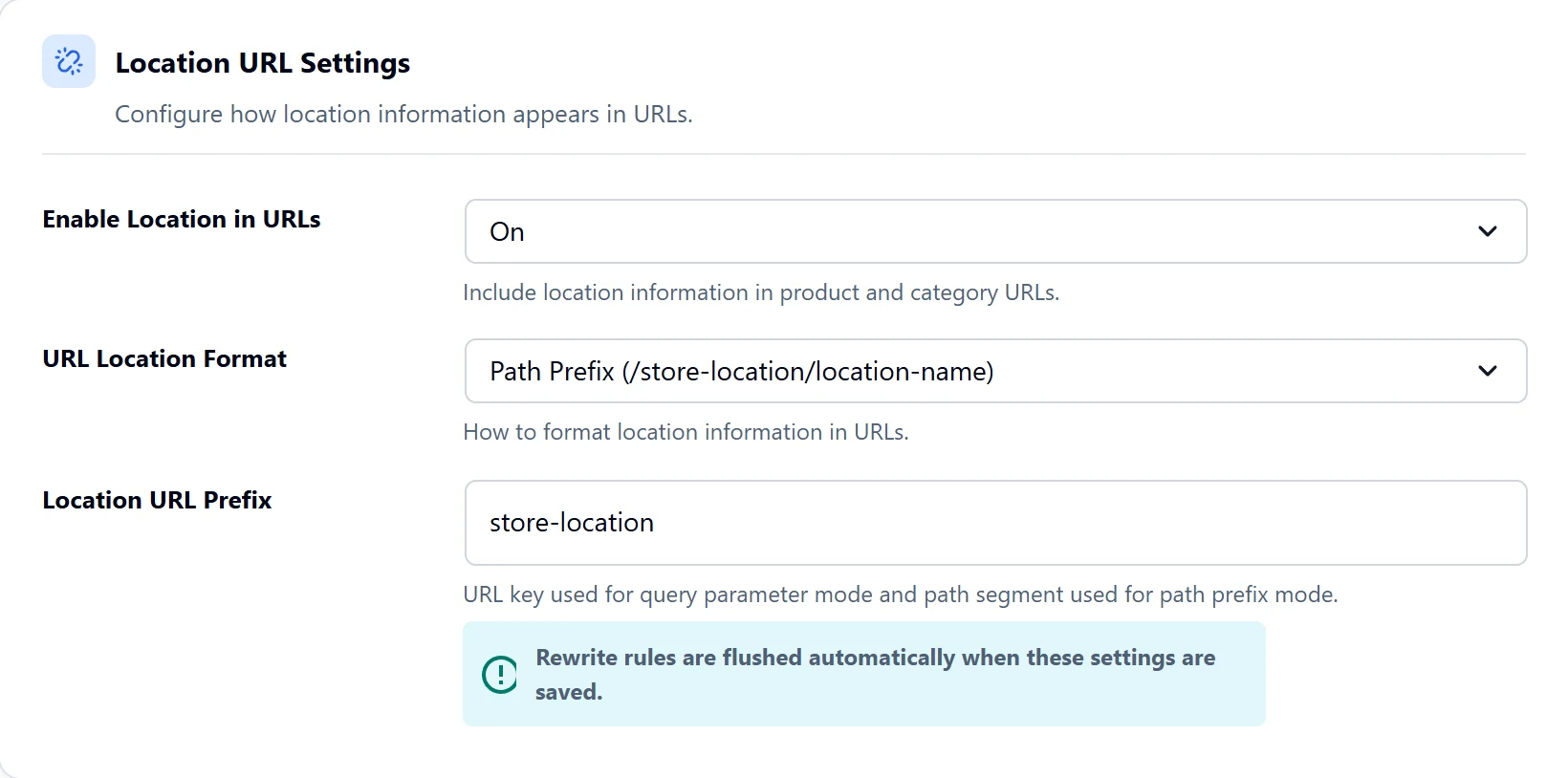
While Enable Location in URLs is off, stores have no public page, so the View link does not appear.
WordPress refreshes its address rules when you save. If a store page shows “Page not found”, go to Settings > Permalinks and click Save Changes once.
Tips
- Keep store slugs short and clear, such as
new-york. - Open a few store pages to check them.
- Add store pages to your menu under Appearance > Menus.
The store page guide explains what the page shows.