
The Multi Location Product & Inventory Management for WooCommerce plugin relies on the location selector to let customers choose their preferred store or warehouse. If the selector is not working, it can disrupt checkout and inventory logic. Below are the most common causes and detailed fixes.
Common Causes and Fixes
1. Shortcode Placement Issues
Cause:
The location selector is powered by a shortcode. If the shortcode is missing, placed incorrectly, or embedded in a non‑compatible block, the selector will not appear or function.
Fix:
- Verify that the shortcode
[mulopimfwc_store_location_selector]is placed in the correct page or block. - Ensure it is inside a WooCommerce‑compatible area (e.g., shop page, header, or checkout block).
- Avoid placing the shortcode inside custom HTML widgets that strip scripts.
- Test by moving the shortcode to a simple page to confirm it renders correctly.
2. Single Product Page Display
Cause:
The location selector may not appear on single product pages if the display option is disabled or the product is not assigned to locations.
Fix:
- From your WordPress Admin Dashboard, go to Location Manage → Settings → Location Info Management
- Look for the section named Location Selection Display.
- Enable the option Display Location on Single Product.
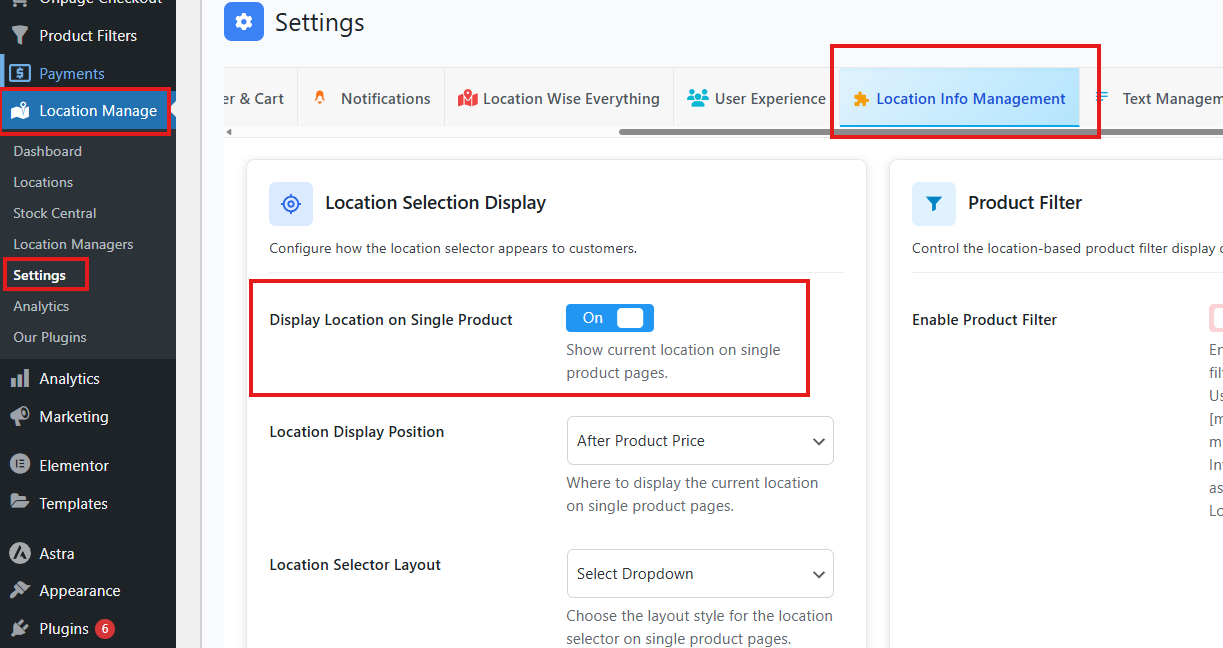
- Click Save Changes.
- Make sure the product is assigned to one or more locations.
- Choose how the location selector should appear on the product page using the Location Selector Layout:
- List View: Shows all available locations in a list format.
- Button Style: Displays each location as an individual button.
- Select Dropdown: Provides a dropdown menu for selecting a location.
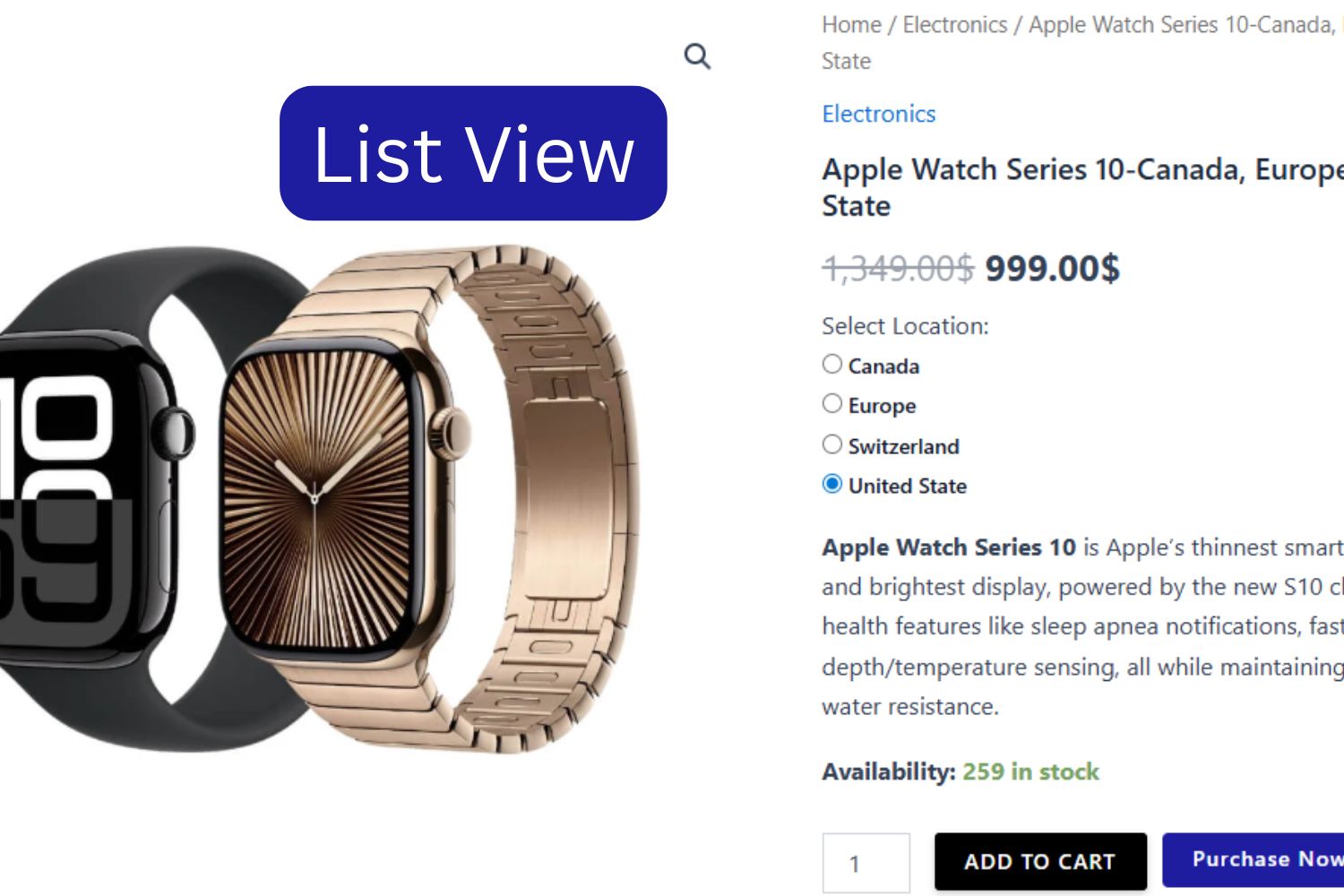
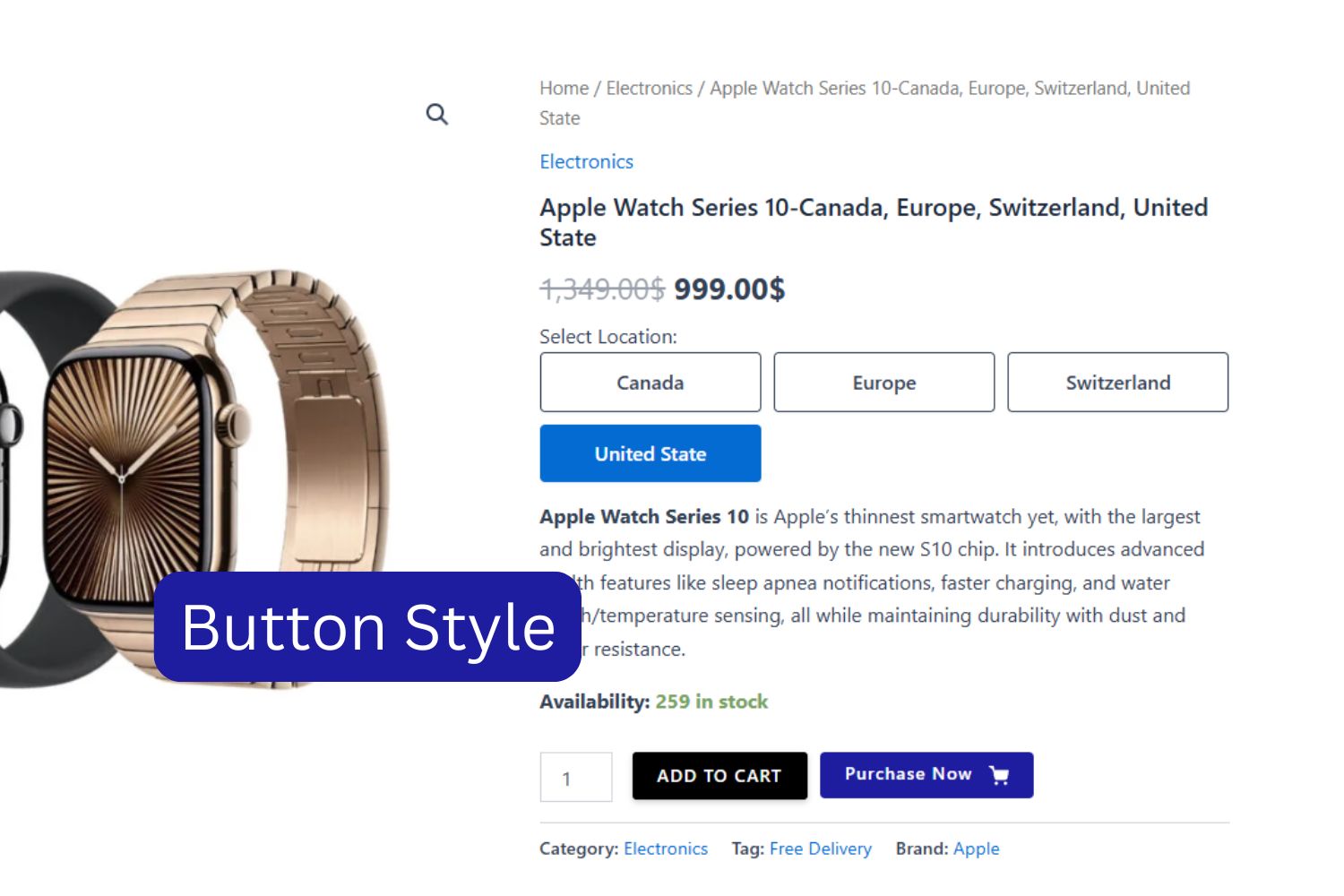
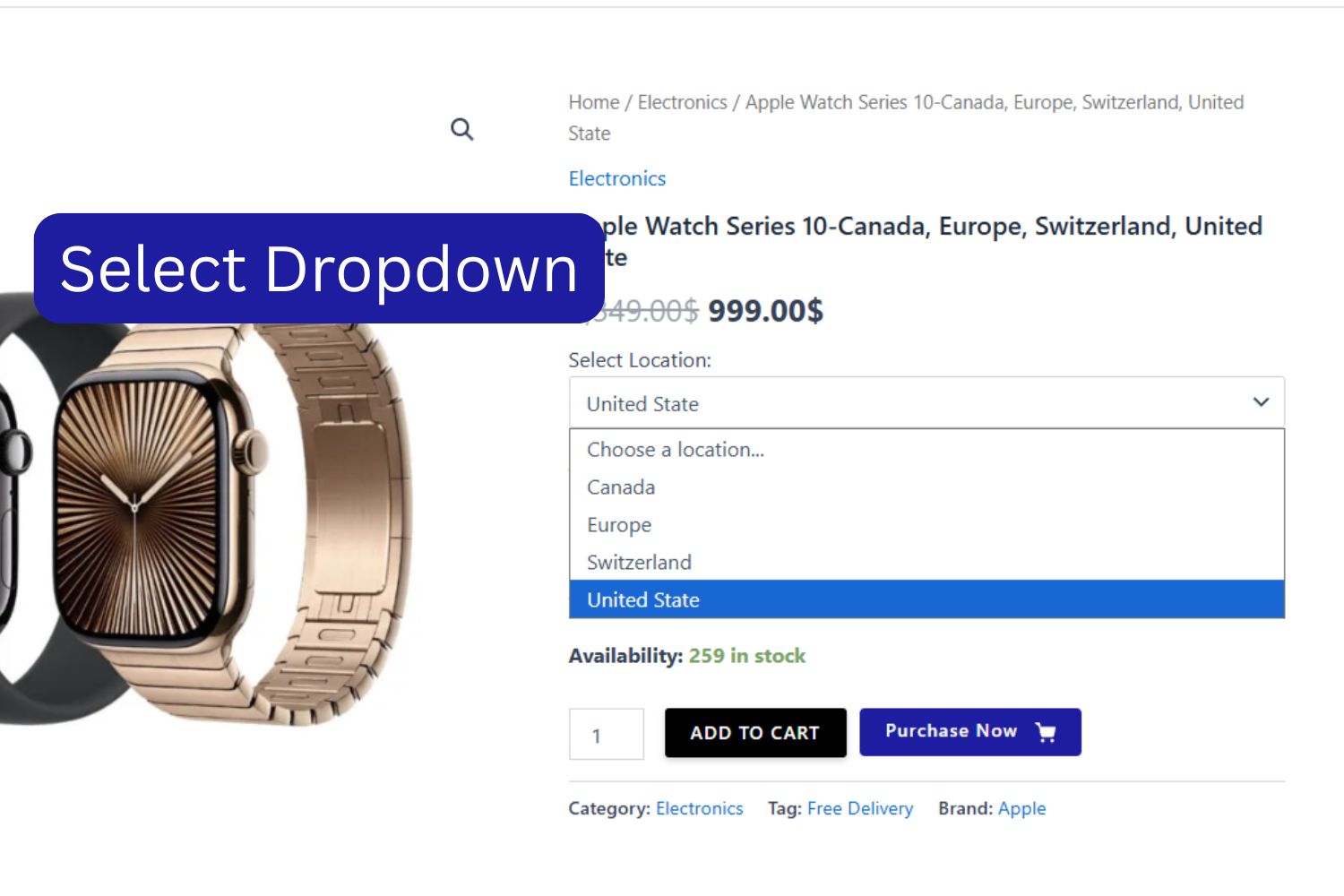
This ensures customers can see and select store locations directly on the product page.
3. Cache Problems
Cause:
Caching plugins, server‑side caching, or CDN services may serve outdated versions of the page, preventing the selector from updating when customers change locations.
Fix:
- Clear WordPress cache from your caching plugin.
- Purge CDN cache (e.g., Cloudflare).
- Clear browser cache and cookies.
- Exclude the location selector page from caching rules to ensure fresh data loads every time.
4. JavaScript (JS) Conflicts
Cause:
Other plugins or themes may load JavaScript that interferes with the selector’s scripts, causing it to freeze or disappear.
Fix:
- Open your browser’s developer console (F12 → Console tab) and check for JS errors.
- Disable other plugins one by one to identify conflicts.
- Switch temporarily to a default WordPress theme (e.g., Twenty Twenty‑Four) to test.
- Once identified, adjust script loading order or contact the conflicting plugin/theme developer.
5. Cookie Issues
Cause:
The plugin uses cookies to remember the customer’s selected location. If cookies are blocked, disabled, or misconfigured, the selector may not save or display correctly.
Fix:
- Ensure cookies are enabled in the browser.
- Check if a cookie consent plugin is blocking the location selector cookies.
- Verify SSL/HTTPS settings — insecure cookies may be rejected.
- Clear cookies and test again.
6. Theme Conflicts
Cause:
Some themes override WooCommerce templates or checkout blocks. This can break the location selector’s display or functionality.
Fix:
- Switch to a default WordPress theme to confirm if the issue is theme‑related.
- Review your theme’s WooCommerce template overrides.
- Update your theme to the latest version.
- Contact the theme developer for compatibility fixes.
Step‑by‑Step Troubleshooting Flow
- Check shortcode placement — confirm it is added correctly.
- Enable single product display — verify location dispaly is enabled for single product page.
- Clear cache — WordPress, browser, and CDN.
- Check JavaScript console — look for errors.
- Test cookies — enable, clear, and verify HTTPS.
- Switch theme — rule out theme conflicts.
- Disable other plugins — identify conflicts.
- Update everything — WordPress, WooCommerce, plugin, and theme.
- Re‑test location selector on shop and product pages.
Best Practices
- Always keep the plugin, WooCommerce, and WordPress updated.
- Place the location selector shortcode only in recommended areas.
- Enable single product display if you want customers to select locations per product.
- Use staging environments to test updates before applying them to your live store.
- Document changes made during troubleshooting for future reference.
- If issues persist, contact the plugin’s support team with details (errors, screenshots, steps taken).