
Location-Based Product Order controls how products are ordered and prioritized in your shop when using multiple locations. This allows you to decide whether location-specific products or global products appear first—creating a clearer and more relevant shopping experience for customers.
What Are Global vs. Location Products?
- Location Products
Products assigned to one or more specific locations. - Global Products
Products not assigned to any location and available everywhere.
Configure Location-Based Product Order
Follow the steps below to control product ordering and visibility:
- Go to Location Manage → Settings
- Open the Product Visibility section
- Find the Product Visibility Rules panel
Show Global Products
Show Global Products
- ON
Products that are not assigned to any location will still appear in the store. - OFF
Only products assigned to the selected location will be shown.
🔎 Use Case
Enable this if you sell items that are available in all locations (e.g. digital products or universally stocked items).
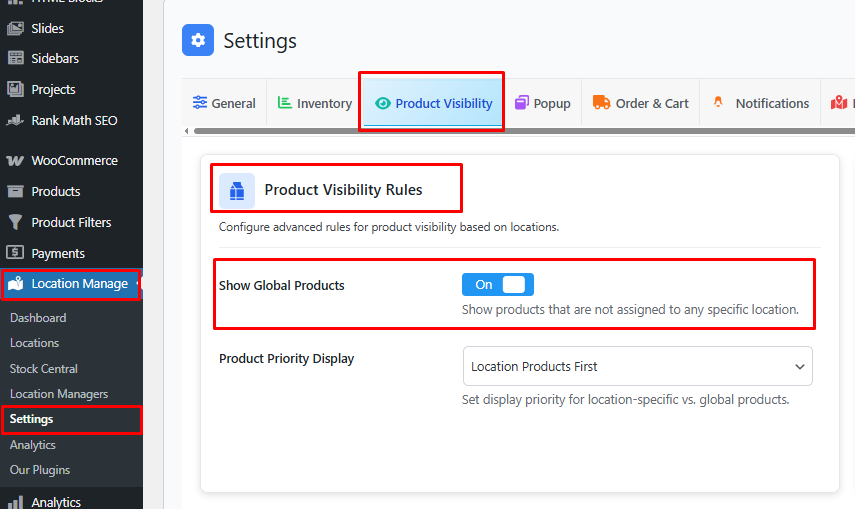
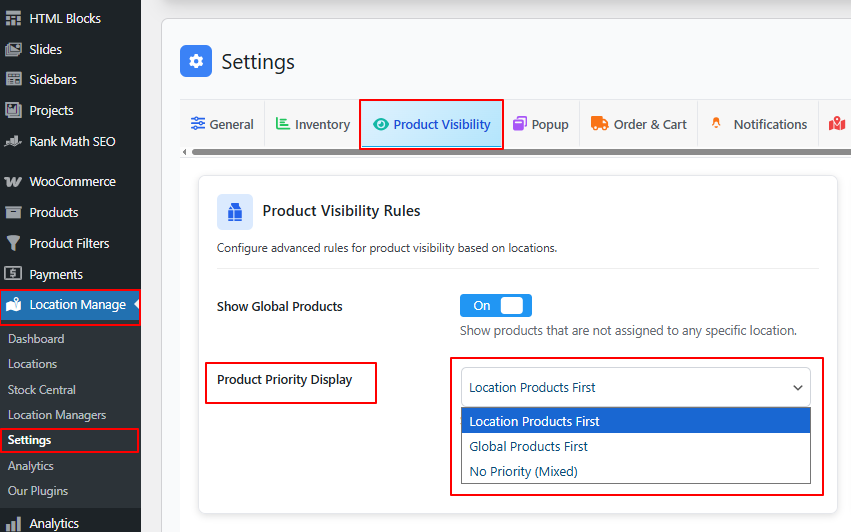
Product Priority Display
Choose how products are ordered when both location-based and global products are visible.
Priority Options
- Location Products First
Products assigned to the selected location appear at the top of listings. - Global Products First
Global (non-location) products appear before location-specific products. - No Priority (Mixed)
Products are displayed together without priority, following default WooCommerce sorting.
Where This Ordering Applies
These rules affect product display across:
- Shop page
- Category pages
- Search results
- Product loops (themes, widgets, blocks)
(Works together with Location-Based Product Filtering settings)
Save & Test Product Order
- Click Save Changes
- Select a location on the frontend
- Visit:
- Shop page
- Category pages
- Confirm that products appear in the expected order based on your priority settings
Best Practices
- Use Location Products First for physical stores and warehouses
- Enable Show Global Products for items available everywhere
- Avoid Mixed priority if you want clear location relevance
- Test ordering with multiple locations selected
With Location-Based Product Order, you can fully control how products are prioritized and displayed—ensuring customers see the most relevant items first based on their selected location.