
Cart Settings control how the cart behaves when the same product is available in more than one inventory location (example: multiple warehouses or stores).
How to Access
To configure this feature:
- Go to Location Manage → Settings → Order & Cart
- Then find Cart Settings
Allow Location Change in Cart (On/Off)
Allows customers to change the selected location for a product directly from the cart, only when that product is available in multiple locations.
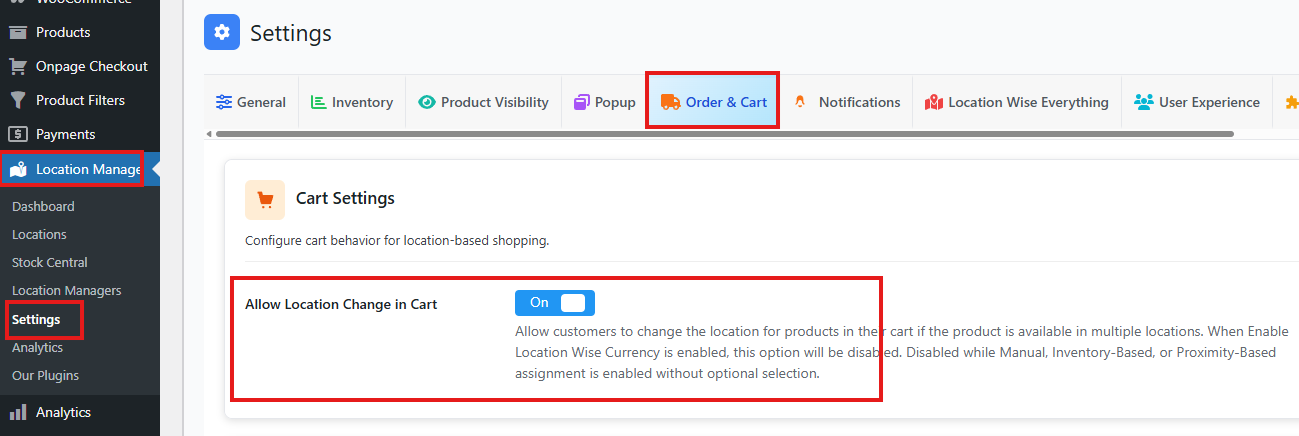
Options
- On: Customers can switch the product’s location in the cart (if multiple locations have that product).
- Off: Customers cannot change the location from the cart. The location stays fixed once selected.
How it works
When this setting is On
- Customer adds a product to the cart.
- If the product is stocked in more than one location, the cart shows an option to change the location.
- Customer selects a different location.
- The cart updates based on the chosen location’s availability.
Example
A product is available in:
- Dhaka Warehouse: In stock
- Chattogram Store: In stock
The customer can switch between these locations from the cart.
When this setting is Off
- The cart will not show a location switch option.
- If the customer wants a different location, they must go back and select it using the store’s location selection flow (depends on your setup).
Important notes
- This option works only if the product exists in more than one location.
- If the customer switches to a location where the product is out of stock, the cart may block the change or show an out-of-stock message (based on how your store is configured).
- This setting is especially helpful when one location runs out and the customer wants the same item from another location without starting over.
Recommended use
- Turn On if you want customers to fix availability issues quickly without leaving the cart.
- Keep Off if you want strict control and prefer customers to shop from one fixed location.