
Text Management lets you change all customer facing labels, buttons, and messages from one place. Each group matches a place on your store, like the location popup, product page, cart, and checkout.
Access the Text Management
- From your WordPress dashboard, go to Location Manage → Settings.
- In the settings panel, open the Text Management tab
- Enable Tax Management
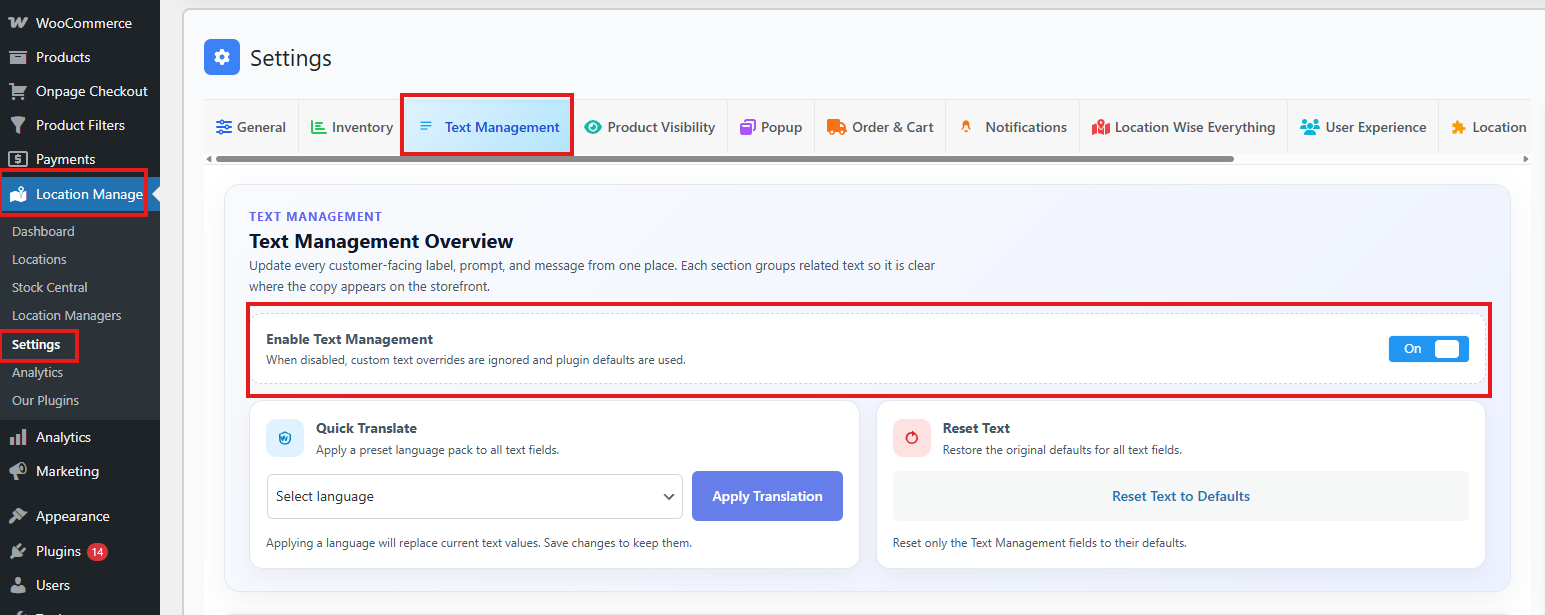
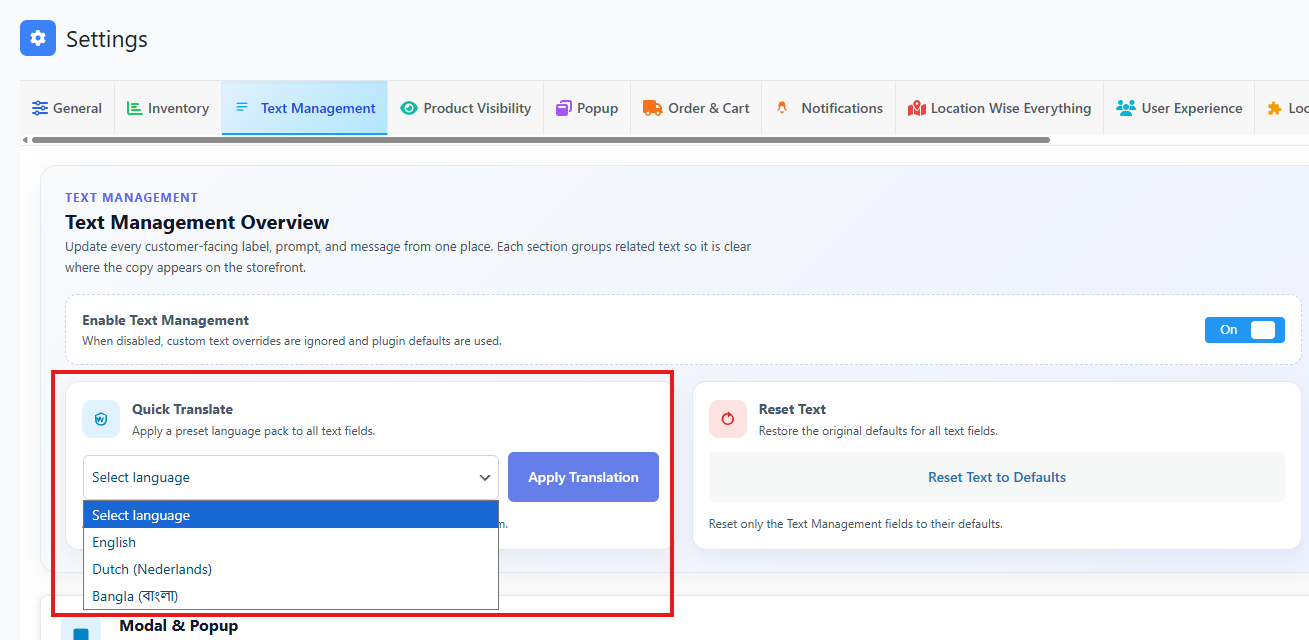
Quick Translate
Quick Translate applies a preset language pack to all text fields.
Steps
- Select a language from Select language.
- Click Apply Translation.
- Save changes to keep it.
Important note
Applying a language pack replaces your current text values. If you already customized the wording, those edits will be overwritten.
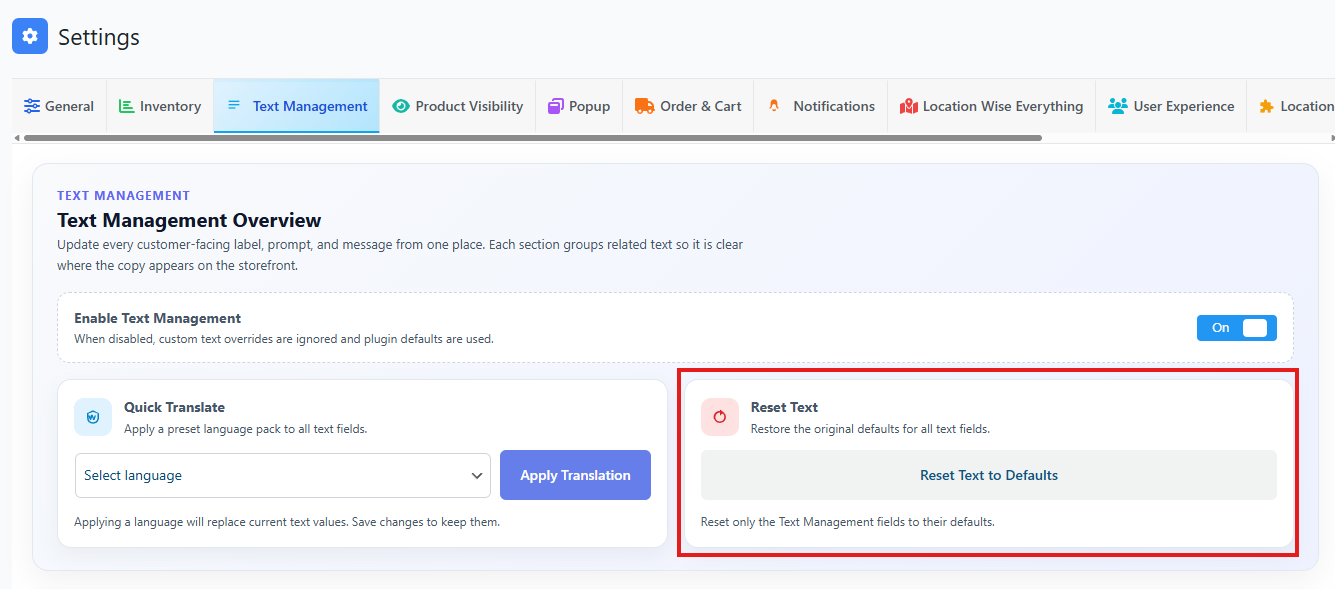
Reset Text
Reset Text to Defaults restores the original default text for only the fields inside Text Management.
When to use it
- If text got messy after testing
- If you want to start fresh
- If a translation was applied by mistake
Placeholders you must keep
Some fields include placeholders like:
- %s for text values (example: location name, item names, time)
- %d for numbers (example: views, purchases, location count)
Do not remove these. You can move them in the sentence if needed, but keep them.
Examples:
Location changed to: %sOur Locations (%d)Closes at %s
Sections and Fields
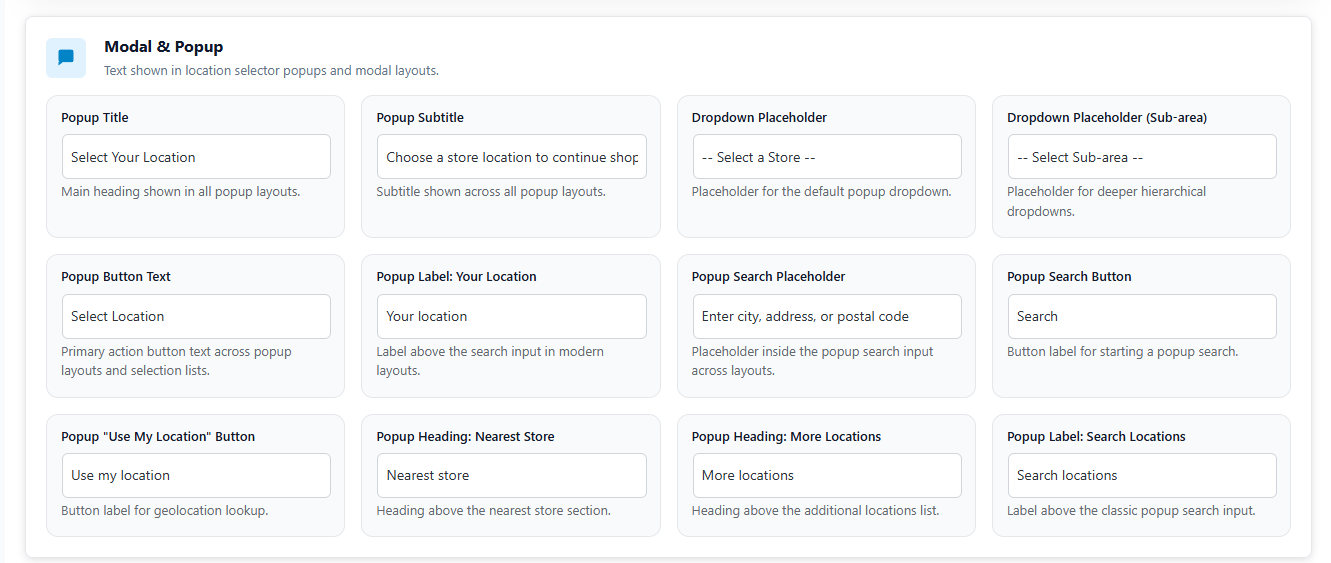
1) Modal & Popup
Text shown in the location selector popup and modal layouts.
- Popup Title: Main heading in the popup (example: “Select Your Location”).
- Popup Subtitle: Short line under the title that explains what to do.
- Dropdown Placeholder: Placeholder inside the main dropdown.
- Dropdown Placeholder (Sub-area): Placeholder for deeper dropdowns when locations have sub areas.
- Popup Button Text: Main action button label (example: “Select Location”).
- Popup Label: Your Location: Label shown above the search input in modern layouts.
- Popup Search Placeholder: Placeholder text inside the search input.
- Popup Search Button: Button label for running a search.
- Popup “Use My Location” Button: Button label for automatic location detection.
- Popup Heading: Nearest Store: Heading shown above nearest store results.
- Popup Heading: More Locations: Heading shown above the rest of the locations.
- Popup Label: Search Locations: Label above the classic search input.
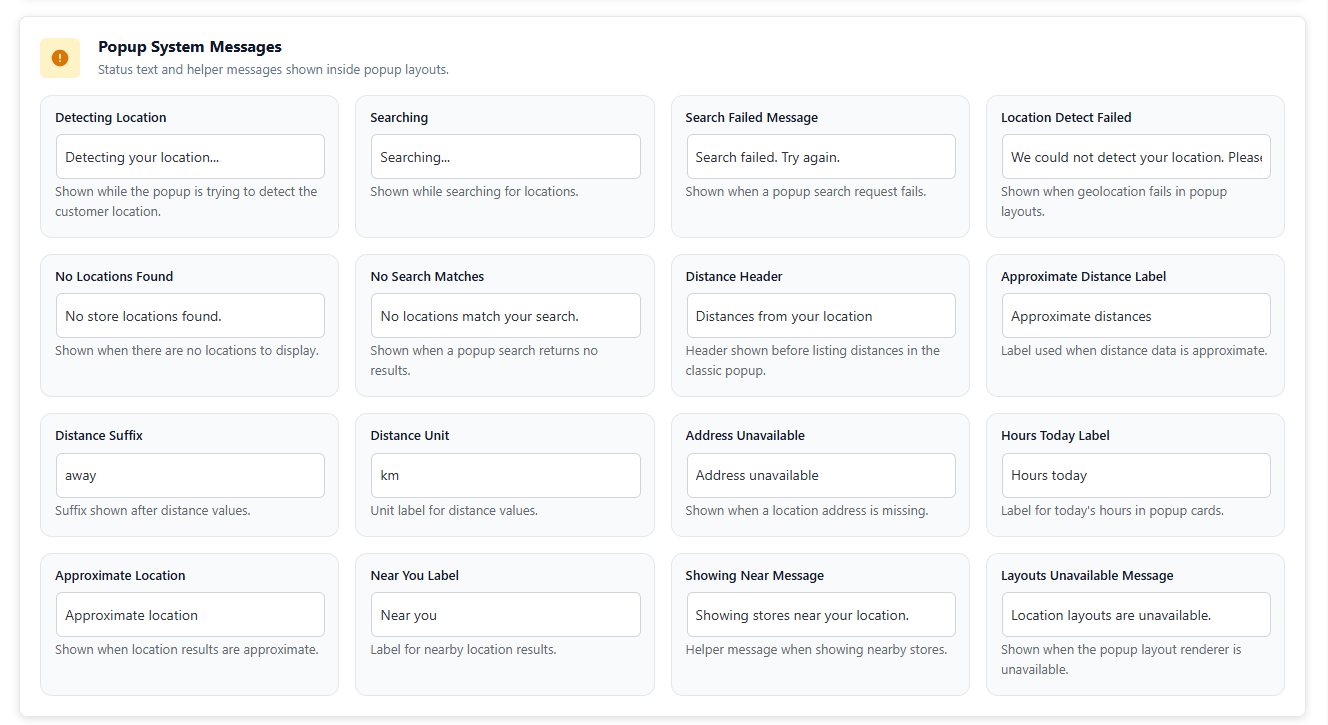
2) Popup System Messages
Status and helper messages shown inside popup layouts.
- Detecting Location: Shown while detecting a customer location.
- Searching: Shown while searching for locations.
- Search Failed Message: Shown when a search request fails.
- Location Detect Failed: Shown when auto detection fails and customer should search manually.
- No Locations Found: Shown when there are no locations to display.
- No Search Matches: Shown when nothing matches the search keyword.
- Distance Header: Heading shown before distance list (classic layout).
- Approximate Distance Label: Label used when distances are not exact.
- Distance Suffix: Word shown after distance value (example: “away”).
- Distance Unit: Unit label (example: “km”).
- Address Unavailable: Shown when a location address is missing.
- Hours Today Label: Label for today’s hours inside popup cards.
- Approximate Location: Shown when search results are approximate.
- Near You Label: Label for nearby results.
- Showing Near Message: Helper line when showing nearby stores.
- Layouts Unavailable Message: Shown if popup layout renderer is not available.
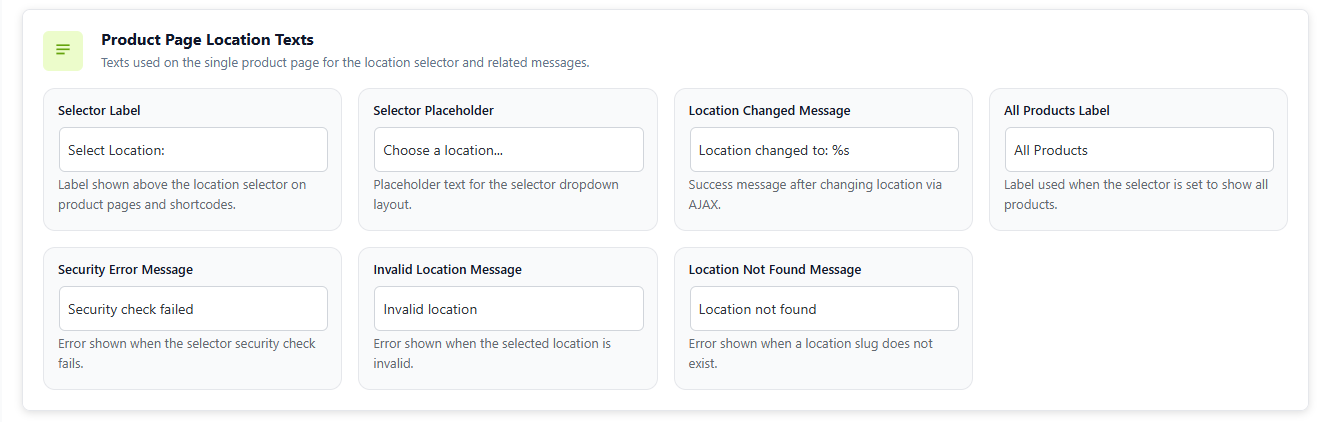
3) Product Page Location Texts
Texts used on the single product page location selector and related messages.
- Selector Label: Label above the selector (example: “Select Location:”).
- Selector Placeholder: Placeholder for selector dropdown (example: “Choose a location…”).
- Location Changed Message: Success message after changing location via AJAX. Keep
%s. - All Products Label: Label when showing all products.
- Security Error Message: Shown when security check fails.
- Invalid Location Message: Shown when selected location is not valid.
- Location Not Found Message: Shown when location slug does not exist.
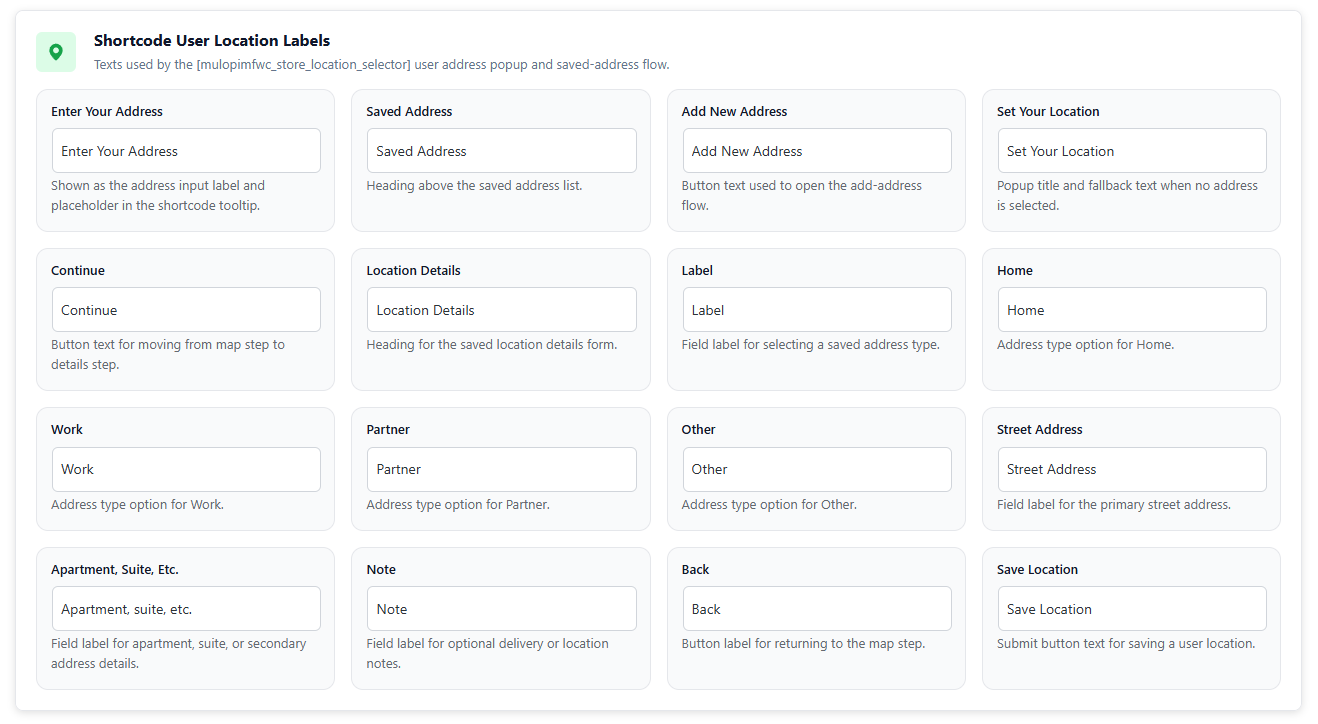
4) Shortcode User Location Labels
Texts used by the shortcode location selector and saved address flow.
- Enter Your Address: Label and placeholder for address input.
- Saved Address: Heading above saved address list.
- Add New Address: Button to add a new saved address.
- Set Your Location: Popup title and fallback when no address is selected.
- Continue: Button label to move to the next step.
- Location Details: Heading for details form.
- Label: Field label for address type selection.
- Home / Work / Partner / Other: Address type options.
- Street Address: Main address field label.
- Apartment, Suite, Etc.: Secondary address field label.
- Note: Optional note field label.
- Back: Button to return to previous step.
- Save Location: Button label to save the address.
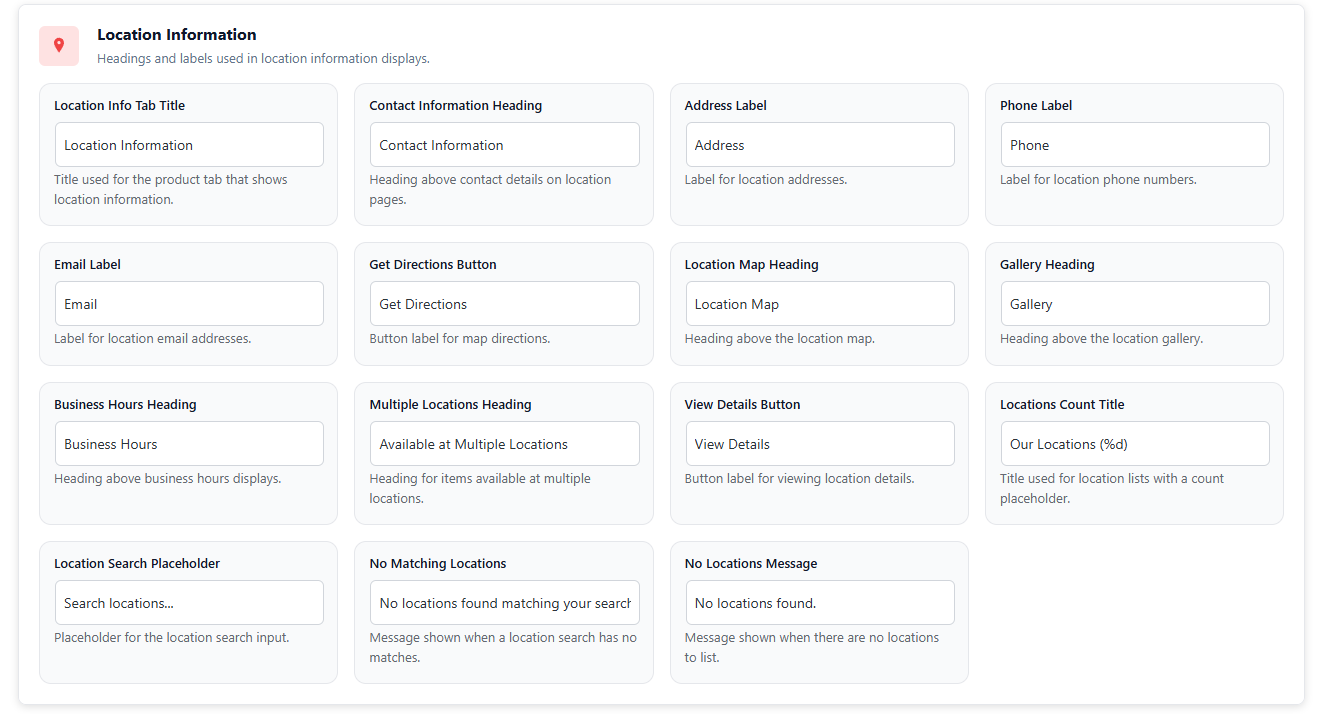
5) Location Information
Headings and labels used in location information displays.
- Location Info Tab Title: Title of the product tab for location info.
- Contact Information Heading: Heading above contact details.
- Address Label / Phone Label / Email Label: Labels for contact fields.
- Get Directions Button: Button label for map directions.
- Location Map Heading: Heading above map section.
- Gallery Heading: Heading above gallery section.
- Business Hours Heading: Heading above business hours section.
- Multiple Locations Heading: Heading for items available in more than one location.
- View Details Button: Button for viewing full location details.
- Locations Count Title: Location list title with count. Keep
%d. - Location Search Placeholder: Placeholder for location search input.
- No Matching Locations / No Locations Message: Messages shown when nothing is found.
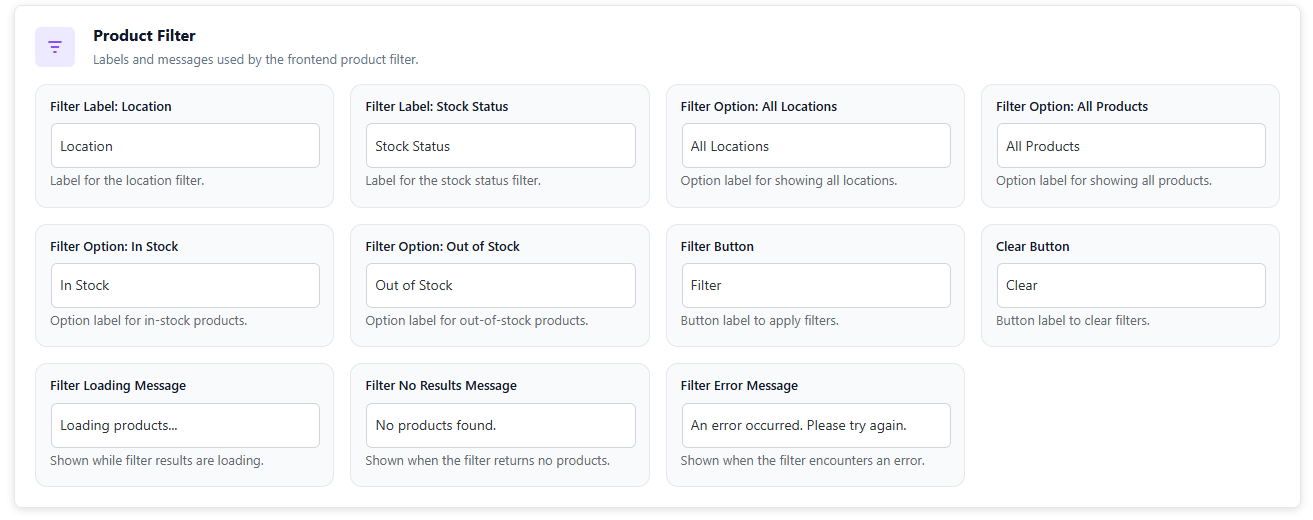
6) Product Filter
Labels and messages used by the frontend product filter.
- Filter Label: Location: Label for location filter.
- Filter Label: Stock Status: Label for stock status filter.
- Filter Option: All Locations / All Products: Default options.
- Filter Option: In Stock / Out of Stock: Stock options.
- Filter Button / Clear Button: Button labels.
- Filter Loading Message: Shown while products load.
- Filter No Results Message: Shown when no products match.
- Filter Error Message: Shown when filter fails.
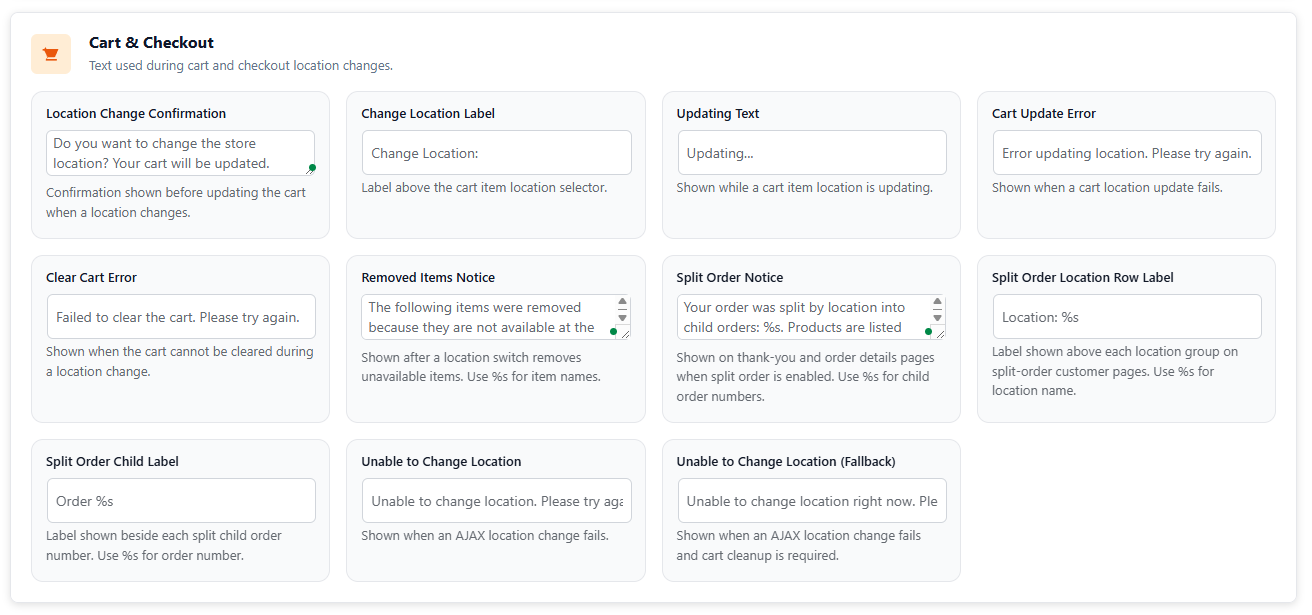
7) Cart & Checkout
Text used during cart and checkout location changes.
- Location Change Confirmation: Confirmation before changing store location.
- Change Location Label: Label above cart item location selector.
- Updating Text: Shown while updating cart.
- Cart Update Error: Shown when cart update fails.
- Clear Cart Error: Shown when cart cannot be cleared during location change.
- Removed Items Notice: Shown after removing unavailable items. Keep
%s. - Split Order Notice: Shown when order is split by location. Keep
%s. - Split Order Location Row Label: Label above each location group. Keep
%s. - Split Order Child Label: Label for each child order number. Keep
%s. - Unable to Change Location / Fallback: Shown when location change fails.
8) Reviews
Text used in location based review blocks.
- Reviews Heading: Heading above reviews.
- Recent Reviews Label: Label shown before location name. Keep
%s. - Review Location Label: Label inside each review. Keep
%s.

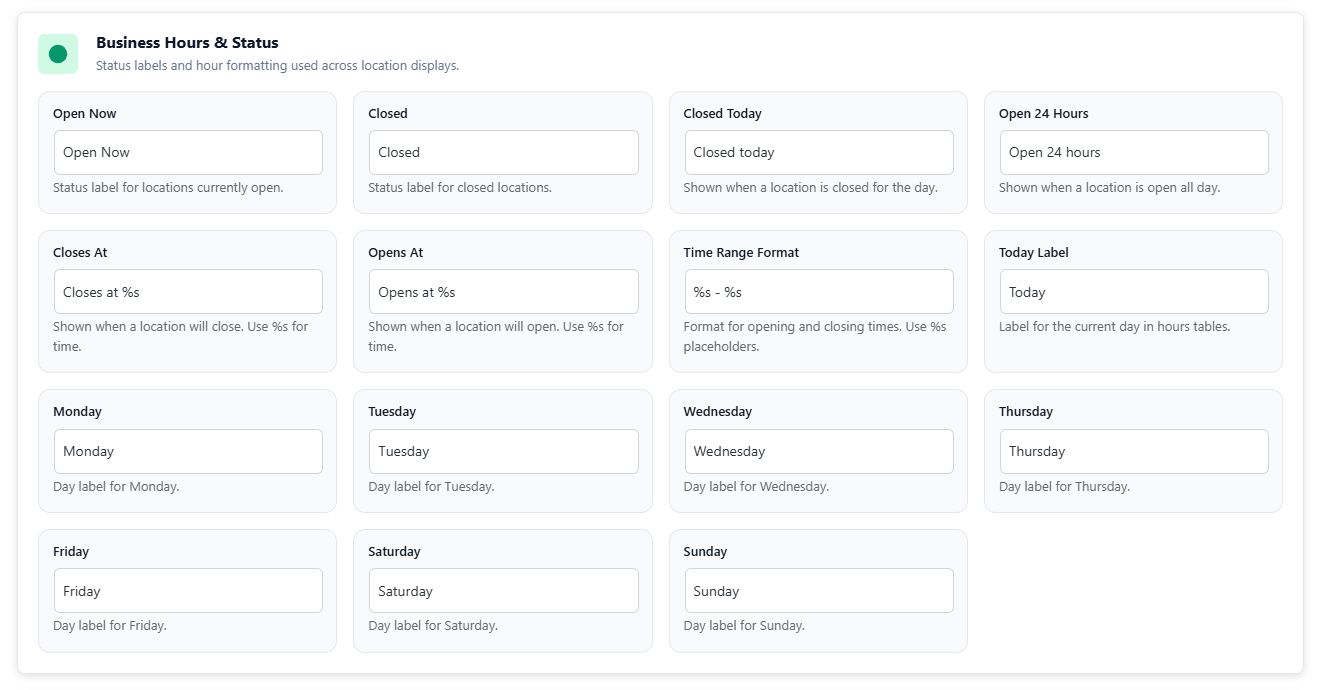
9) Business Hours & Status
Status labels and time formatting used across location displays.
- Open Now / Closed / Closed Today / Open 24 Hours: Status labels.
- Closes At / Opens At: Status text with time. Keep
%s. - Time Range Format: Format for time range. Keep both
%s. - Today Label: Label for current day.
- Monday to Sunday: Day labels.
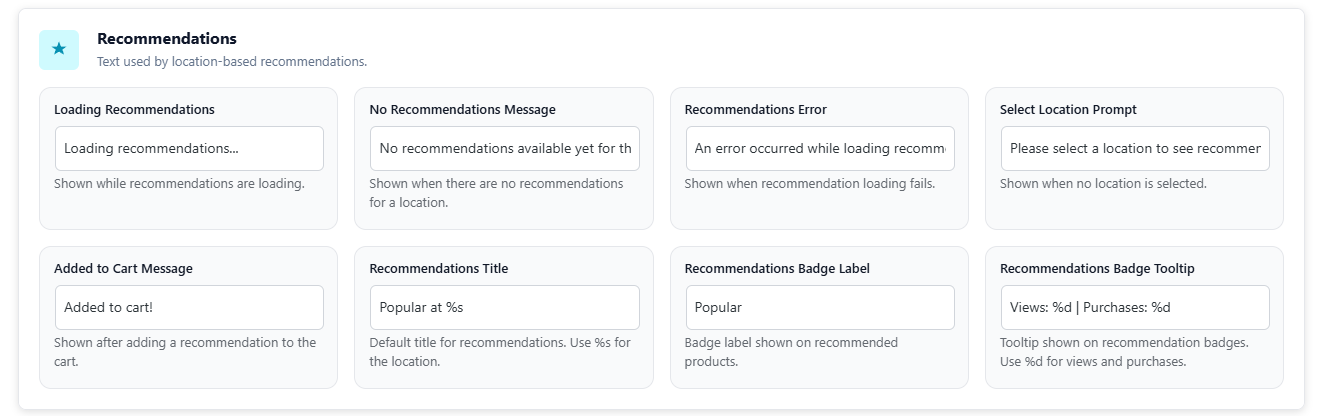
10) Recommendations
Text used by location based recommendations.
- Loading Recommendations: Shown while loading.
- No Recommendations Message: Shown when none available.
- Recommendations Error: Shown on loading errors.
- Select Location Prompt: Shown when location is not selected.
- Added to Cart Message: Shown after adding.
- Recommendations Title: Title with location name. Keep
%s. - Recommendations Badge Label: Badge label.
- Recommendations Badge Tooltip: Tooltip with numbers. Keep
%dvalues.
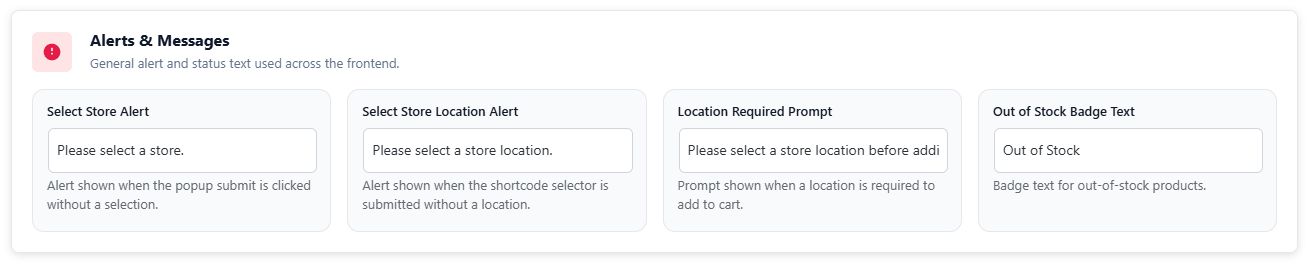
11) Alerts & Messages
General alerts and messages across the frontend.
- Select Store Alert: Shown when popup submit is clicked without a selection.
- Select Store Location Alert: Shown when shortcode is submitted without location.
- Location Required Prompt: Shown when location is required before add to cart.
- Out of Stock Badge Text: Text shown on out of stock badge.
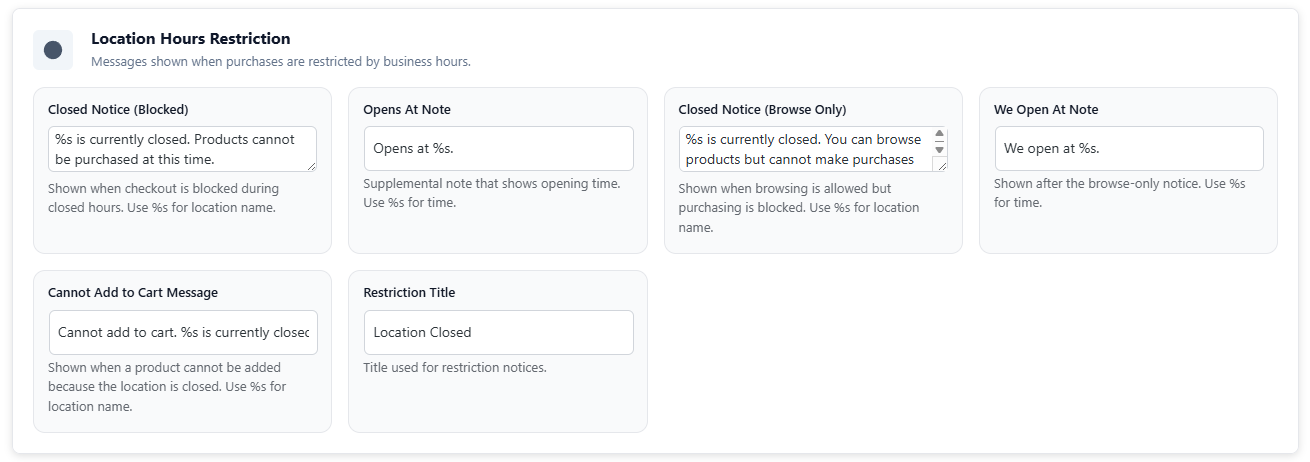
12) Location Hours Restriction
Messages shown when purchases are restricted by business hours.
- Closed Notice (Blocked): Shown when checkout is blocked. Keep
%s. - Opens At Note: Shows opening time. Keep
%s. - Closed Notice (Browse Only): Browse allowed, buying blocked. Keep
%s. - We Open At Note: Shows opening time. Keep
%s. - Cannot Add to Cart Message: Add to cart blocked message. Keep
%s. - Restriction Title: Title for restriction notices.
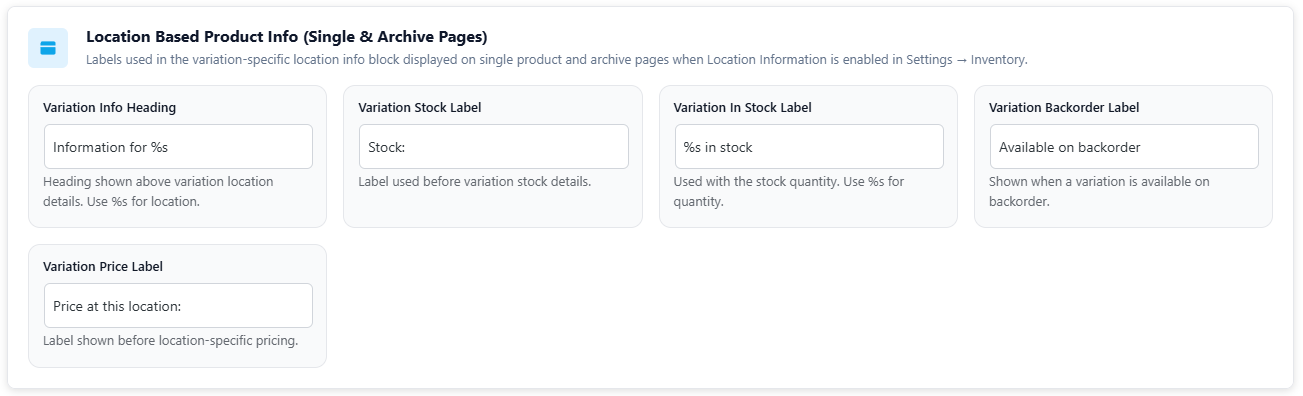
13) Location Based Product Info
Labels used in the variation specific location info block on single and archive pages.
- Variation Info Heading: Heading with variation name. Keep
%s. - Variation Stock Label: Label before stock value.
- Variation In Stock Label: Stock quantity text. Keep
%s. - Variation Backorder Label: Shown when available on backorder.
- Variation Price Label: Label before location specific price.
Text Management helps you control every visible word your customers see, from the location popup to checkout messages. Use Quick Translate for fast language changes, Reset Text if you want to go back to defaults, and always keep %s and %d placeholders so dynamic text like location names and numbers still works.