
In the Multi Location Product & Inventory Management for WooCommerce plugin, Order Splitting is a handy feature that creates separate orders for each location whenever a customer’s cart has items from multiple locations.
Think of it like this: instead of one big order that mixes products from different places, the plugin neatly splits them so each location only handles its own items. This keeps inventory management clean and avoids confusion at checkout.
How to Enable Order Splitting
Before you can turn on Order Splitting, there’s one important step you need to do first: enable the Mixed-Location Cart. Here’s the full process explained simply:
1. Turn on Mixed-Location Cart
- Go to your dashboard and navigate to Location Manage → Settings → Order & Cart.
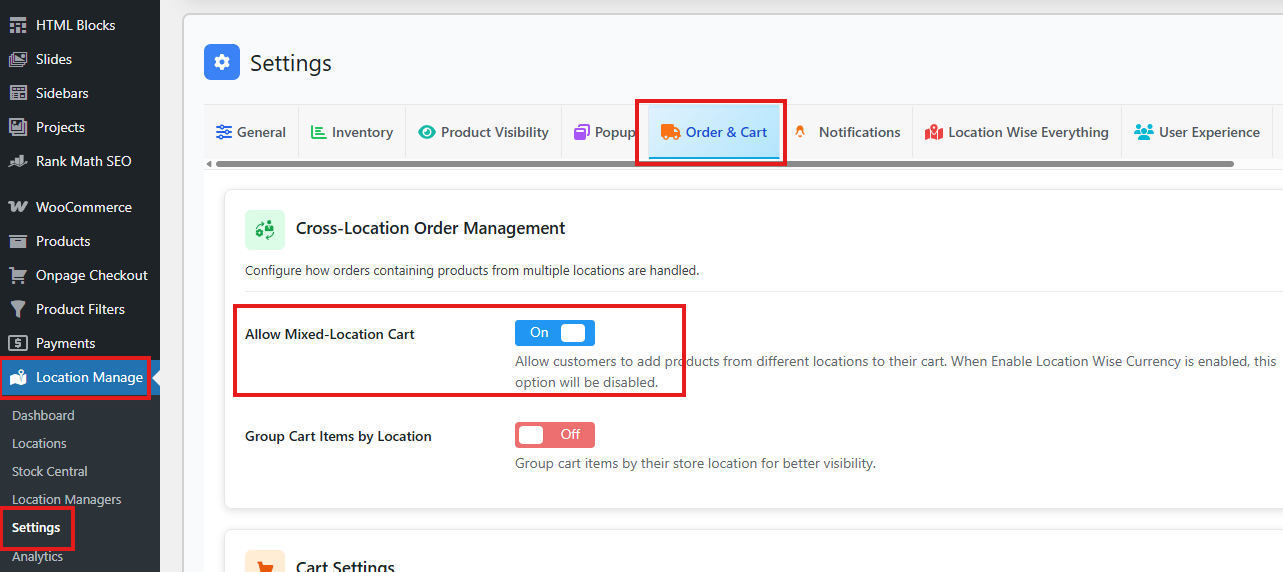
- Scroll down until you see the section called Cross-Location Order Management.
- Here, enable the setting Allow Mixed-Location Cart.
This lets customers add products from different locations into a single cart.
2. Enable Split Order by Location
- Now scroll further down to the section called Checkout Settings.
- You’ll see an option named Split Order by Location. Turn this on.
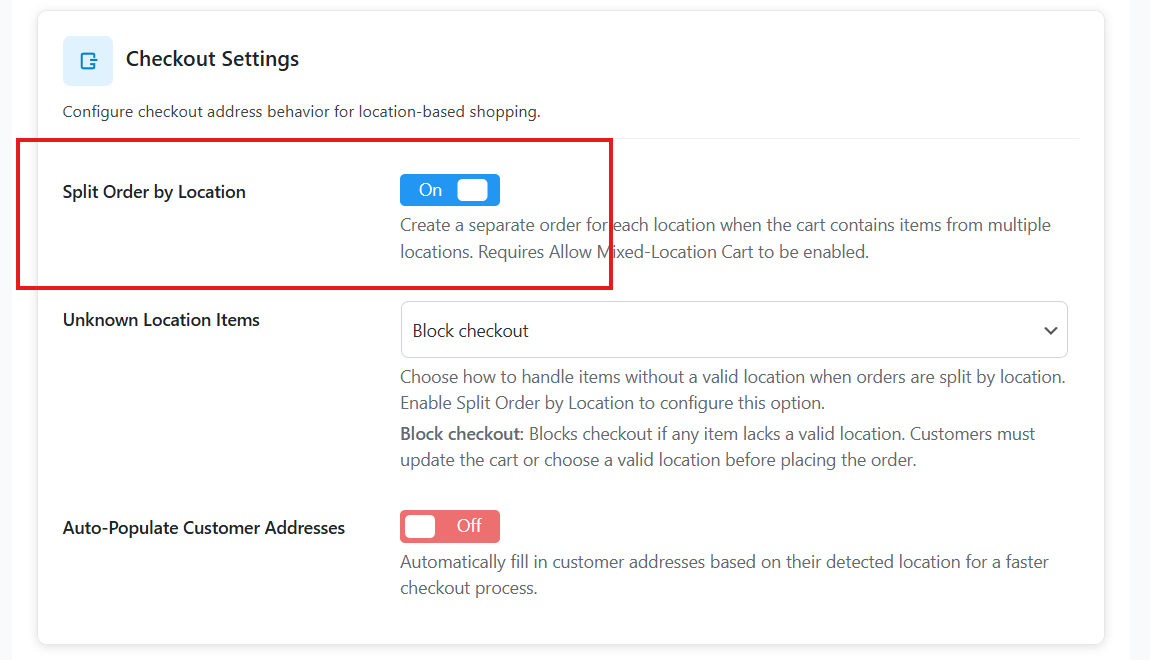
With this enabled, the plugin will automatically split the cart into separate orders by location during checkout.
3. Decide What to Do with Unknown Location Items
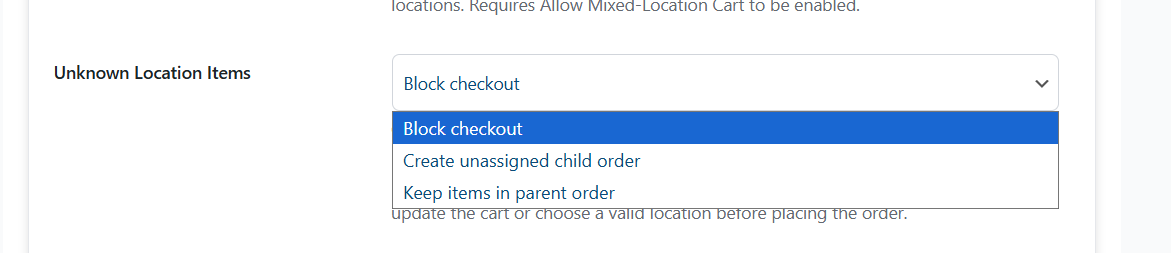
- Still in Checkout Settings, look for the setting called Unknown Location Items.
This is where you choose what happens if a product doesn’t have a valid location assigned. You have three options:
- Block Checkout: Prevents checkout if any item does not have a valid location. Customers must update their cart or assign a valid location before placing the order.
- Create Unassigned Child Order: Items without a valid location are placed into a separate child order, keeping them distinct from location-based orders.
- Keep Items in Parent Order: Items without a valid location remain in the main (parent) order, and checkout proceeds normally.
4. Save Your Changes
Once you’ve set everything the way you want, don’t forget to click Save Changes at the bottom.
Quick Recap
- First, enable Allow Mixed-Location Cart.
- Then, enable Split Order by Location.
- Choose how to handle Unknown Location Items.
- Finally, save your changes.