
The Multi Location Product & Inventory Management for WooCommerce plugin allows admins to assign store locations to multiple orders at once using the bulk assignment feature.
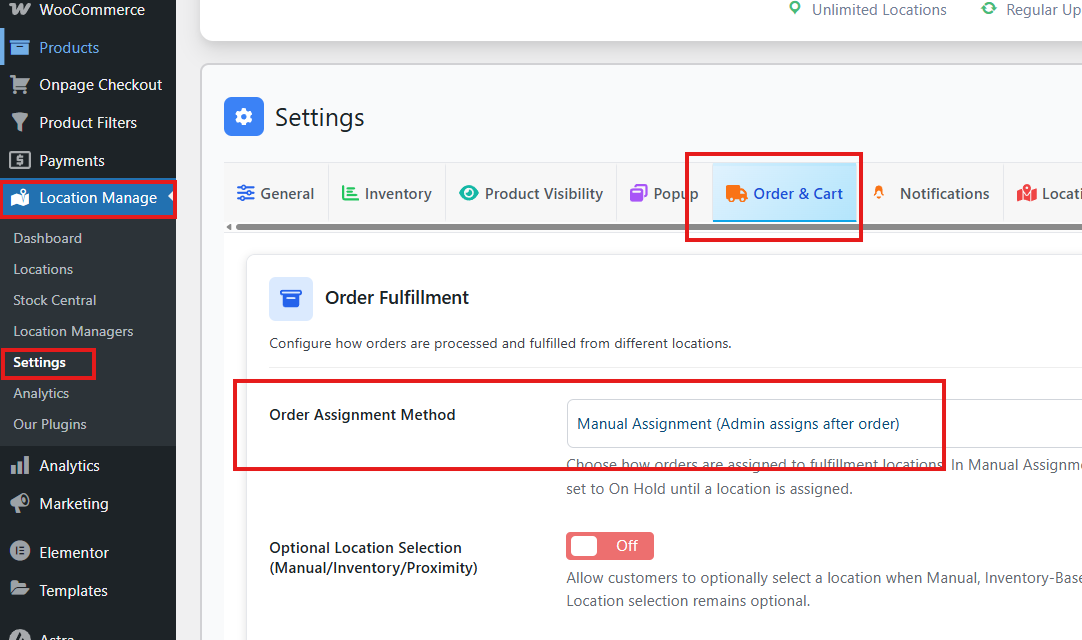
Step 1: Enable Manual Assignment
- Go to Location Manage > Settings > Order & Cart.
- Find the option Order Assignment Method.
- Select Manual Assignment.
- Click Save Changes.
Step 2: Bulk Assign Orders
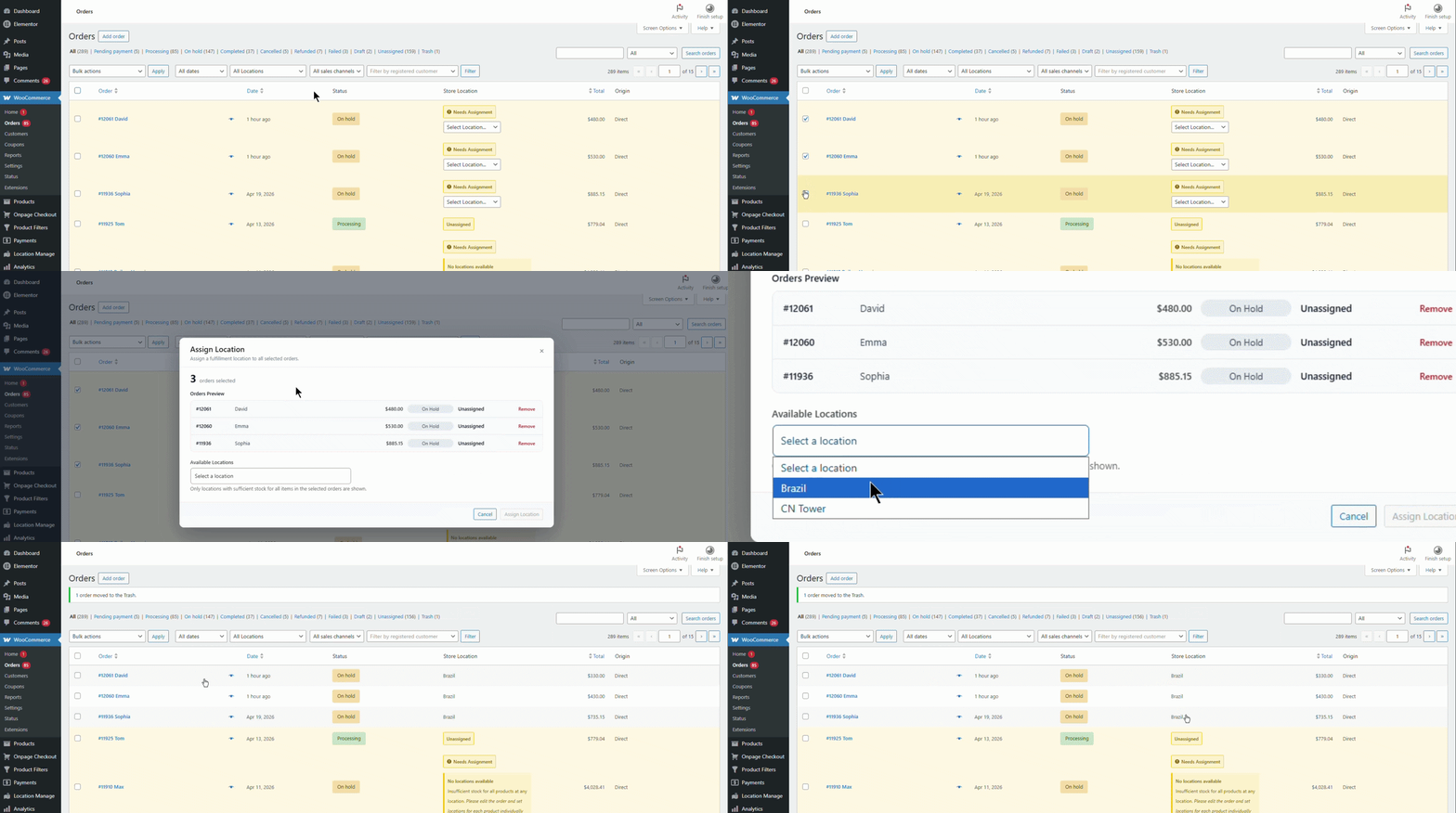
- Go to WooCommerce > Orders in your dashboard.
- Select the orders that show Unassigned Location.
- From the Bulk Actions dropdown, choose Assign Location.
- Click Apply.
- A popup will open showing all selected orders.
- Orders with a common available location will be listed together.
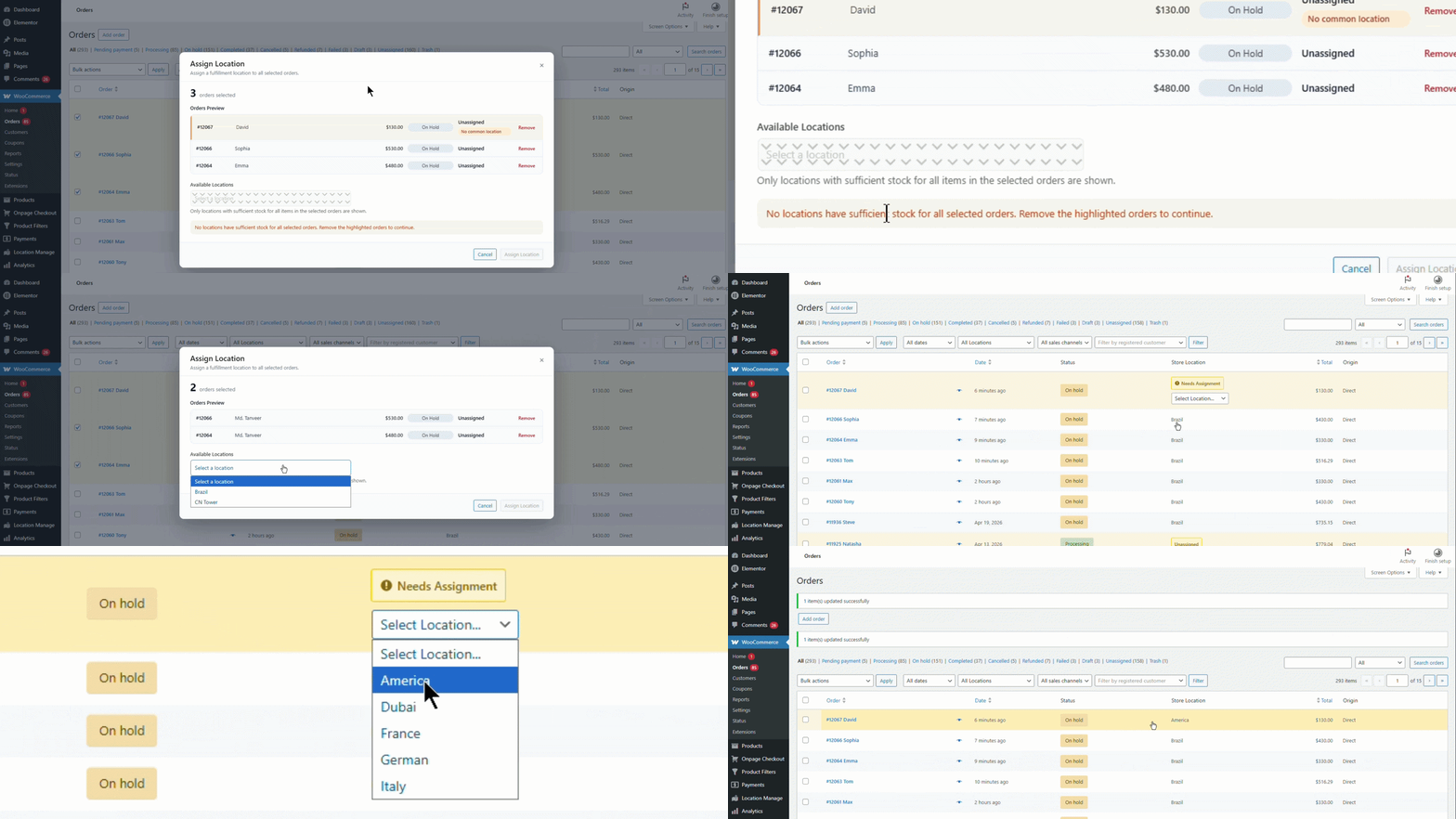
- If any order does not have stock in that location, a warning will appear: No common location.
- You can remove that order to proceed with the rest.
For Common Location
For No Common Location
- From Available Locations, select the location to assign.
- Click Assign Location.
Key Notes
- Bulk assignment works only when Manual Assignment is enabled.
- You can assign locations one by one or in bulk.
- Orders without common stock availability must be removed before assigning.