
For single-product landing pages, the [mulopimfwc_location_selector] shortcode offers a simple way to highlight where a product is available across your store locations. By specifying the product ID, choosing a layout style, and adding a clear label, you can display location options anywhere on your site, helping customers quickly identify which branch carries the product and select their preferred store before checkout.
What is the Location Selector for Specific Product?
The [mulopimfwc_location_selector] shortcode is built for single-product landing pages. Imagine you’ve created a dedicated page for one product — this shortcode lets you show all the store locations where that product is available.
- It displays location options as buttons, lists, or dropdowns.
- Customers can quickly see which branches carry the product.
- You can place it anywhere on your site (landing page, product page, sidebar, etc.).
- To use it effectively, you provide the product ID, choose a layout style, and set a label.
This makes it easy for customers to select a store location before purchasing, improving clarity and user experience.
Step‑by‑Step: How to Use the Shortcode
1. Basic Shortcode
[mulopimfwc_location_selector product_id="123" layout="buttons" label="Select Location:"]
2. Parameters Explained
| Parameter | Values | Description | Example |
|---|---|---|---|
| product_id | Product ID (number) | Shows locations for a specific product. If not provided, auto-detects current product. | product_id="123" |
| layout | list / buttons / select | Choose how the selector is displayed. | layout="buttons" |
| label | Text | Custom label displayed above the selector. | label="Choose Store:" |
Practical Usage Examples
Example 1: Product Landing Page
[mulopimfwc_location_selector product_id="45" layout="list" label="Pick-up location:"]
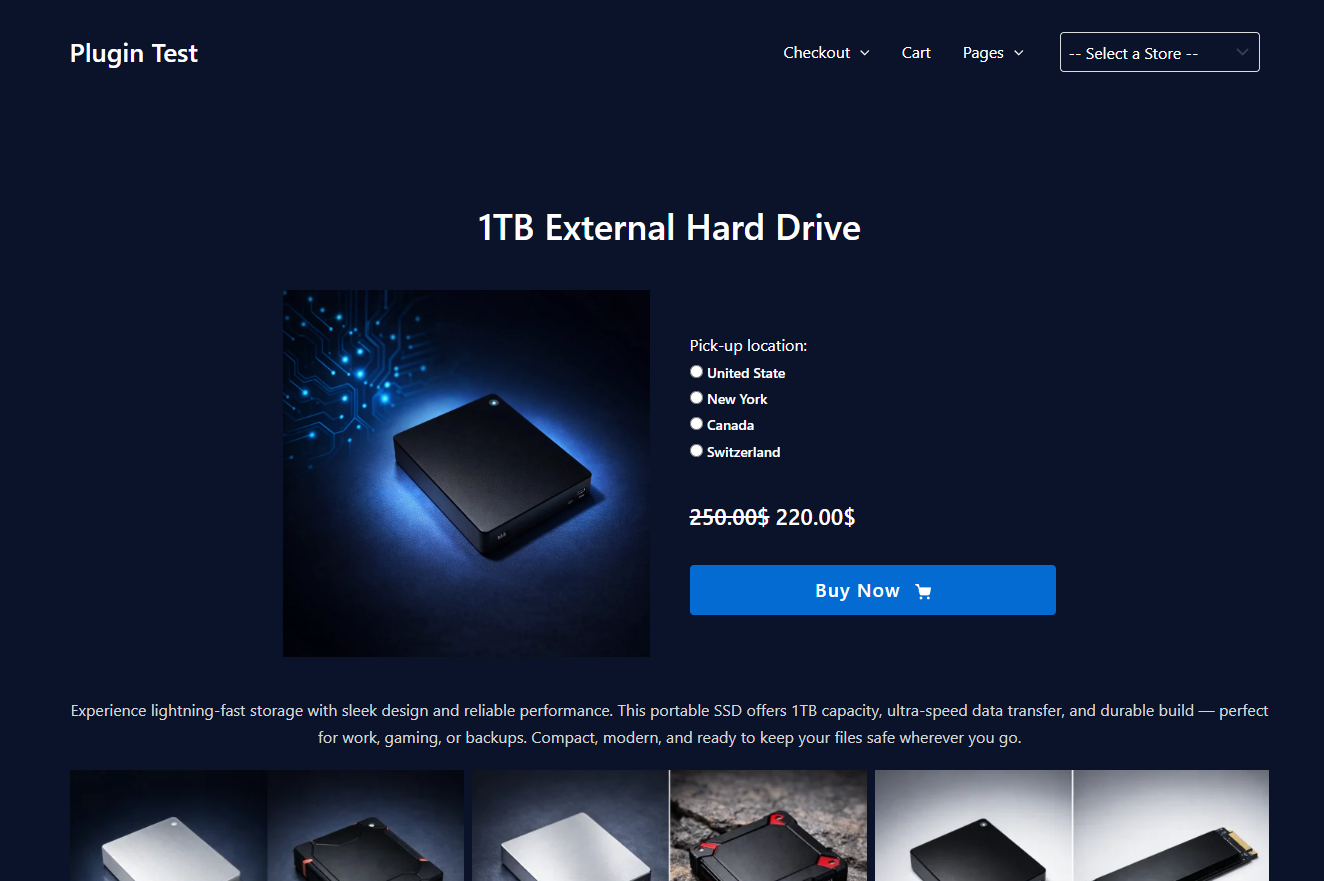
Displays a list of store locations where product ID 45 is available.
Example 2: Button Layout
[mulopimfwc_location_selector product_id="78" layout="buttons" label="Select Location:"]
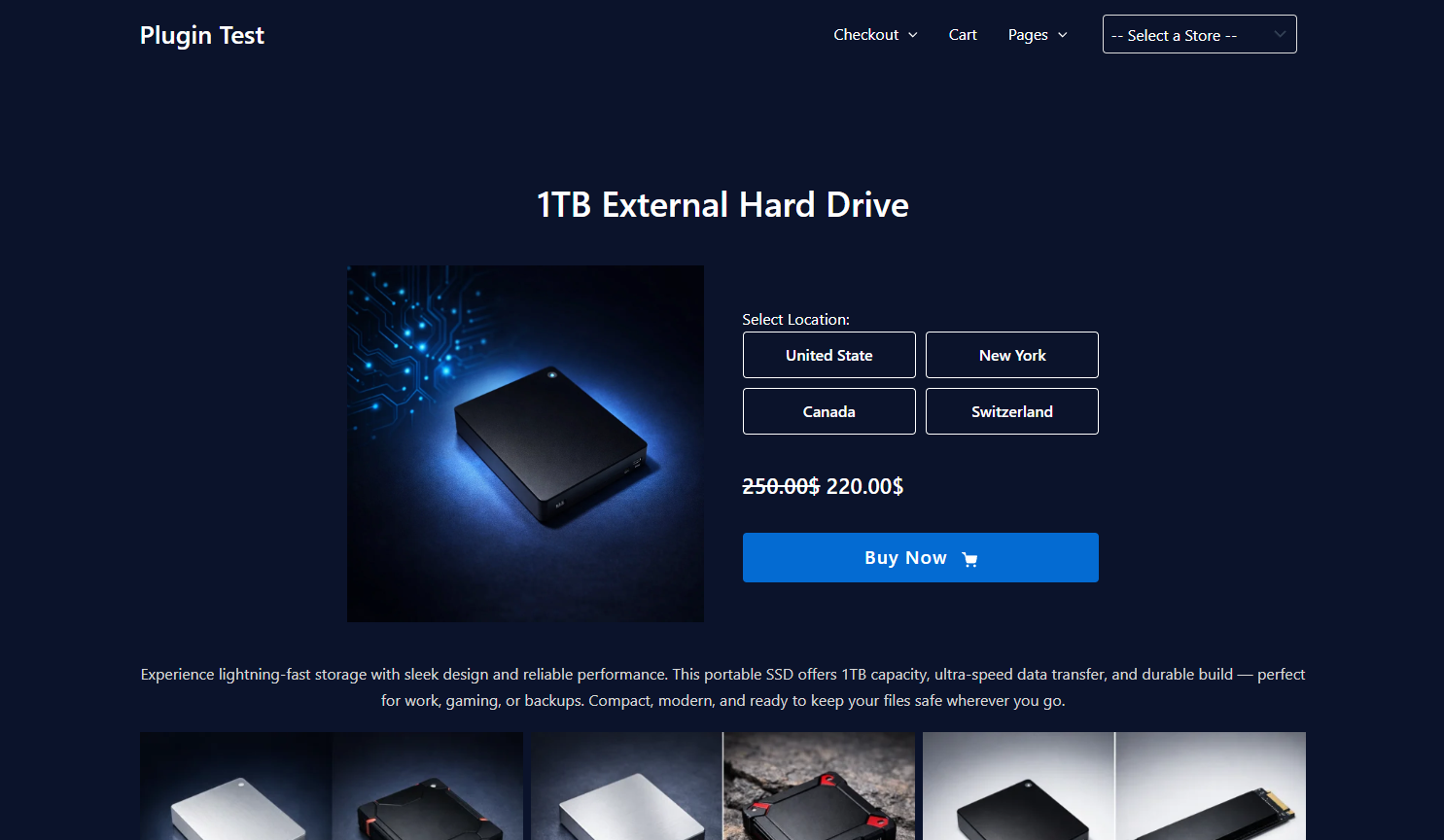
Shows location buttons for product ID 78, making it easy for customers to click and choose.
Example 3: Dropdown Layout
[mulopimfwc_location_selector product_id="99" layout="select" label="Choose Store:"]
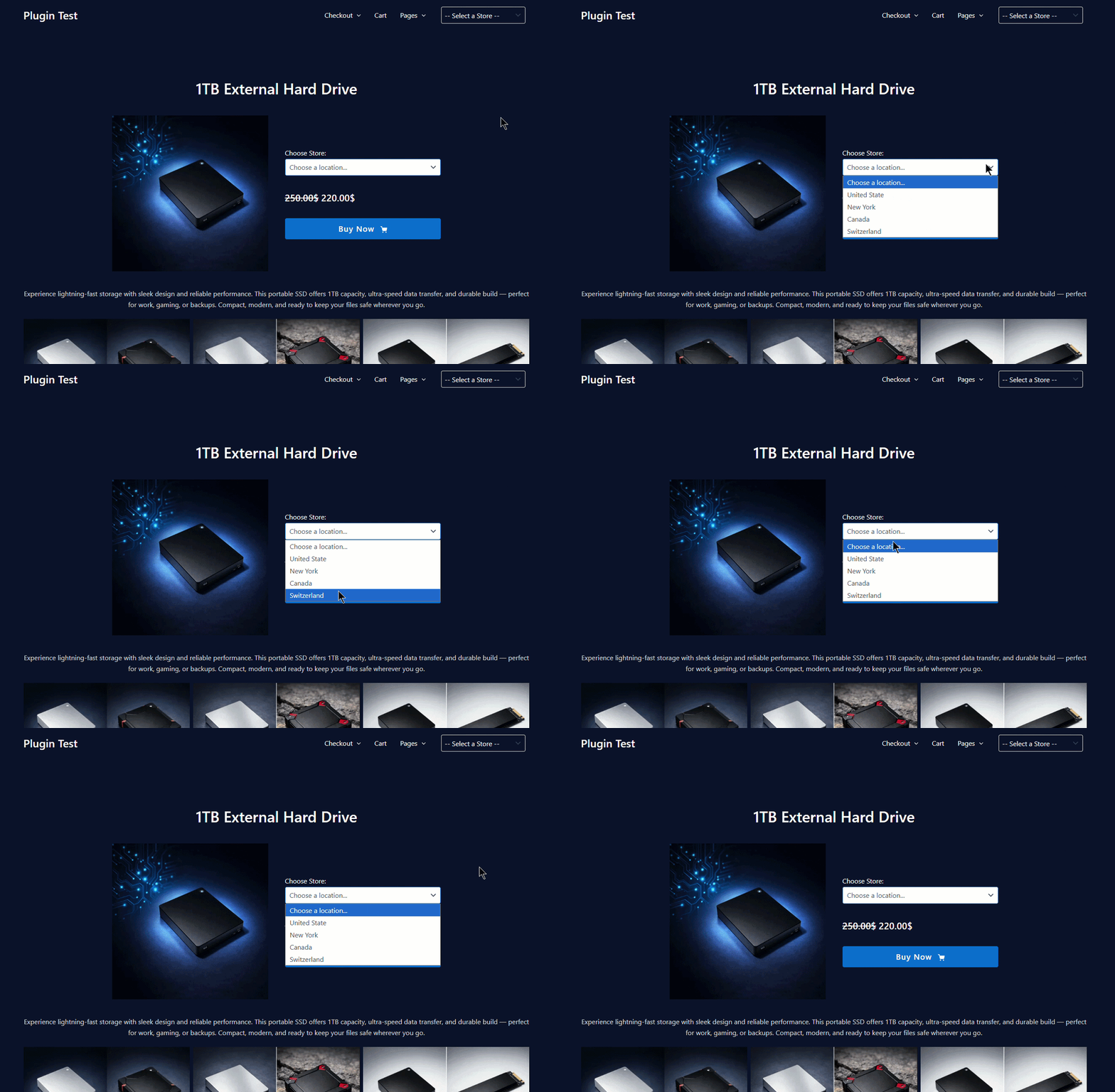
Renders a dropdown selector for product ID 99, ideal for compact designs.
Customization Options
- Labels: Use the
labelparameter to make instructions clear (e.g., “Pick Your Store”). - Layouts: Choose
listfor detailed display,buttonsfor quick clicks, orselectfor minimal dropdowns. - Auto-detect: If
product_idis not provided, the shortcode automatically detects the product on the current page.
Common Mistakes & Troubleshooting
- Product not showing: Ensure the correct
product_idis used. - Layout not applied: Double-check spelling (
buttonsnotbutton). - Label missing: Always wrap label text in quotes if it contains spaces.
- Theme conflicts: Use custom CSS classes if your theme overrides default styles.
Quick Summary & Best Practices
- Use
[mulopimfwc_location_selector]to show product availability across store locations. - Always specify
product_idwhen using the shortcode outside product pages. - Choose the right layout style (
list,buttons,select) for your design. - Customize the label to guide customers clearly.
- Test placement on landing pages to ensure smooth customer experience.
The [mulopimfwc_location_selector] shortcode is perfect for single-product landing pages where you want to highlight which stores carry the product. By combining product ID, layout style, and a clear label, you can create a seamless, user-friendly display that helps customers quickly find availability — boosting both clarity and conversions.