
Here’s a structured documentation draft for the [mulopimfwc_store_location_selector] shortcode. It explains how the selector renders, where to place it, and how each parameter works in practice.
Purpose
This shortcode renders a store location selector dropdown for WooCommerce sites using the Multi Location Product & Inventory Management plugin. It allows customers to choose a store location, which then filters product availability and inventory display accordingly.
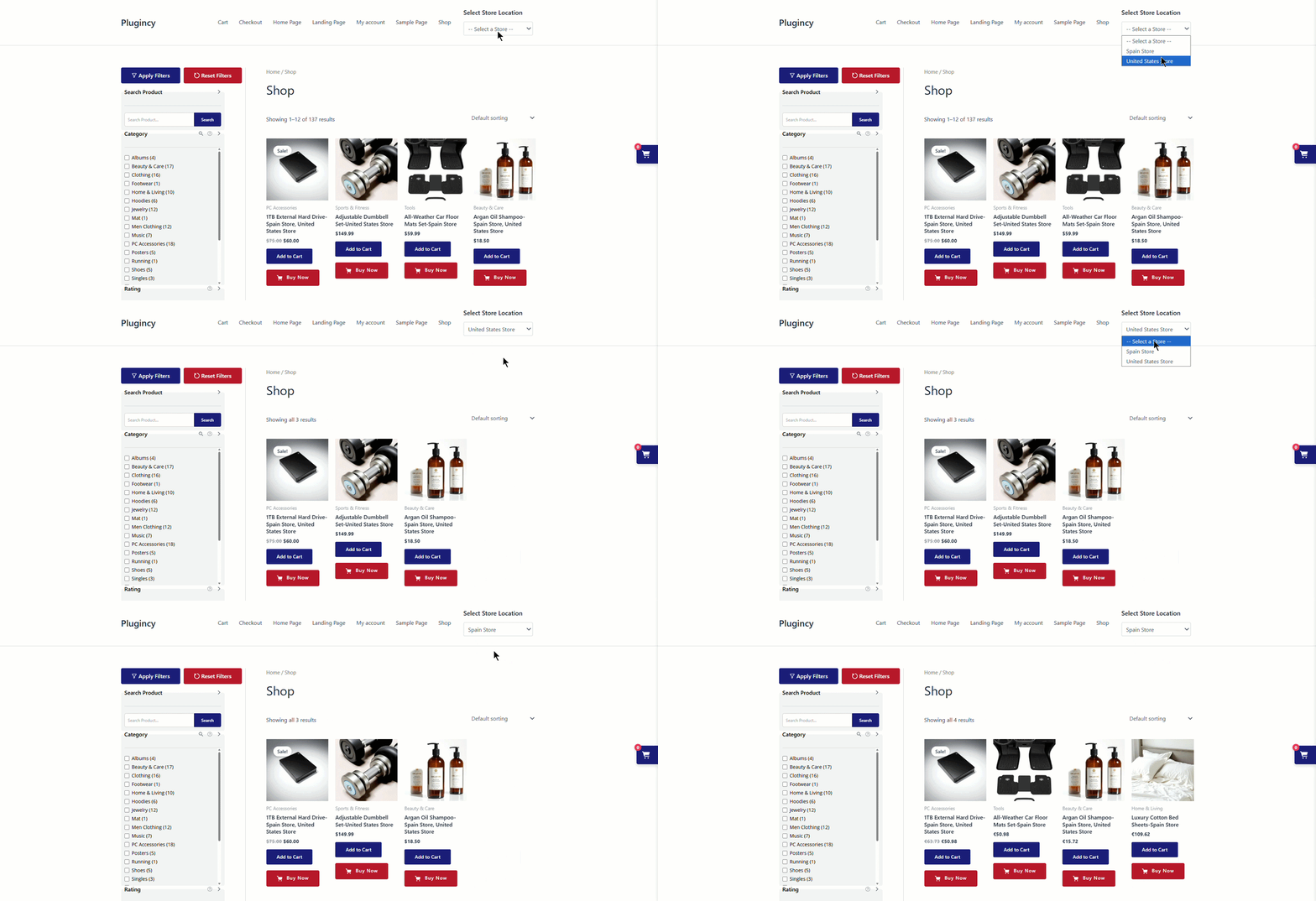
Selector Rendering
The shortcode outputs a store location dropdown selector. Depending on parameters, it can:
- Show a simple dropdown or an enhanced Select2 searchable dropdown.
- Display hierarchical locations (nested or separately).
- Include product counts next to each location.
- Render with a custom title and CSS class for styling.
- Respect user preferences by allowing saved locations.
The selector adapts to your site’s layout with options like max_width and multi_line display, ensuring it fits seamlessly into headers, sidebars, or content areas.
Practical Placement Examples
- On product pages: Let customers select their preferred store before adding items to the cart.
- On the shop/archive page: Provide a global selector so browsing reflects stock availability per location.
- In the header or sidebar widget area: Offer quick access to location selection across the site.
- On checkout page: Ensure the chosen store location is applied to order fulfillment.
Available Parameters
| Parameter | Values | Description | Example |
|---|---|---|---|
| title | Text | Custom selector title | title="Choose Store Location" |
| show_title | on / off | Display or hide the title | show_title="on" |
| use_select2 | on / off | Enable enhanced dropdown with search | use_select2="on" |
| herichical | on / off / seperately | Show hierarchical location structure | herichical="on" |
| show_count | on / off | Show product count per location | show_count="on" |
| class | Text | Add custom CSS class for styling | class="location-selector-custom" |
| enable_user_locations | on / off | Allow users to save preferred locations | enable_user_locations="on" |
| max_width | Number (px) | Set maximum width of dropdown | max_width="300" |
| multi_line | on / off | Display selector in multiple lines | multi_line="on" |
Example Usage
[mulopimfwc_store_location_selector title="Select Your Store" show_title="on" use_select2="on" herichical="seperately" show_count="off" class="store-selector" enable_user_locations="on" max_width="250" multi_line="off"]This example renders a searchable dropdown with a title, allows users to save their preferred store, and applies a custom CSS class for styling.
Styling Tips
- Use the
classparameter to apply pixel-perfect CSS adjustments for alignment and badge styling. - Combine
max_widthwith responsive CSS rules to ensure the selector adapts across devices. - For advanced UI, enable
use_select2to provide a smoother dropdown experience with search functionality.
The [mulopimfwc_store_location_selector] shortcode is a versatile tool for enhancing customer experience in multi-location WooCommerce stores. By carefully configuring its parameters and placing it strategically across your site, you can ensure customers always interact with accurate inventory data tied to their preferred store. Whether used in product pages, shop archives, or checkout flows, this selector helps streamline location-based shopping and improves operational clarity.