
Low stock alerts help store owners and managers stay informed when products or inventory at specific locations reach critical levels. This feature supports global low-stock thresholds, location-specific thresholds, and multiple notification channels (admin bar, floating pop-up, device/PWA alerts, and social/webhook notifications).
Step 1 — Set Low Stock Thresholds
Low stock alerts can be triggered based on two levels:
1. Global Low Stock Threshold
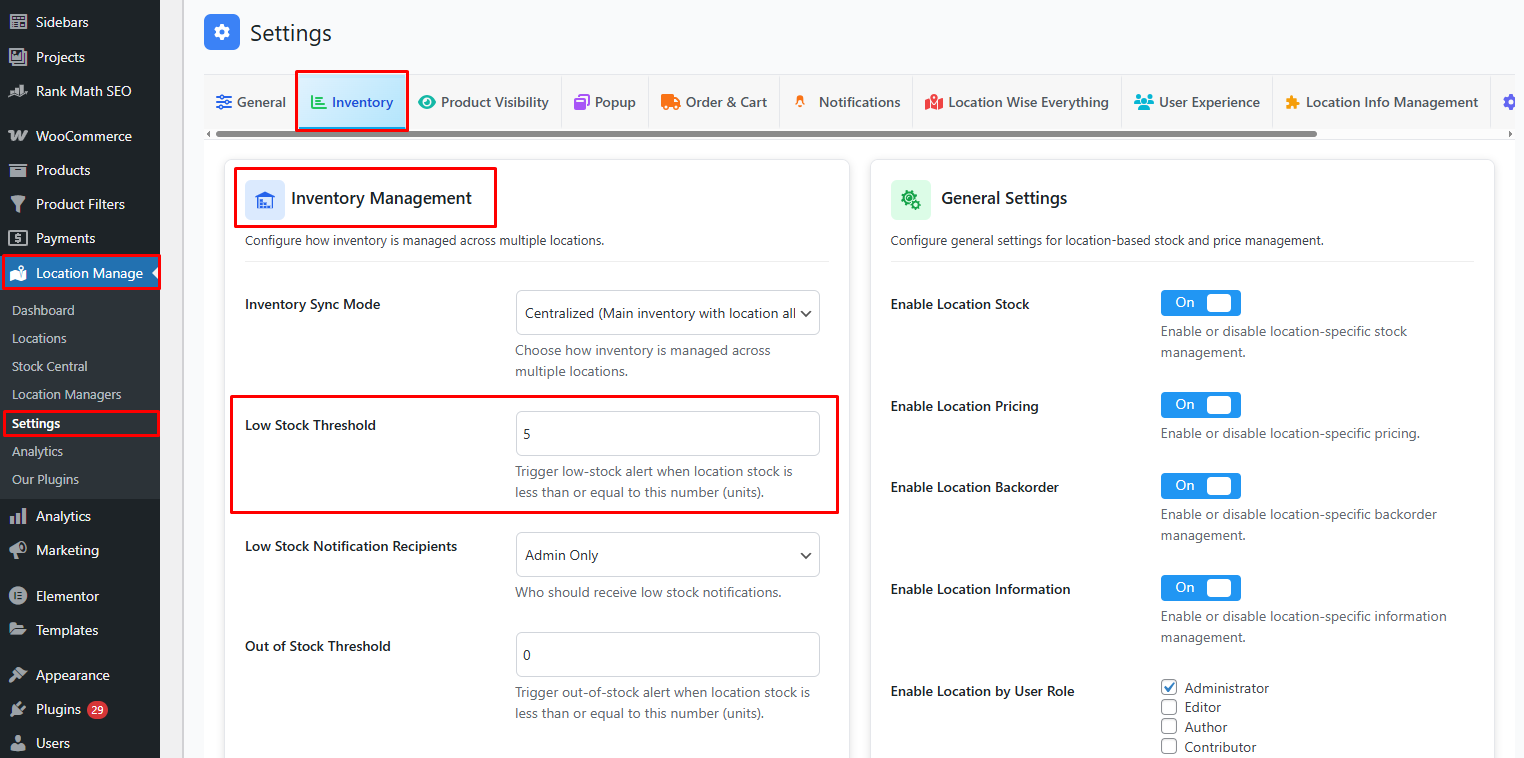
- Go to Location Manage → Settings → Inventory
- Open the Inventory Management panel
- Set Low Stock Threshold
This applies to all locations unless overridden.
2. Location-Specific Low Stock Threshold
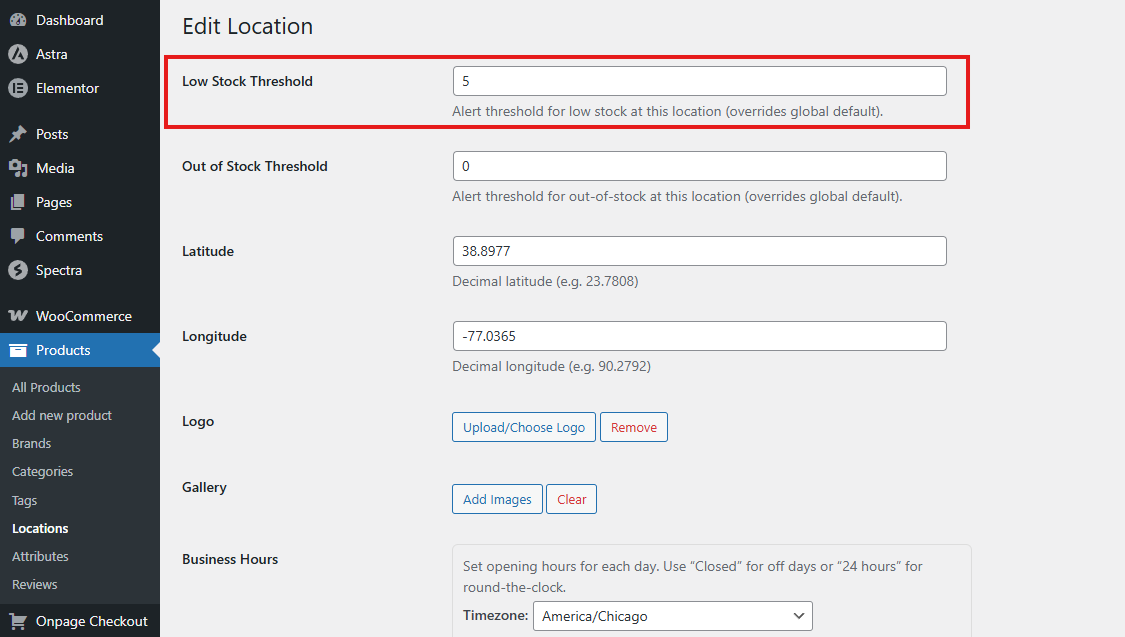
To override the global threshold per location:
- Go to Location Manage → Locations
- Click Add New Location or Edit a location
- Locate the Low Stock Threshold field
- Enter the threshold for that specific store/warehouse
This is useful when different locations maintain different stock capacity levels.
When Low Stock Alerts Trigger
Once the system detects that a product’s stock (global or location-specific) reaches or falls below the set threshold, alerts will appear in multiple places:
Where You Will See Low Stock Alerts
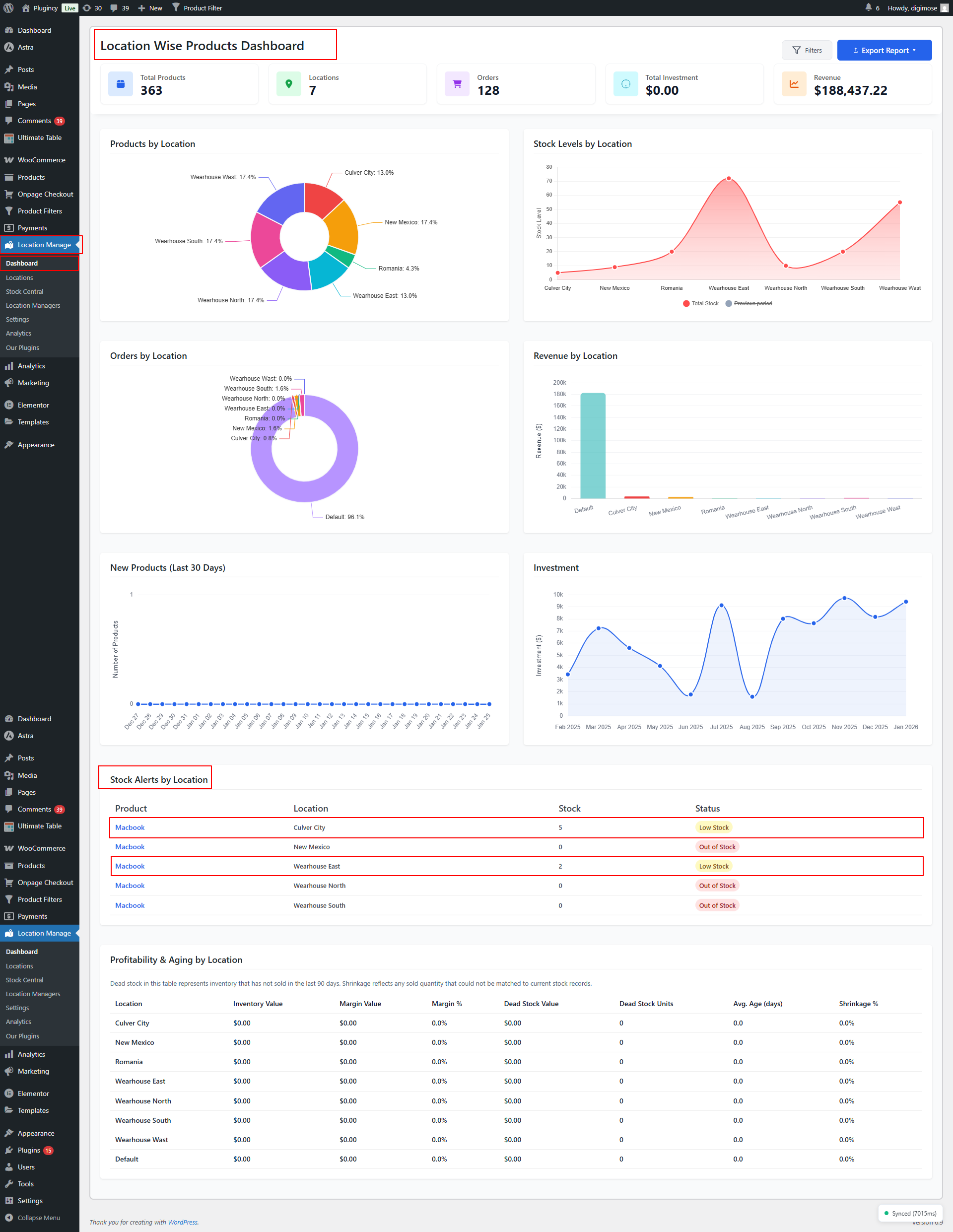
1. Location Manage → Dashboard → Low Stock Products by Location panel
Displays real-time low stock items separated by location.
2. Admin Bar Notification Dropdown
Quick access to low stock warnings from the top admin toolbar.
3. Floating Notification
A popup-style notification that appears inside the admin interface.
4. Device / PWA Notification
Push notifications sent to the user’s device (requires PWA enabled).
👉 Learn how to configure device/PWA notifications → View Documentation
5. Social Notification (Slack, Discord, Telegram, Teams, Webhooks, etc.)
Low stock events can be sent to external channels.
👉 Learn how to configure social/webhook notifications → View Documentation
Step 2 — Configure Notification Channels
To configure which notification types should trigger low-stock alerts:
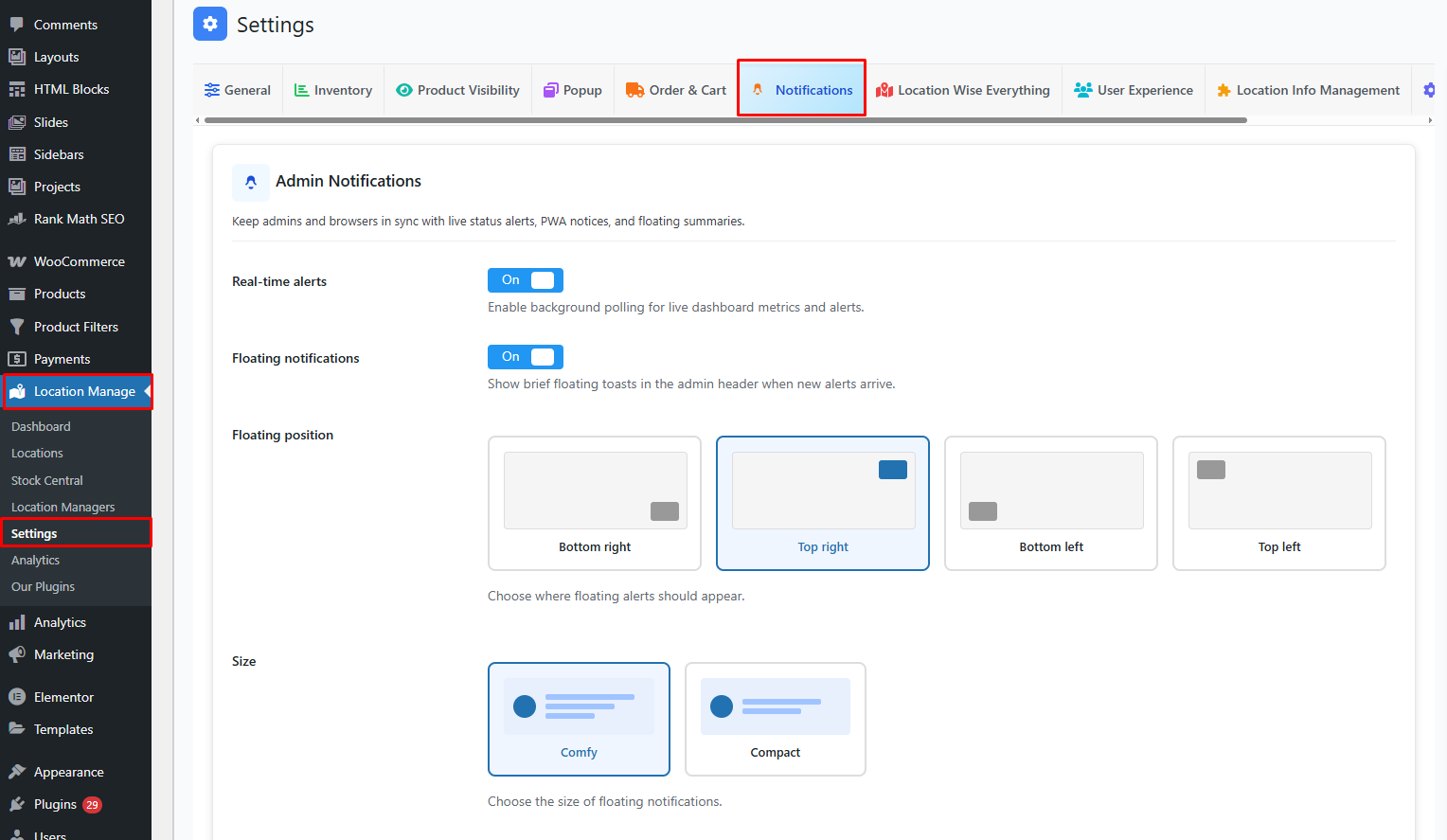
- Go to Location Manage → Settings
- Open the Notifications panel
Here you will manage admin bar, floating, device, and social/webhook notifications.
Social Notification Configuration (Overview)
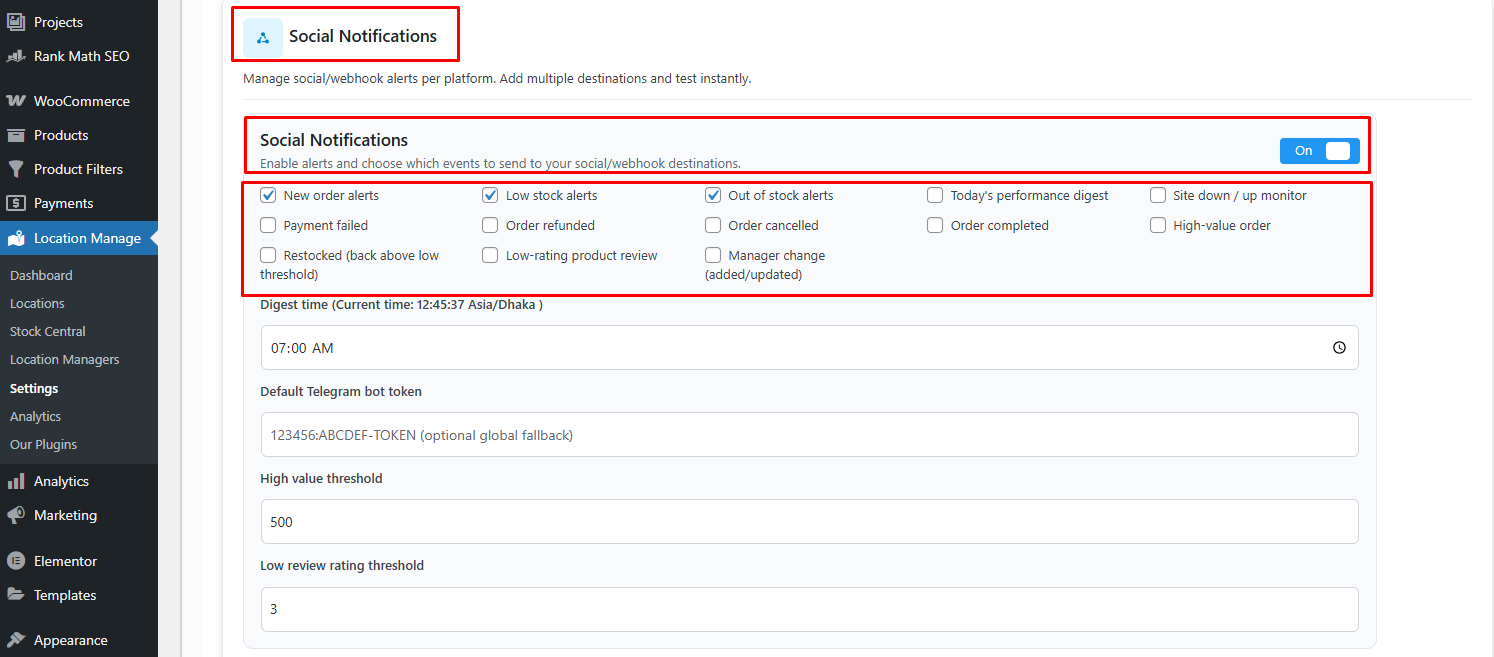
This section allows you to enable low stock notifications across social media tools or webhook services.
Social Notifications — ON/OFF
Enable alerts and select which events to send to your chosen destinations.
Events include:
- New order alerts
- Low stock alerts
- Out of stock alerts
- Today’s performance digest
- Site down/up monitor
- Payment failed
- Order refunded
- Order cancelled
- Order completed
- High-value order
- Restocked (above threshold)
- Low-rating product review
- Manager change notification
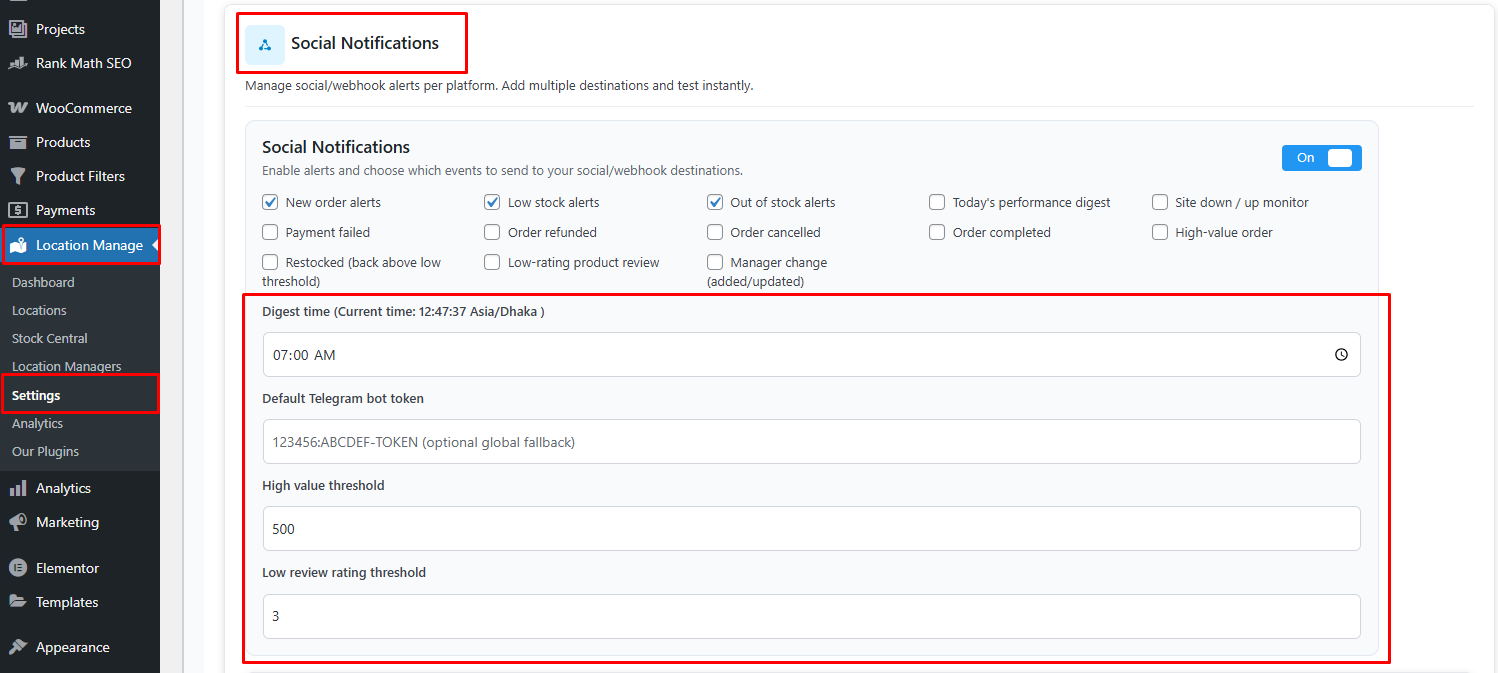
Other settings:
- Digest Time: Choose time for daily summary
- Default Telegram Bot Token: Optional fallback token
- High Value Threshold: e.g., 500
- Low Review Rating Threshold: e.g., 3
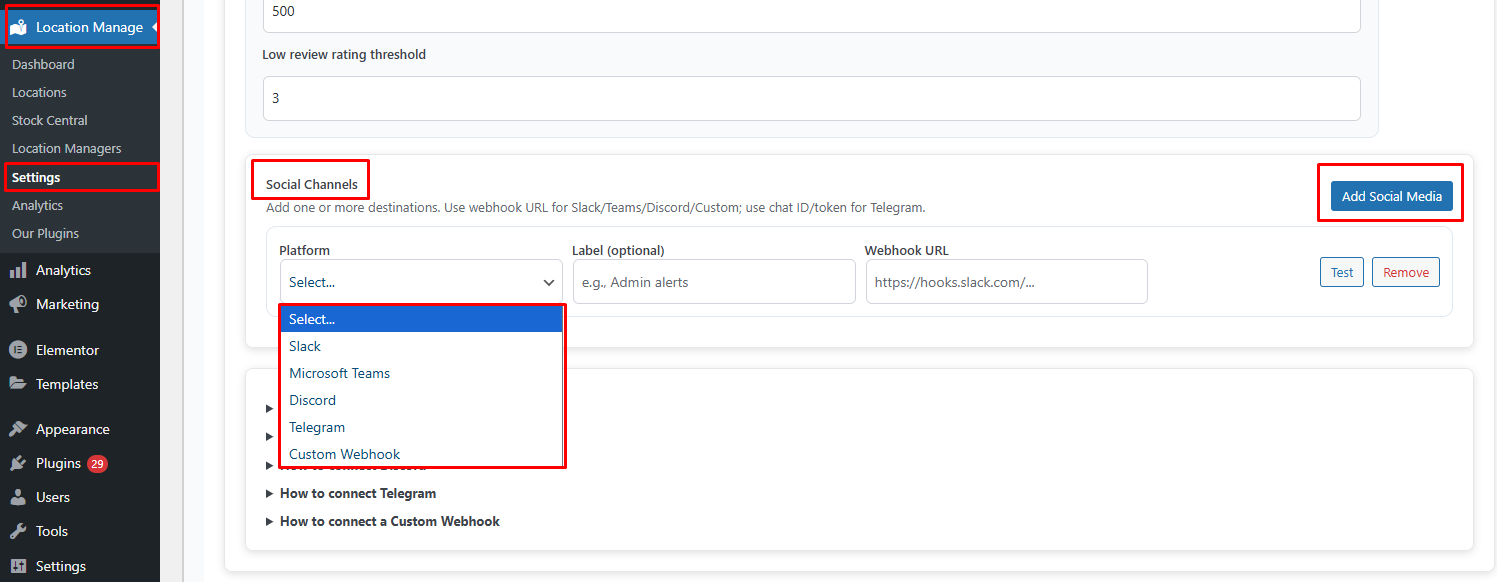
Social Channels
Click on Add Social Media. Then choose platform. You may add multiple destinations:
- Telegram (bot + chat ID)
- Slack webhook
- Microsoft Teams webhook
- Discord webhook
- Custom webhook endpoints
- Any platform that accepts POST requests
👉 Learn more about Social Channel Real-Time Notifications → View Documentation
Floating Notifications
Floating notifications appear as small pop-ups inside the admin panel.
👉 Learn how to configure floating notifications → View Documentation
Device (PWA) Notifications
These allow push notifications to appear on the user’s mobile or desktop device.
👉 Learn how to configure device/PWA notifications → View Documentation
Best Practices for Low Stock Alerts
- Set realistic thresholds per location based on warehouse capacity
- Configure Telegram or Slack alerts for instant stock visibility
- Use dashboard + admin bar alerts for daily management
- Enable device notifications for real-time alerts on the go
- Make sure stock updates sync accurately across locations
- Review “Restocked” notifications to ensure stock returns to safe levels
Summary
| Feature | Description |
|---|---|
| Global Threshold | Set default low-stock level for all locations |
| Location Threshold | Override global value per warehouse/store |
| Dashboard Panel | Shows low stock products by location |
| Admin Bar Alerts | Quick access to stock warnings |
| Floating Notification | On-screen pop-up alerts |
| Device/PWA Notification | Push notifications for mobile/desktop |
| Social/Webhook Alerts | Notify Slack, Telegram, Discord, etc. |
With Location-Based Low Stock Alerts, you always stay one step ahead in your inventory management — ensuring each location is well-stocked and avoiding missed sales opportunities.