
Out of stock product alerts help ensure store managers stay informed when stock at any location reaches zero or below the “Out of Stock Threshold.” These alerts support global settings, location-specific overrides, and multiple notification channels such as admin bar notices, floating notifications, device/PWA alerts, and social/webhook notifications.
Step 1 — Set Out of Stock Thresholds
Out of stock alerts are triggered when inventory falls to 0 or below the configured threshold.
You can set the threshold in two places:
1. Global Out of Stock Threshold
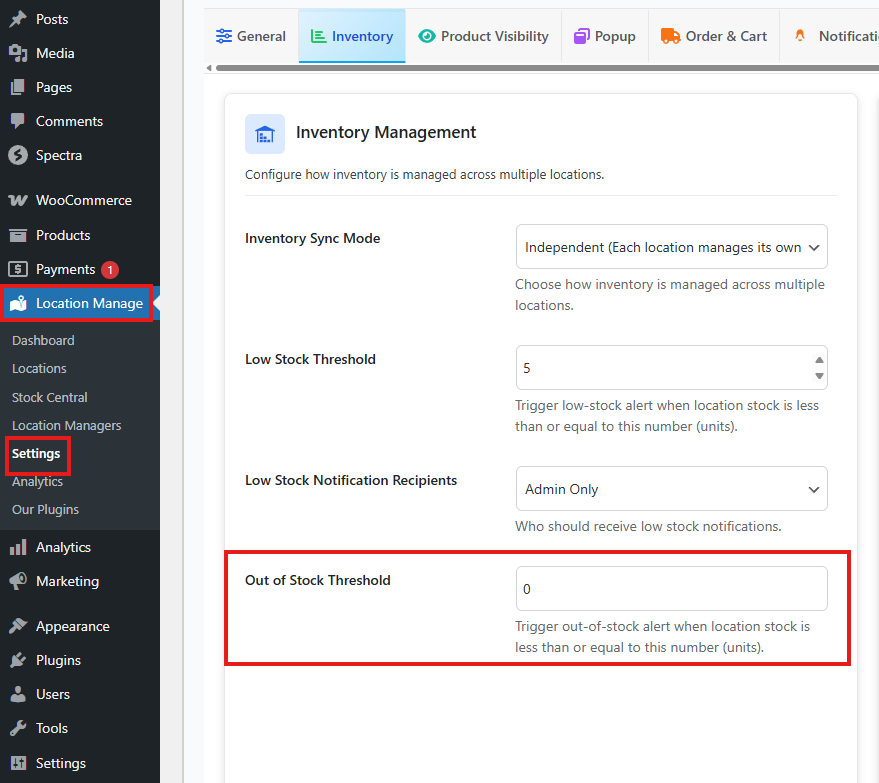
- Go to Location Manage → Settings → Inventory
- Find the Inventory Management panel
- Set Out of Stock Threshold
This global value applies to all locations unless a location overrides it.
2. Location-Specific Out of Stock Threshold
To override global behavior:
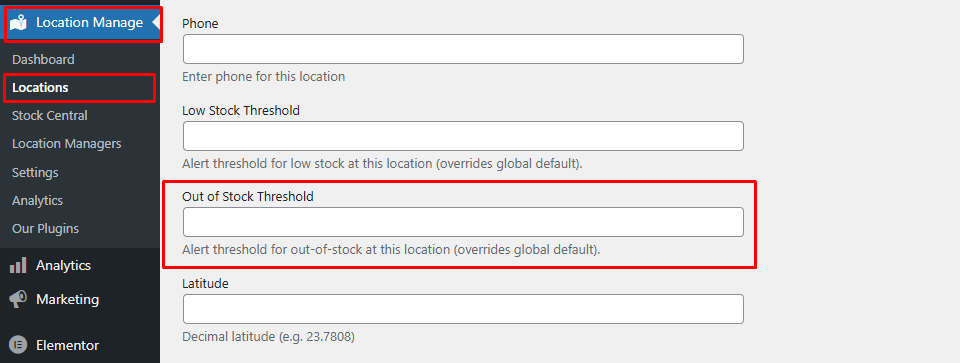
- Go to Location Manage → Locations
- Edit or Add a location
- Find the Out of Stock Threshold field
- Enter a custom threshold for that location
This is useful for locations that require strict stock control or faster restocking cycles.
When Out of Stock Alerts Trigger
An out-of-stock alert will fire when:
- A product’s stock at a location reaches 0 (or below threshold)
- A product goes from low-stock to out-of-stock status
- A sale, admin adjustment, or API update reduces the inventory
Where Out of Stock Alerts Are Displayed
Once triggered, alerts will appear in several admin areas:
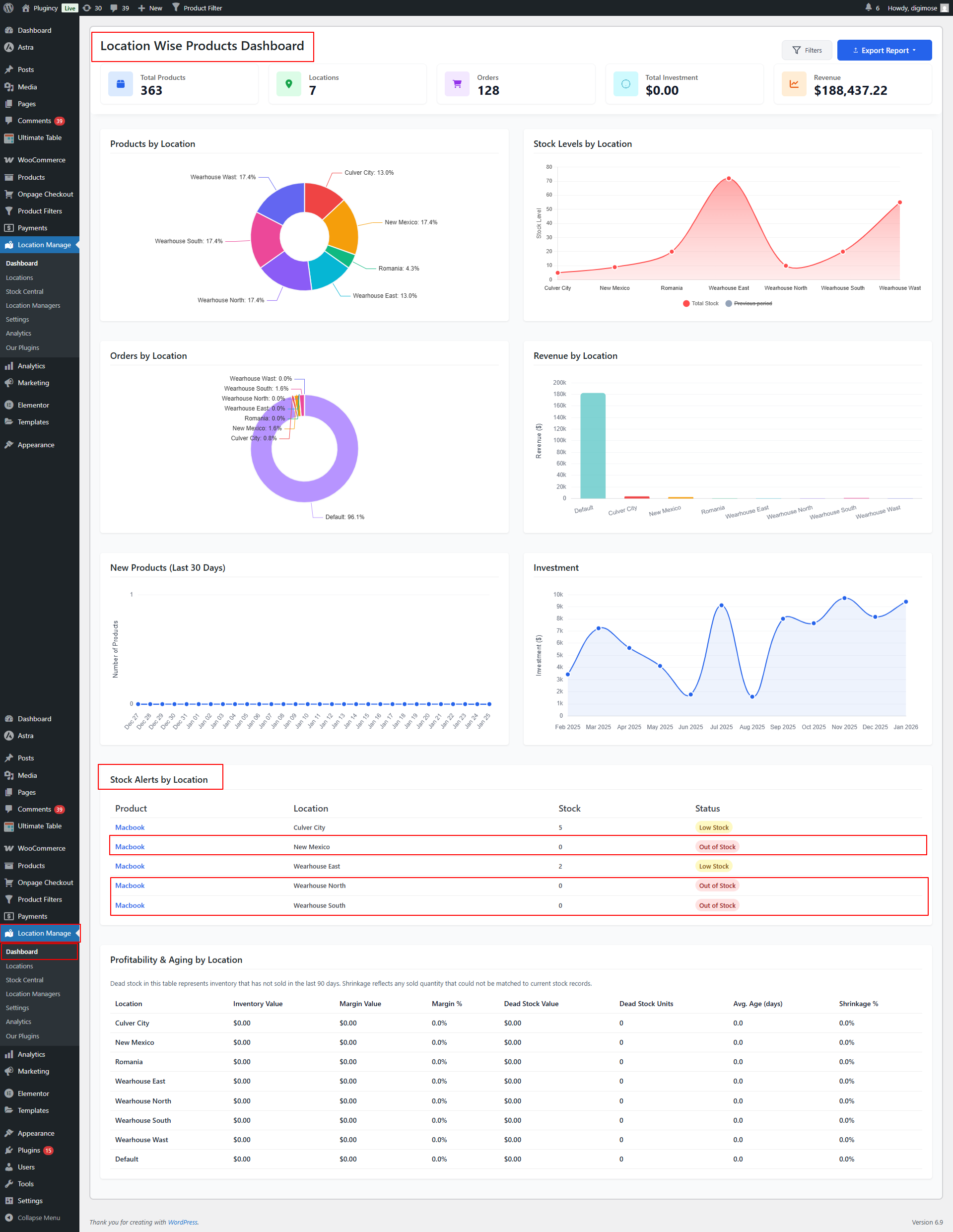
1. Location Manage → Dashboard → Out of Stock Products by Location panel
Shows all currently out-of-stock items grouped by location for quick review.
2. Admin Bar Notification Dropdown
A visual alert appears in the top admin toolbar for quick access throughout the WordPress dashboard.
3. Floating Notification
A popup notification appears inside the admin area to instantly highlight out-of-stock products.
👉 Learn how to configure floating notifications → View Documentation
4. Device / PWA Notifications
Push alerts can be sent to the store owner’s device for real-time monitoring.
👉 Learn how to configure device/PWA notifications → View Documentation
5. Social / Webhook Notification
You can send out-of-stock alerts to:
- Slack
- Discord
- Telegram
- Microsoft Teams
- Custom webhook endpoints
👉 Learn how to configure social Channel Real Time notifications → View Documentation
Step 2 — Configure Notification Settings
To enable which alert channels should trigger for out-of-stock events:
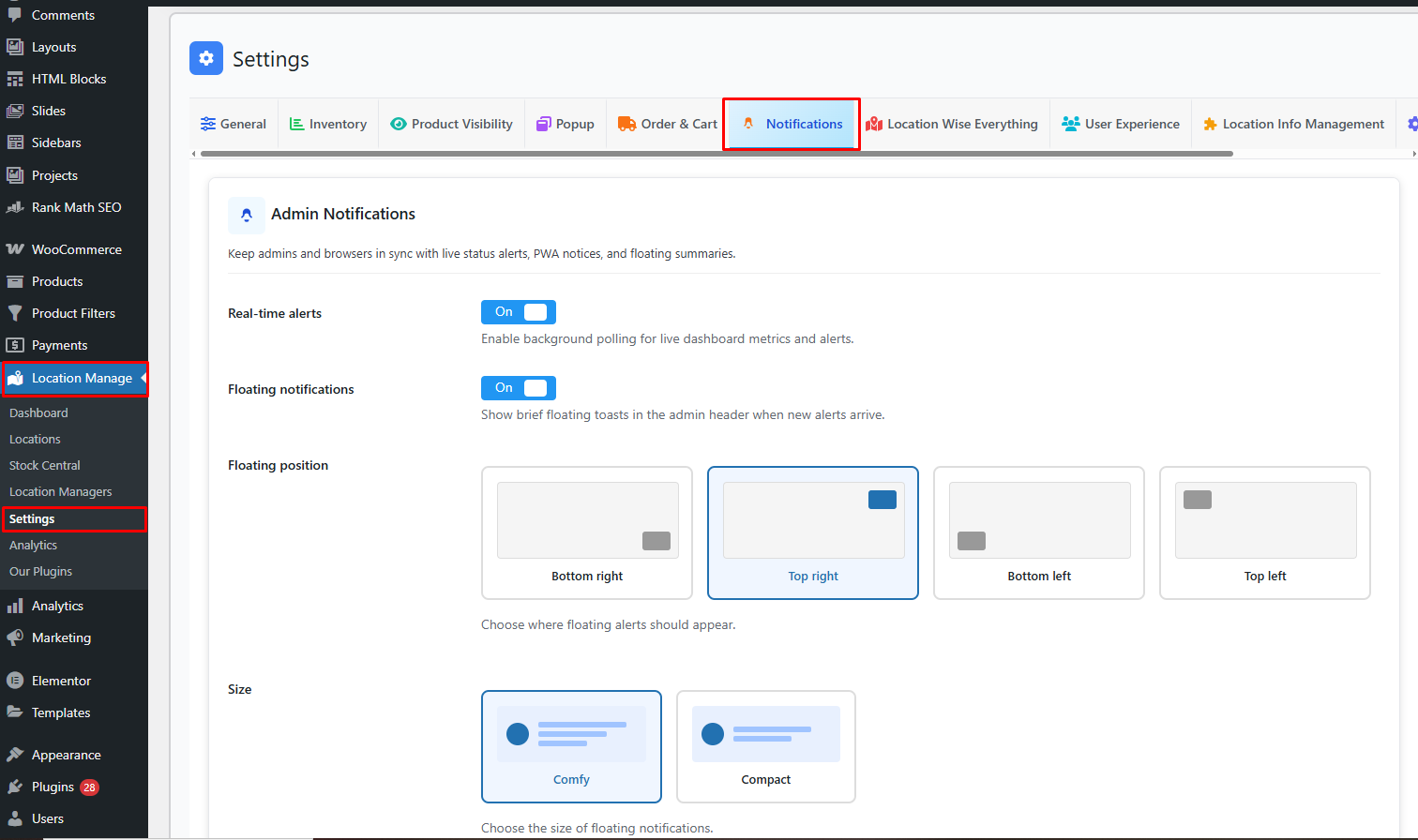
- Go to Location Manage → Settings
- Open Notifications
Social Notifications Settings Overview
When enabling social notifications, you can choose which events should send alerts.
Available event triggers for social/webhook notification:
- New Order Alerts
- Low Stock Alerts
- Out of Stock Alerts
- Today’s performance digest
- Site down / up monitor
- Payment failed
- Order refunded
- Order cancelled
- Order completed
- High-value order
- Restocked (above threshold)
- Low-rating product review
- Manager change updated/added
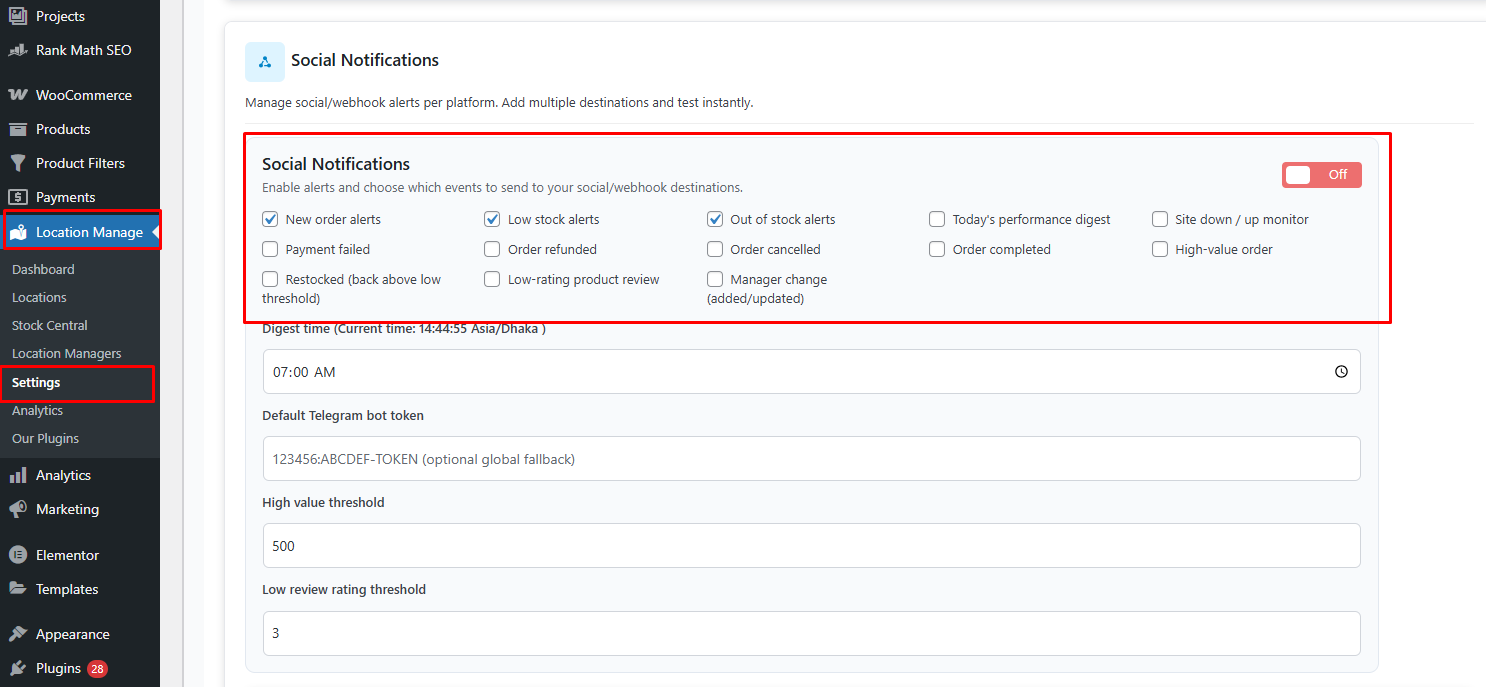
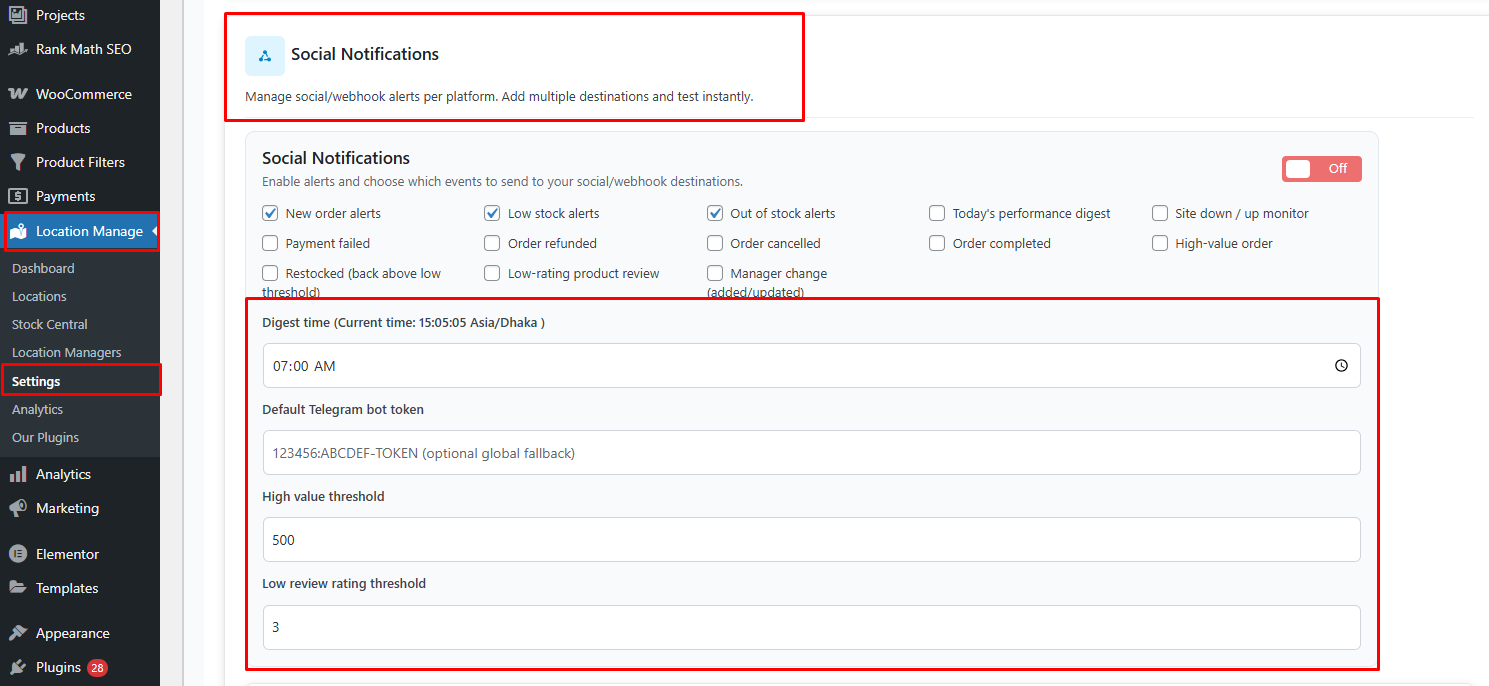
You may also configure:
- Digest time (e.g., 07:00 AM)
- Default Telegram bot token
- High-value order threshold
- Low review rating threshold
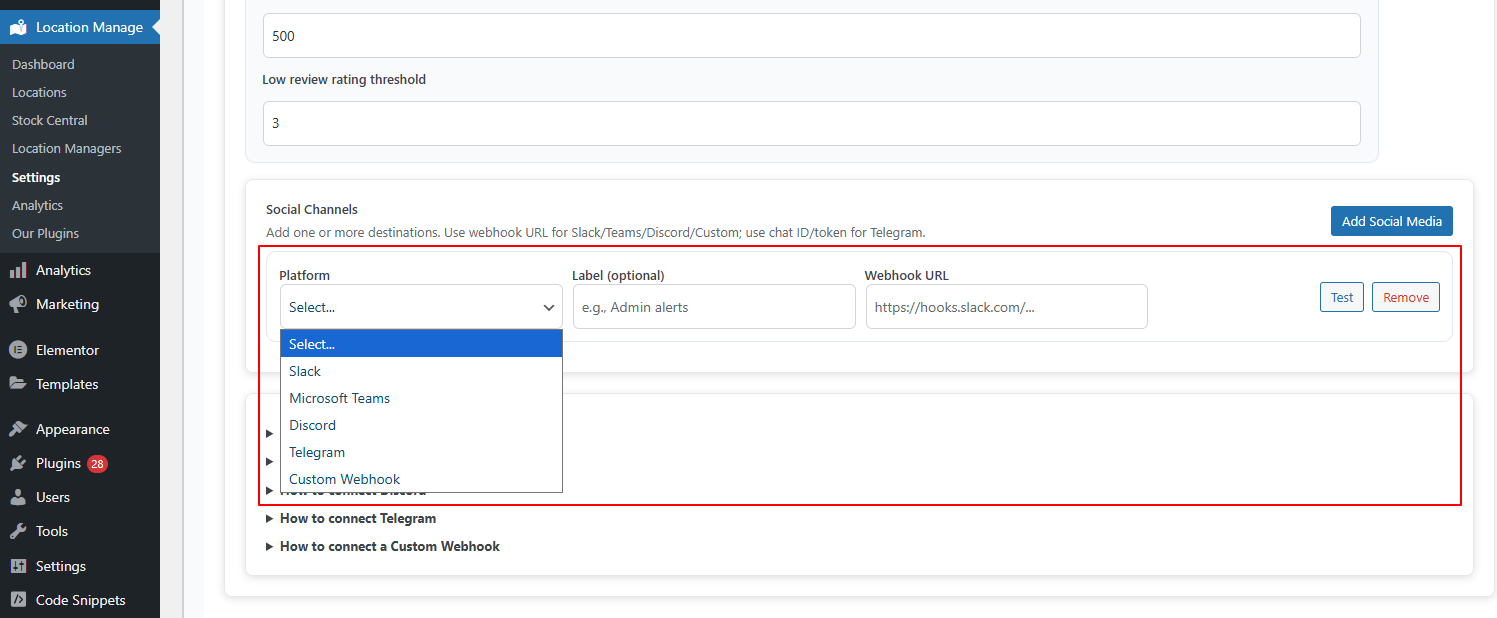
- Multiple social destinations
Each destination can be:
- A webhook URL (Slack/Teams/Discord)
- A Telegram chat ID + bot token
- A custom API endpoint
Additional Behavior Notes
- If stock is updated back above the out-of-stock threshold, a Restocked notification can be triggered.
- Admins and assigned location managers will receive alerts if enabled.
- Out of stock alerts work per location, not just globally.
Best Practices
- Set stricter thresholds for your fastest-moving locations
- Use Telegram or Slack for instant warehouse alerts
- Enable device notifications if you need real-time alerts on the go
- Review stock alerts daily via the dashboard panel
- Pair with low-stock notifications for proactive inventory management
- Ensure stock updates are synced across all systems/integrations
Summary
| Feature | Description |
|---|---|
| Global Out of Stock Threshold | Defines when alerts should fire |
| Location-Specific Threshold | Custom rules per warehouse/store |
| Dashboard Panel | View out-of-stock products per location |
| Admin Bar Alerts | Quick visual notifications |
| Floating Notifications | Real-time on-screen popups |
| Device/PWA Alerts | Push notifications to phone/browser |
| Social/Webhook Alerts | Alerts to Slack/Discord/Telegram/Teams |
With Location-Based Out of Stock Alerts, your multi-location WooCommerce store can react quickly, restock efficiently, and prevent lost sales caused by unexpected inventory shortages.