
All sections
Cart Recovery is off on new installs. This guide shows how to turn it on and choose safe settings. Go to Onpage Checkout > Cart Recovery > Settings. You will find the settings in the Recovery Controls block. The email settings are on the Email tab, explained in our guide to recovery emails.
Quick setup
- Turn on Enable Cart Recovery.
- Choose a Shopper Consent option.
- Keep 60 minutes and 30 days to start with, or change them.
- In Pro, exclude what should not be tracked.
- Click Save Changes.
- In Pro, send yourself a test from Email > Settings > Test Email.
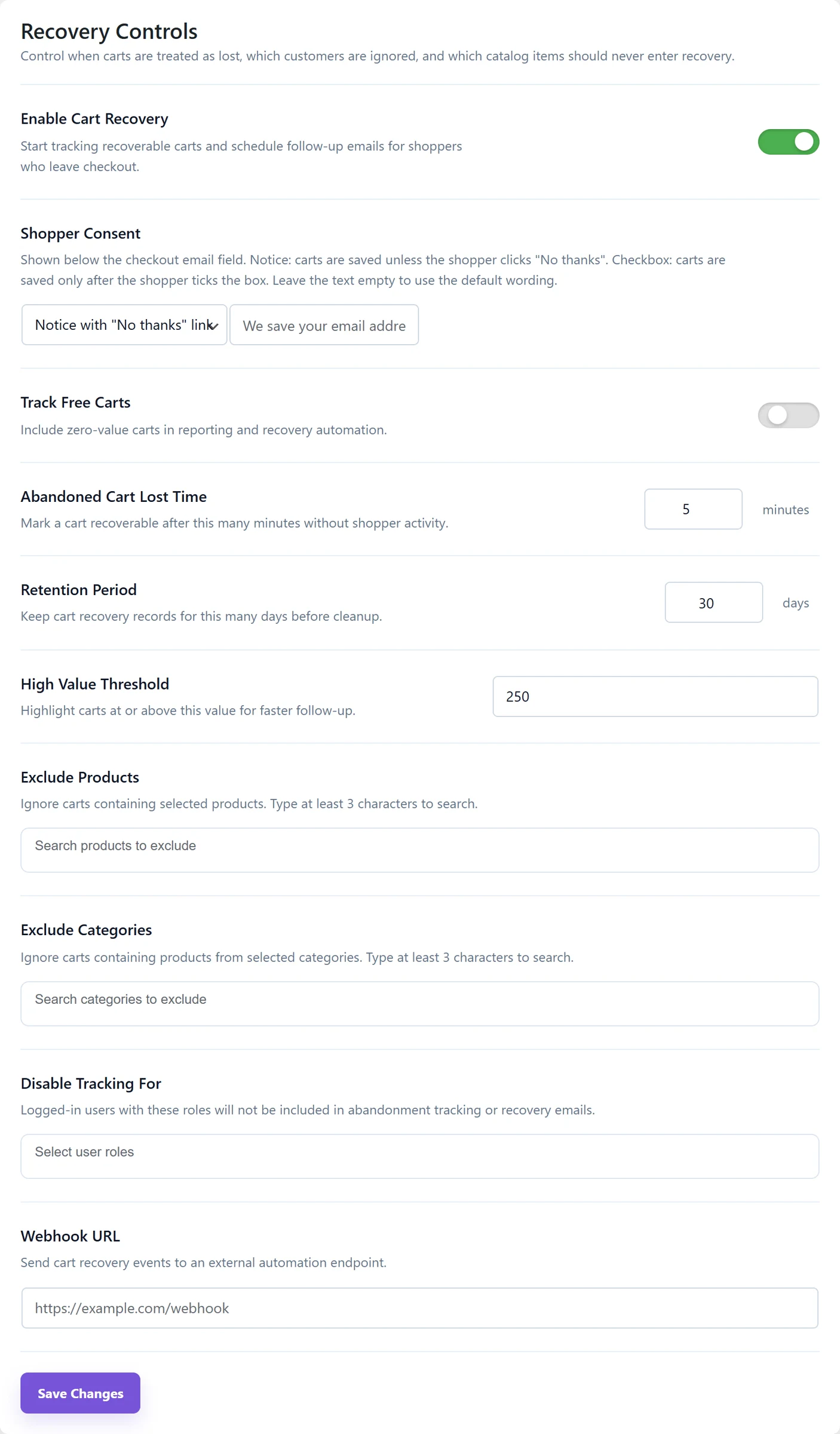
The settings
| Setting | What it does | Default |
|---|---|---|
| Enable Cart Recovery | Starts saving carts. | Off |
| Shopper Consent | How shoppers agree. See below. | Notice with “No thanks” link |
| Track Free Carts PRO | Also saves carts with a total of zero. | Off |
| Abandoned Cart Lost Time | Minutes of no activity before a cart counts as abandoned. The minimum is 1. | 60 |
| Retention Period | Days to keep a cart before deleting it. The minimum is 1. | 30 |
| High Value Threshold PRO | Carts at or above this amount get a High Value badge. | 250 |
| Exclude Products PRO | No reminders for carts with these products. Type at least 3 letters to search. | Empty |
| Exclude Categories PRO | The same, for categories. | Empty |
| Disable Tracking For PRO | No reminders for these user roles. It has no effect on guests. | Empty |
| Webhook URL PRO | Sends each cart event as JSON to another system, such as a CRM. | Empty |
A note on the exclusions: carts that match them still appear in your list, but they stay Active and get no automatic emails. Send Next can still email them by hand.
Shopper Consent
- Notice with “No thanks” link: a short notice shows under the checkout email field. The cart is saved unless the shopper clicks the link, which also deletes what was saved.
- Opt-in checkbox: the cart is saved only after the shopper ticks the box. This gives you fewer carts but clearer consent, and many stores in Europe prefer it.
The text box beside it changes the wording. Leave it empty to use the default. Both options work on the classic and block checkouts.
How long to wait
These are only suggestions. Pick what fits how long people think before buying.
| Type of store | Suggested lost time |
|---|---|
| Cheap everyday products | 30 to 45 minutes |
| Fashion and general shops | 60 minutes |
| Expensive products | 2 to 4 hours |
How long to keep carts
| Your goal | Suggested retention |
|---|---|
| Keep as little personal data as possible | 14 to 30 days |
| Normal use | 30 to 60 days |
| Long buying decisions and longer reports | 60 to 90 days |
Carts past this age are deleted, not hidden. Reports then lose them too, so export anything you want to keep.
Before you rely on it
- Email: install an SMTP plugin, which sends email through a proper mail service. Emails sent straight from a web server often land in spam.
- Scheduled tasks: abandonment checks and emails rely on WP-Cron, which runs when people visit your site. A quiet site may need a real cron job, which your host can set up.
- Test: leave a cart in a private window, then check it appears. Our troubleshooting guide helps if it does not.