
All sections
Every recovery email has two important links. The restore link brings back the shopper’s cart, and the unsubscribe link stops future reminders. This guide explains what each does and how to test them. Sending these emails needs PRO.
The two tags
| Tag | What it becomes |
|---|---|
{cart_link} | The link to bring back the cart. Use it for your main button. |
{unsubscribe_link} | The link to stop reminders. Keep it at the bottom. |
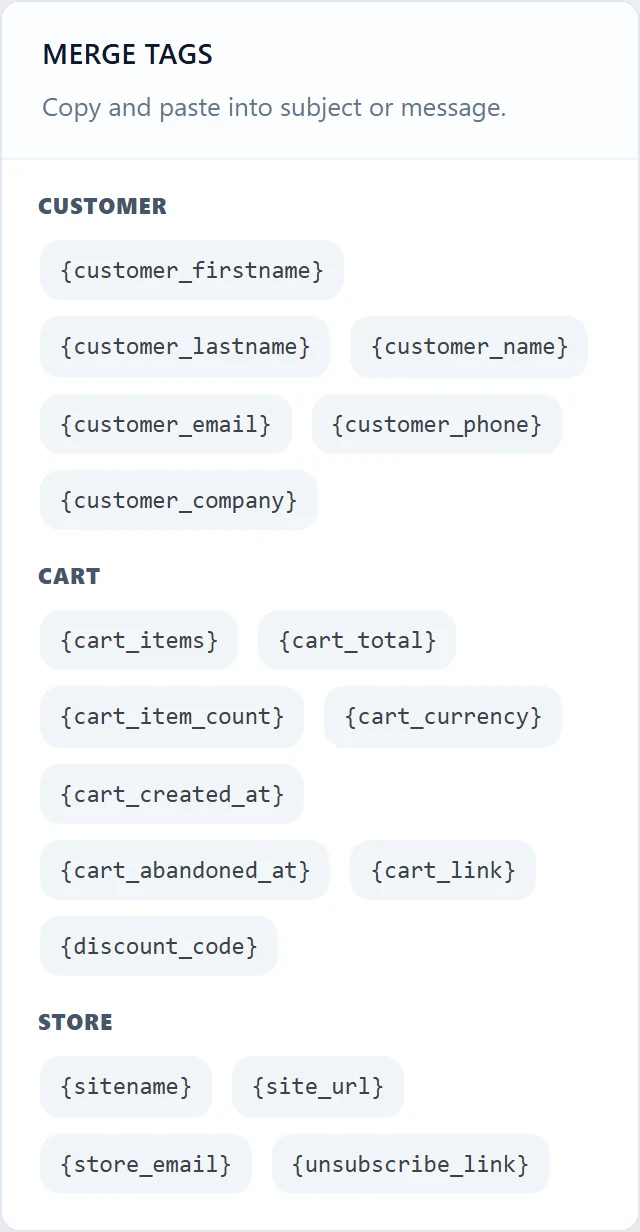
If a shopper email has no unsubscribe tag, the plugin adds one for you. It also adds the standard unsubscribe headers that mail apps use for their own unsubscribe button.
What the restore link does
- It records the click.
- It empties whatever the visitor has in the cart now.
- It adds the saved products back.
- It applies the email’s Discount Code, if you set one.
- It opens the checkout page with the message “Your saved cart has been restored.”
Links do not run out on a date. Prices come from your store today, not from when the cart was left. If no product can be added, the shopper sees “We could not restore every item from your saved cart.” If only some can be added, for example because one sold out, the rest come back with the normal success message.
If a cart has been deleted, for example after your Retention Period, the link simply opens checkout with no message.
Restored and recovered are different
Restored means the shopper came back. Recovered means they paid.
For example, Sara clicks your email on Monday, and the cart comes back. That is restored, and the status returns to Active. She pays on Tuesday, and the cart becomes Recovered. An on-hold order, such as a bank transfer awaiting payment, stops reminders, but the cart counts as recovered only once the order is paid.
A cart also counts as restored when an abandoned shopper simply comes back to your site, with the source Site Revisit. With Stop After Restore on, emails then stop.
What the unsubscribe link does
- The link opens a page with an Unsubscribe button.
- Only clicking that button unsubscribes, so email security scanners that open links cannot unsubscribe anyone by accident.
- Reminders stop for that whole email address, for all its carts.
The plugin keeps a coded version of the address, so the block lasts even after the cart is deleted. WooCommerce’s order emails are not affected. Only recovery emails stop.
Look at the wording near this link in your email. A short line works, such as “Don’t want these reminders? Unsubscribe.”
Test both links
- Open a private window, add a product, go to checkout, type your email, change an address field such as the city, and leave.
- Find the cart in the Carts tab and click Send Next.
- Click the button in the email, and check that checkout opens with the products.
- Click the unsubscribe link, press the button, then filter Carts by Unsubscribed.
Do not test with Send Test Email. It uses sample data, not a real cart.
If something goes wrong
- The link opens an empty checkout: check that the products are still for sale.
- The link breaks: your email service may be changing links. Turn off link tracking in it for a test.
- Prices look different: this is normal if your prices changed.
- The coupon does not apply: check that it exists in WooCommerce and is still valid.
- Emails still arrive after unsubscribing: check that the shopper used the same address, and pressed the button on the page.
- A security warning shows: make sure your site uses HTTPS.