
Popup Checkout lets customers complete checkout inside a popup without leaving the current page. Instead of redirecting customers to the standard WooCommerce checkout page, the checkout form opens in a popup so customers can review their order, enter checkout details, choose a payment method, and place the order faster.
This creates a smoother buying experience and can reduce checkout friction, especially for stores that want a quick purchase flow.
What Popup Checkout does
When Popup Checkout is enabled, customers can click a checkout or buy-now button and complete the order inside a popup.
A typical customer flow looks like this:
Customer views product
↓
Customer clicks Buy Now / Checkout button
↓
Product is added to cart if needed
↓
Popup checkout opens
↓
Customer enters billing, shipping, and payment details
↓
Customer places the order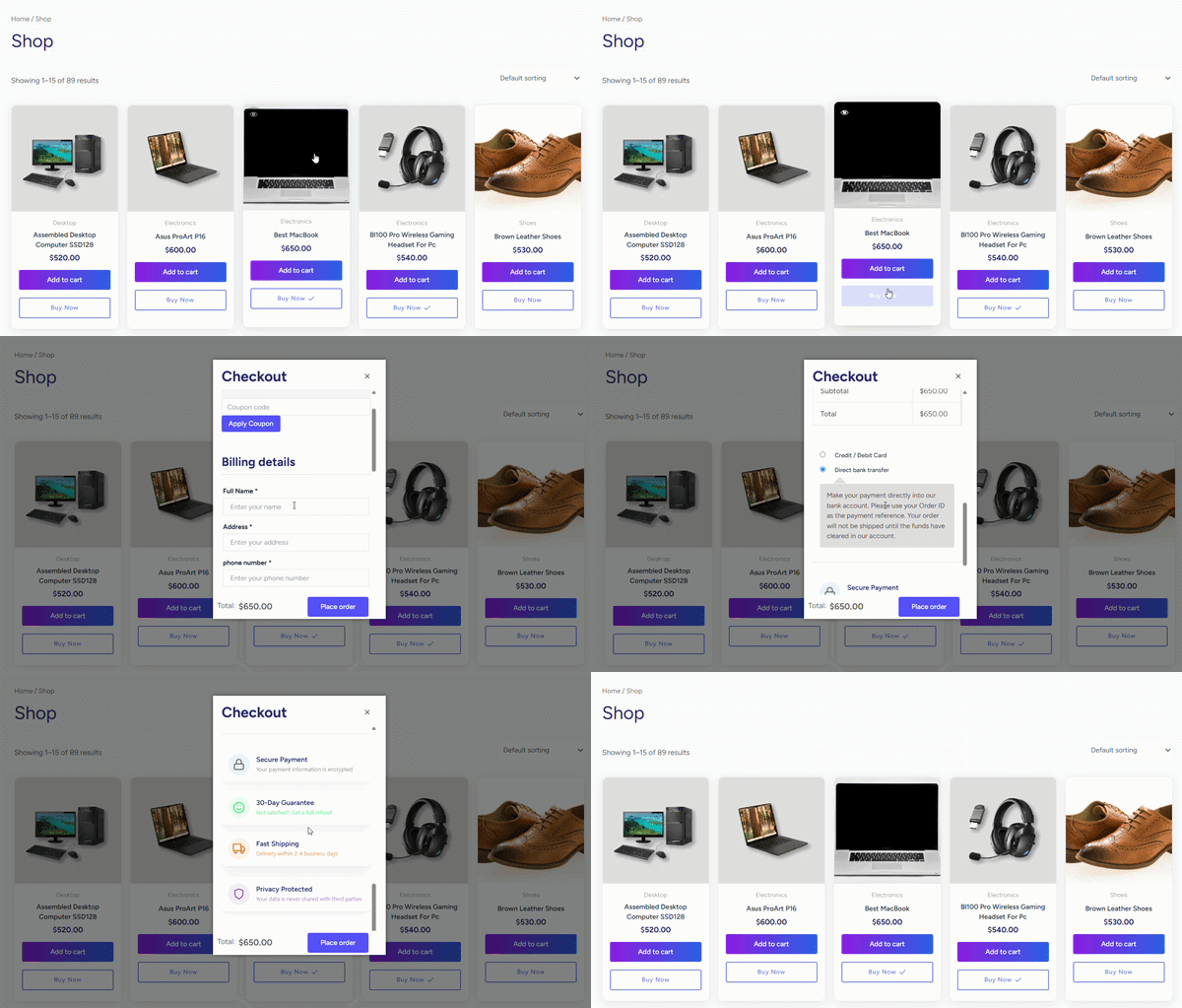
The customer does not need to manually visit the cart page or checkout page.
When to use Popup Checkout
Use Popup Checkout when you want customers to complete checkout quickly while staying on the current page.
It is useful for:
- Product pages
- Shop/archive pages
- Buy-now buttons
- Single product offers
- Landing pages
- Paid ad campaign pages
- Mobile checkout flows
- Stores that want fewer checkout steps
Best use cases
| Use case | Why Popup Checkout helps |
|---|---|
| Product page checkout | Customer can checkout without leaving the product page |
| Shop page buy-now buttons | Customer can checkout directly from product listings |
| Single-product campaign | Keeps the customer focused on one offer |
| Paid ad landing page | Reduces page redirects and checkout steps |
| Mobile checkout | Avoids multiple page transitions |
| Quick purchase store | Makes checkout feel faster and simpler |
Popup Checkout vs other checkout methods
The plugin may offer several checkout methods. Each method is useful for a different shopping experience.
| Method | What it does | Best used for |
|---|---|---|
| Popup Checkout | Opens checkout in a popup on the same page | Fast checkout without leaving the page |
| Direct Checkout | Sends customers directly to checkout | Simple buy-now redirect flow |
| Side Cart / Cart Drawer | Opens cart review before checkout | Customers review cart before payment |
| One Page Checkout | Shows product and checkout on the same page | Landing pages and focused checkout pages |
Popup Checkout vs Direct Checkout
Popup Checkout and Direct Checkout are related, but they are not the same.
Popup Checkout
Popup Checkout opens the checkout form inside a popup.
Best when:
- You want customers to stay on the current page.
- You want fewer page redirects.
- You want checkout to feel faster.
- You want a modern checkout experience.
Direct Checkout
Direct Checkout usually sends customers directly to the checkout page.
Best when:
- You prefer the standard WooCommerce checkout page.
- You do not want checkout inside a popup.
- You want a simple redirect-based buy-now flow.
Popup Checkout vs Side Cart
Popup Checkout focuses on completing the purchase. Side Cart focuses on reviewing the cart.
Popup Checkout
Best for:
- Fast checkout
- Buy-now flows
- Single product checkout
- Reducing checkout steps
Side Cart
Best for:
- Reviewing cart items
- Updating quantities
- Removing products
- Applying coupons
- Checking cart totals before checkout
Some stores use both: Side Cart for cart review and Popup Checkout for faster checkout.
Requirements
Before using Popup Checkout, make sure:
- WooCommerce is installed and active.
- One Page Quick Checkout for WooCommerce is installed and active.
- WooCommerce checkout page is configured correctly.
- Payment gateways are enabled.
- Shipping methods are configured if you sell physical products.
- Products are published, purchasable, and in stock.
- Your plugin license is active if Popup Checkout requires Pro access on your site.
If you need to check your license, go to:
Onpage Checkout → Plugin LicenseWhere Popup Checkout can appear
Popup Checkout can be used in places such as:
- Single product pages
- Shop page
- Product archive pages
- Category pages
- Custom landing pages
- Direct checkout buttons
- Buy-now buttons
- AJAX add-to-cart flows, depending on settings
The exact location depends on your plugin settings and active checkout method.
What customers may see inside the popup
Depending on your WooCommerce and plugin settings, the popup may show:
- Billing fields
- Shipping fields
- Order notes
- Order review
- Product summary
- Cart subtotal
- Discounts/coupons
- Shipping methods
- Payment methods
- Place order button
- Close button
Popup Checkout still uses WooCommerce checkout, so checkout fields and payment methods depend on your WooCommerce setup.
Important notes before enabling
Popup Checkout still depends on WooCommerce checkout
Popup Checkout changes where checkout appears, but it still relies on WooCommerce cart, checkout, session, shipping, tax, and payment gateway functionality.
If your normal WooCommerce checkout is not working, Popup Checkout may not work correctly either.
Test payment gateways
Some payment gateways use redirects, iframes, scripts, or hosted checkout pages. Always test your active payment gateways inside Popup Checkout.
Check:
- Payment fields load
- Place order button works
- Redirect payment methods work
- Order is created correctly
- Thank-you page loads correctly
Avoid aggressive caching
Popup Checkout is dynamic. Do not cache checkout popup content or delay required WooCommerce scripts.
Exclude from aggressive caching:
- Cart page
- Checkout page
- My Account page
- Pages where Popup Checkout appears
- Product pages using popup checkout
- Shop/archive pages using popup checkout
Test on mobile
Always test Popup Checkout on mobile.
Check:
- Popup width
- Scrolling
- Checkout fields
- Payment fields
- Close button
- Keyboard behavior
- Place order button visibility
Recommended beginner setup
For most stores, start with:
| Setting | Recommended value |
|---|---|
| Checkout Method | Popup Checkout |
| Clear Cart Before Checkout | Disabled for general stores |
| One-click Purchase | Disabled until tested |
| Confirmation Before Checkout | Optional |
| Button Text | Buy Now or Checkout Now |
| Button Position | Near Add to Cart button |
| Mobile Testing | Required |
| Cache Exclusions | Required for checkout/cart pages |
For single-product campaign pages:
| Setting | Recommended value |
|---|---|
| Checkout Method | Popup Checkout |
| Clear Cart Before Checkout | Enabled |
| Button Text | Buy Now |
| Button Position | Near product price or Add to Cart area |