
The Floating Cart Visual Editor lets you customize the cart drawer using a live preview. Instead of searching through every setting manually, you can click parts of the cart preview, edit text, change icons, and show or hide cart elements visually.
Use this section to control how the Floating Cart looks and which elements appear inside the cart drawer.
What is the Floating Cart Visual Editor?
The Floating Cart Visual Editor is an admin-side preview tool for customizing the Floating Cart layout.
It helps you:
- Preview the Floating Cart design.
- Click cart elements to edit them.
- Show or hide specific cart sections.
- Change cart text labels.
- Change cart icons.
- Configure empty cart display.
- Adjust item, coupon, summary, and recommendation sections.
The plugin includes a dedicated admin visual editor for Floating Cart settings, including preview panels, edit controls, visibility toggles, text editing, icon settings, and modal-based element settings.
How to Open the Floating Cart Visual Editor
To open the visual editor:
- Go to your WordPress admin dashboard.
- Navigate to Onpage Checkout settings.
- Open the Floating Cart settings tab or section.
- Find the Floating Cart Visual Editor area.
- Use the live preview to edit cart elements.
- Save changes.
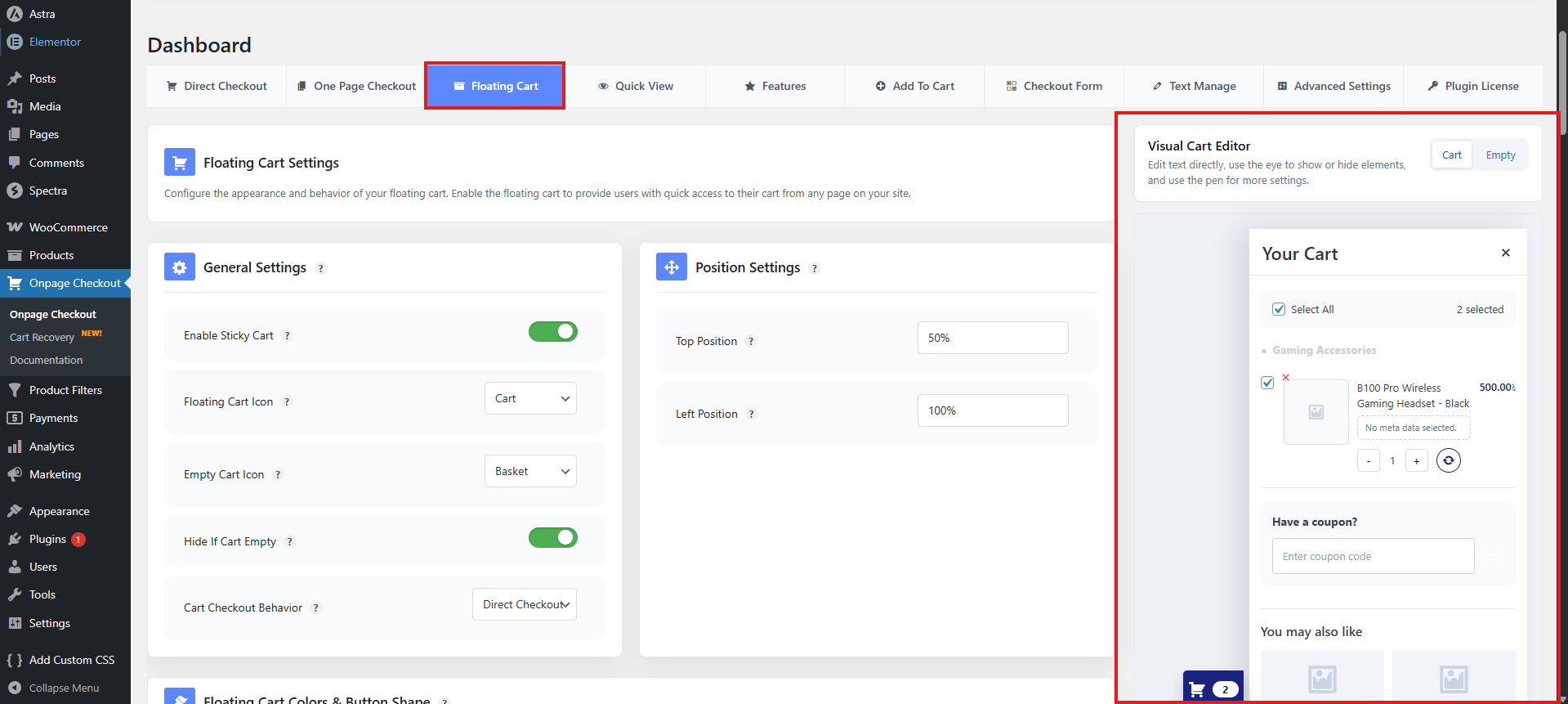
The visual editor is designed to help you configure the cart drawer without needing custom code.
Using the Floating Cart Preview
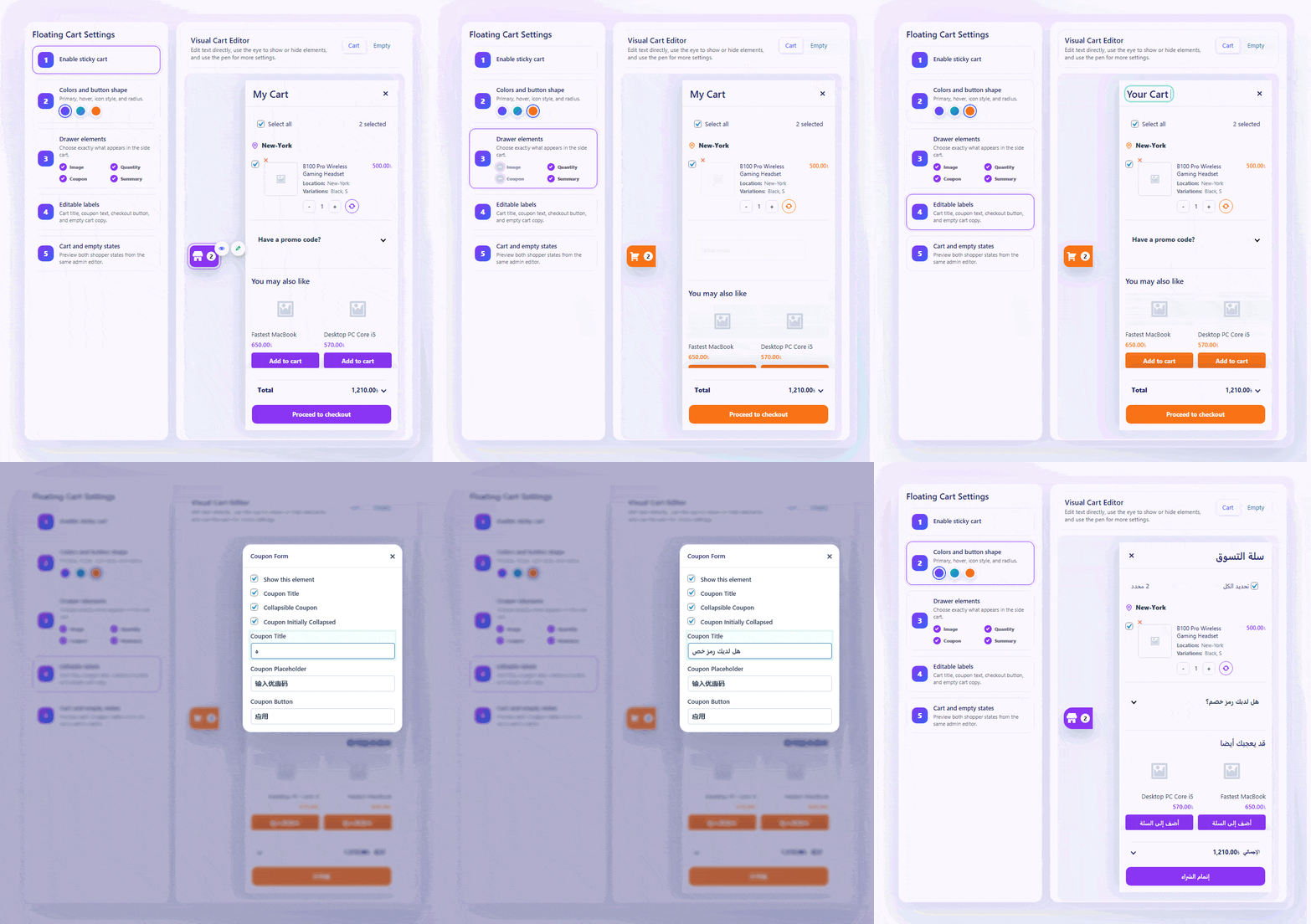
The preview shows how the Floating Cart may look on the frontend.
Depending on your settings, the preview may include:
- Floating cart button
- Cart drawer
- Cart header
- Cart items
- Product image
- Product title
- Product price
- Quantity controls
- Remove item button
- Coupon section
- Cart summary
- Checkout button
- Empty cart message
- Product recommendations
When you change a setting, the preview updates so you can see the result before saving.
Preview Modes
The visual editor may include different preview modes so you can check different cart states.
Common preview modes include:
| Preview Mode | Description |
|---|---|
| Cart Button | Shows the floating cart button/icon. |
| Cart Drawer | Shows the opened cart drawer with cart items. |
| Empty Cart | Shows how the drawer appears when the cart is empty. |
Use preview modes to make sure the Floating Cart looks good in both filled-cart and empty-cart states.
Click-to-Edit Cart Elements
In the visual editor, you can click supported cart elements directly in the preview.
After selecting an element, you may see controls to:
- Enable or disable that element.
- Edit its text.
- Change its icon.
- Open detailed element settings.
For example, you can click the coupon area to edit coupon text or visibility settings, or click the cart button to change the cart icon.
Show or Hide Cart Elements
You can show or hide individual Floating Cart elements.
Common elements you can control include:
| Element | Description |
|---|---|
| Cart icon | Shows the cart icon in the floating button. |
| Cart count | Shows the number of items in the cart. |
| Product image | Shows product thumbnails inside the drawer. |
| Product title | Shows product names. |
| Product price | Shows product prices. |
| Quantity controls | Allows customers to increase or decrease quantity. |
| Remove item button | Allows customers to remove products. |
| Coupon section | Shows coupon input area. |
| Summary section | Shows subtotal, discount, shipping, tax, and total. |
| Empty cart icon | Shows an icon when the cart is empty. |
| Recommendations | Shows related products in the cart drawer. |
Disable elements you do not want customers to see.
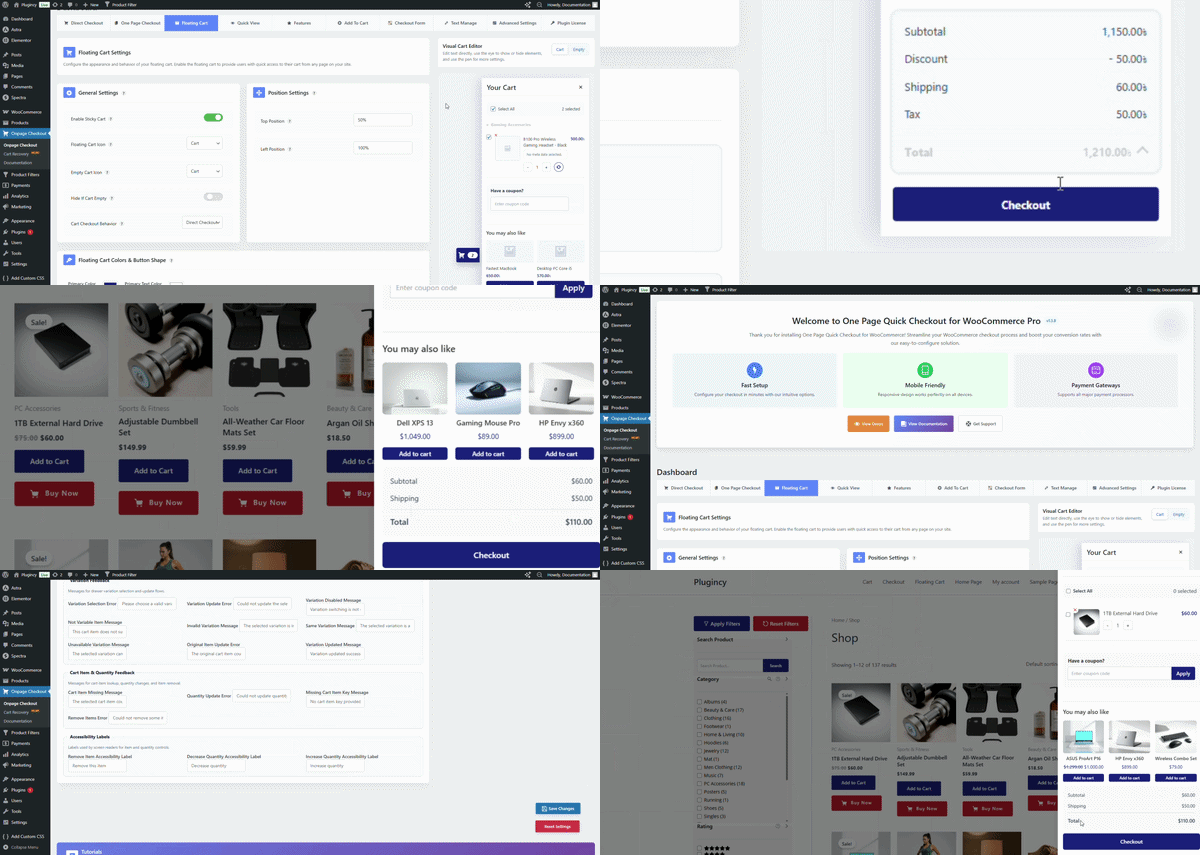
Enable elements that help customers review and complete their purchase.
Edit Text Labels
The visual editor can be used to customize Floating Cart text labels.
Common editable text may include:
- Cart drawer title
- Empty cart message
- Shop button text
- Coupon title
- Coupon placeholder
- Apply coupon button text
- Checkout button text
- Recommendation section title
- Related product Add to Cart button text
- Variation update button text
- Variation cancel button text
Use clear, action-focused labels.
Examples:
| Default / Example Text | Suggested Alternative |
|---|---|
| Checkout | Proceed to Checkout |
| Apply | Apply Coupon |
| Continue Shopping | Back to Shop |
| You may also like | Recommended for You |
| Update | Update Options |
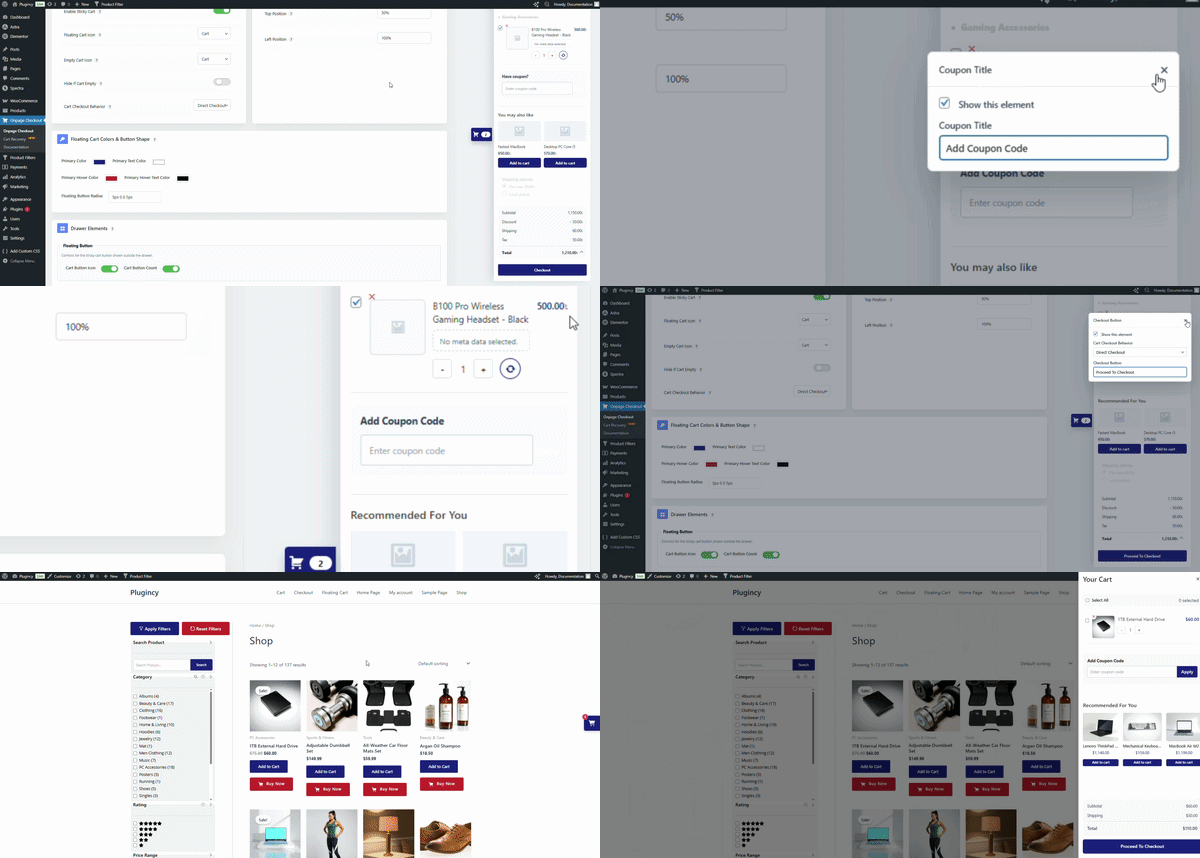
Change the Floating Cart Icon
You can choose the icon used for the Floating Cart button.
Available icon styles include:
| Icon | Best For |
|---|---|
| Cart | General WooCommerce stores |
| Shopping Bag | Fashion, lifestyle, boutique, and accessories stores |
| Basket | Grocery, food, home goods, and marketplace stores |
Choose an icon that matches your store style.
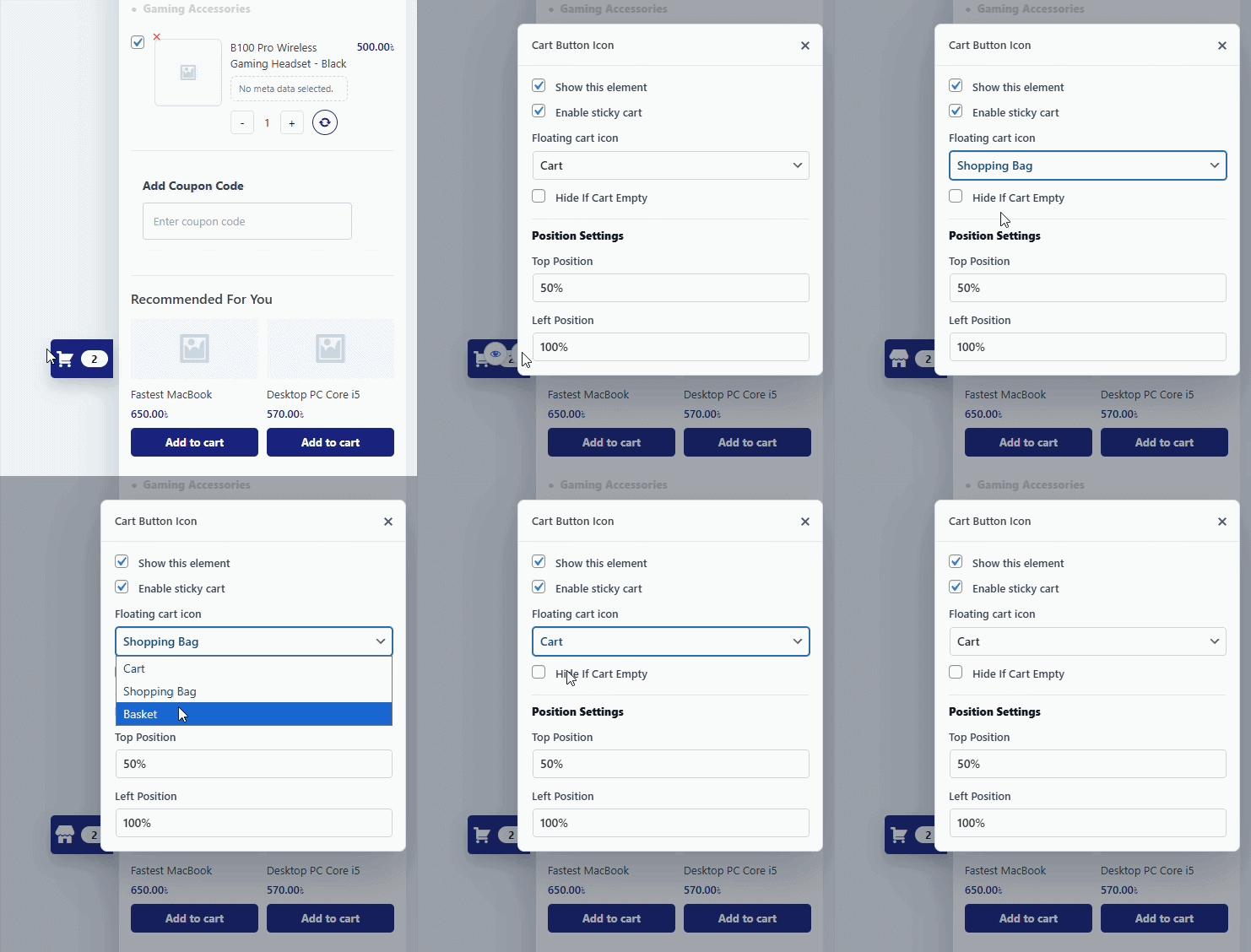
The visual editor includes icon mapping for cart, shopping bag, and basket icon styles.
Change the Empty Cart Icon
You can also customize the icon shown when the cart is empty.
Available empty-cart icon styles may include:
- Cart
- Basket
- Shopping bag
- Package
- Receipt
Use an empty-cart icon that matches your brand and product type.
For example:
| Store Type | Suggested Empty Cart Icon |
|---|---|
| Fashion store | Shopping bag |
| Grocery store | Basket |
| Digital/download store | Receipt |
| General store | Cart |
| Shipping-heavy store | Package |
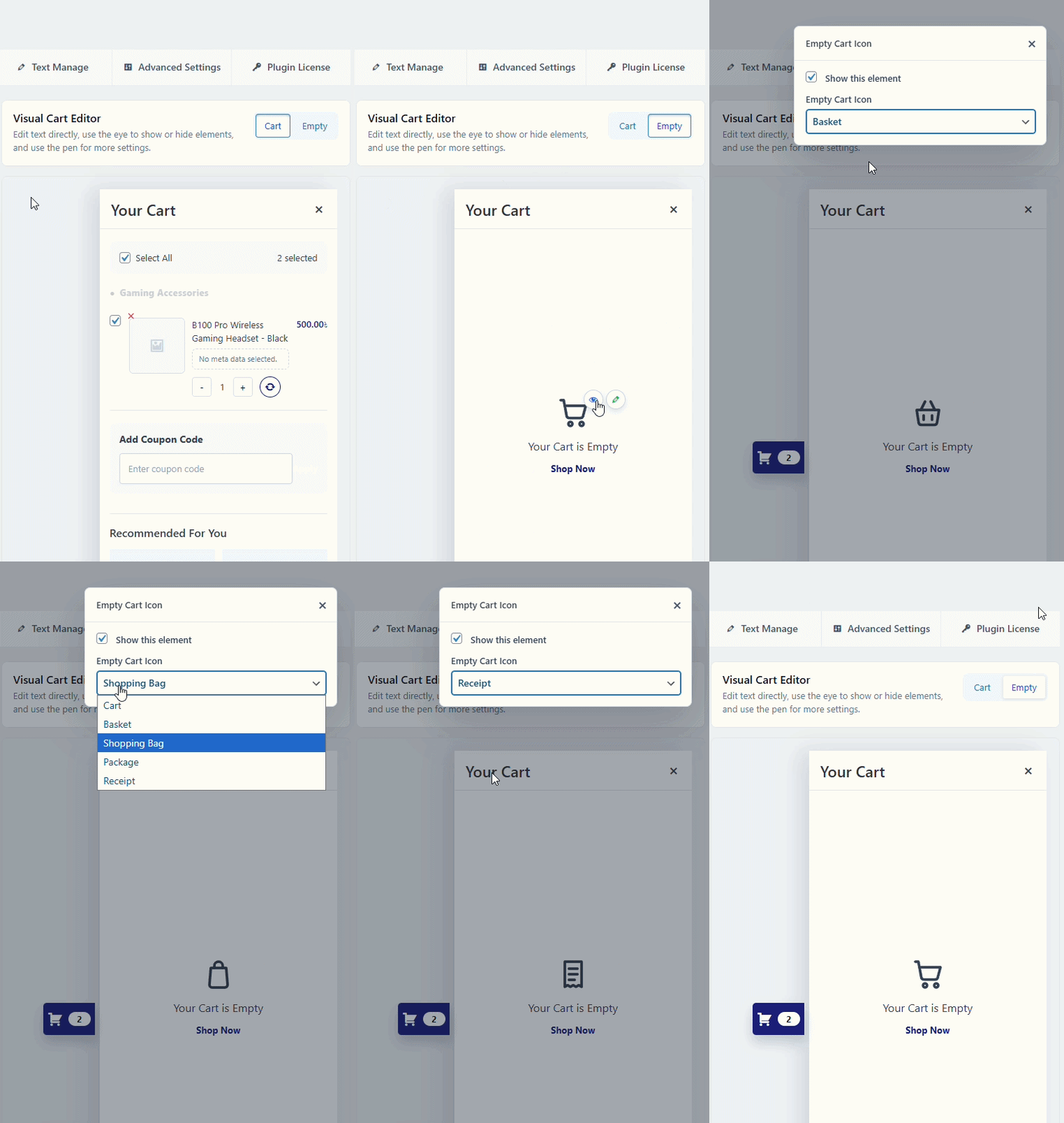
The visual editor includes multiple empty-cart SVG icon options for the empty cart state.
Edit Element Settings from the Preview
Some cart elements have more than one setting. When you click those elements, the editor may open an element settings panel.
For example:
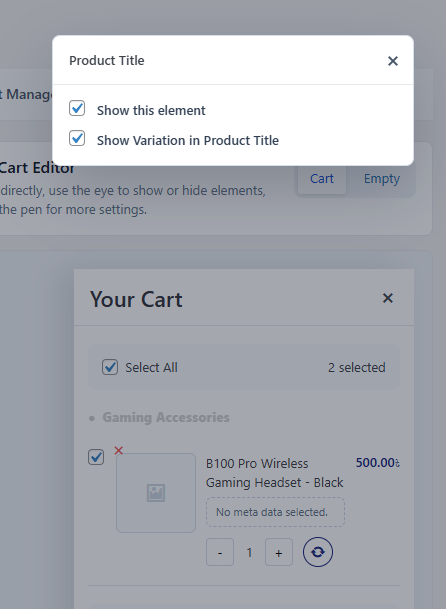
Product Title Settings
You may be able to control:
- Show or hide product title.
- Show variation in product title.
- Customize how product details appear.
Coupon Settings
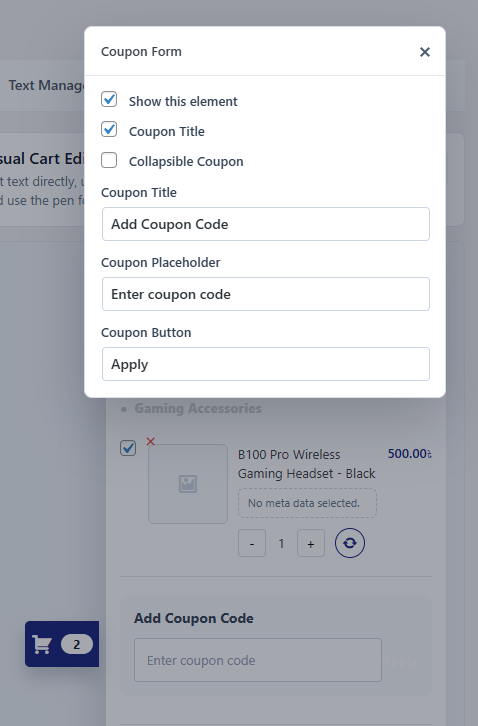
You may be able to control:
- Show or hide coupon section.
- Show or hide coupon title.
- Make coupon section collapsible.
- Set coupon section collapsed by default.
- Edit coupon text.
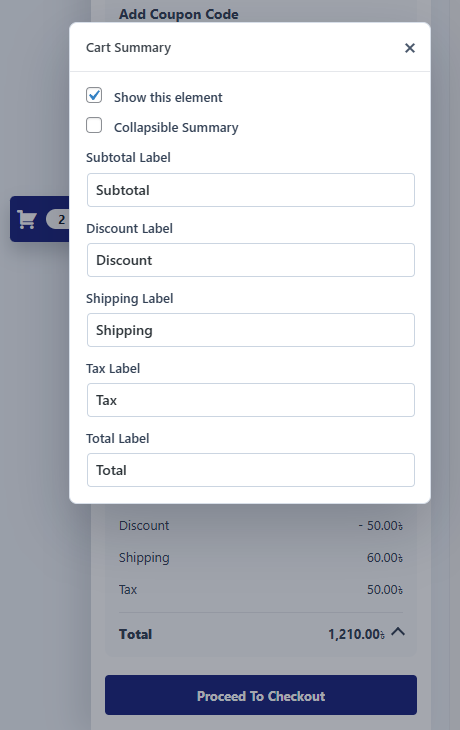
Summary Settings
You may be able to control:
- Show or hide summary section.
- Make summary section collapsible.
- Set summary collapsed by default.
- Show or hide subtotal, discount, shipping, tax, and total.
Empty Cart Settings
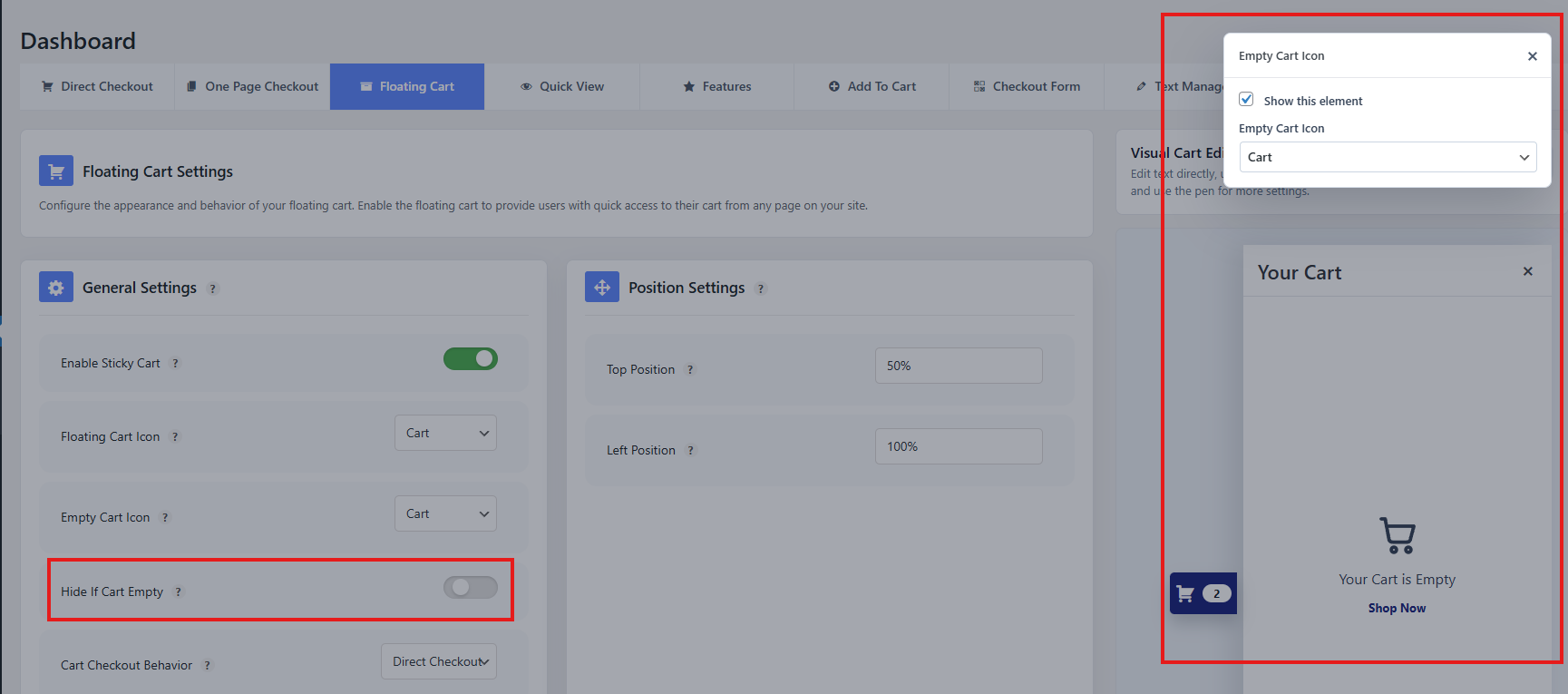
You may be able to control:
- Show or hide empty cart icon.
- Change empty cart icon.
- Edit empty cart message.
- Edit shop button text.
Enable or Disable Elements from Preview
When an element supports visibility control, the preview may show a visibility toggle.
Use it to quickly enable or disable an element without scrolling through all settings.
Example:
- Click the product image in preview.
- Click the visibility toggle.
- Product images are hidden from the cart preview.
- Save changes.
This is useful when you want a simpler cart drawer layout.
Editing Text Directly from Preview
Some text elements can be edited directly from the visual editor.
For example, you may edit:
- Coupon title
- Checkout button text
- Empty cart text
- Recommendation heading
After editing text, check the preview to make sure the label still fits inside the cart layout.
Keep button text short and clear.
Recommended button labels:
- Checkout
- Proceed to Checkout
- Apply Coupon
- Continue Shopping
- Update
- Cancel
Design Tips
Use these tips to keep the Floating Cart clean and easy to use.
Keep the cart drawer simple
Do not enable every element unless your store needs it. Too much information can make the cart feel crowded.
Recommended basic layout:
- Product image
- Product title
- Price
- Quantity controls
- Remove item button
- Summary
- Checkout button
Use product recommendations carefully
Recommendations can increase order value, but they also add more content to the drawer.
Enable recommendations if your products have useful related items.
Disable them if the drawer becomes too long.
Keep coupon section collapsible
If coupons are not the main focus, make the coupon section collapsible. This keeps the cart cleaner while still allowing customers to apply discount codes.
Show cart count
The cart count helps customers understand that the cart was updated after adding products.
Recommended setting: Enabled
Recommended Visual Editor Settings
For most stores, we recommend:
| Setting | Recommended Value |
|---|---|
| Show cart icon | Enabled |
| Show cart count | Enabled |
| Show product image | Enabled |
| Show product title | Enabled |
| Show product price | Enabled |
| Show quantity controls | Enabled |
| Show remove item button | Enabled |
| Show coupon section | Optional |
| Coupon collapsible | Enabled |
| Show summary section | Enabled |
| Summary collapsible | Optional |
| Show checkout button | Enabled |
| Show empty cart icon | Enabled |
| Show recommendations | Optional |
Notes About Disabled or Locked Controls
Some controls may appear disabled depending on your plugin version, license, WooCommerce setup, or related settings.
A setting may be disabled if:
- It requires the Pro version.
- Another required option is turned off.
- The selected cart layout does not support it.
- WooCommerce cart/session data is unavailable.
- The feature only works with variable products or specific cart item data.
If a control is disabled, check related settings first. For example, variation editor settings may require variable products and variation-switching support.
Best Practice
After editing the Floating Cart design:
- Save changes.
- Open your storefront in a new browser tab.
- Add a product to cart.
- Open the Floating Cart.
- Test quantity update, remove item, coupon, and checkout button.
- Test on mobile view.
This ensures the cart drawer works properly for real customers.