
All sections
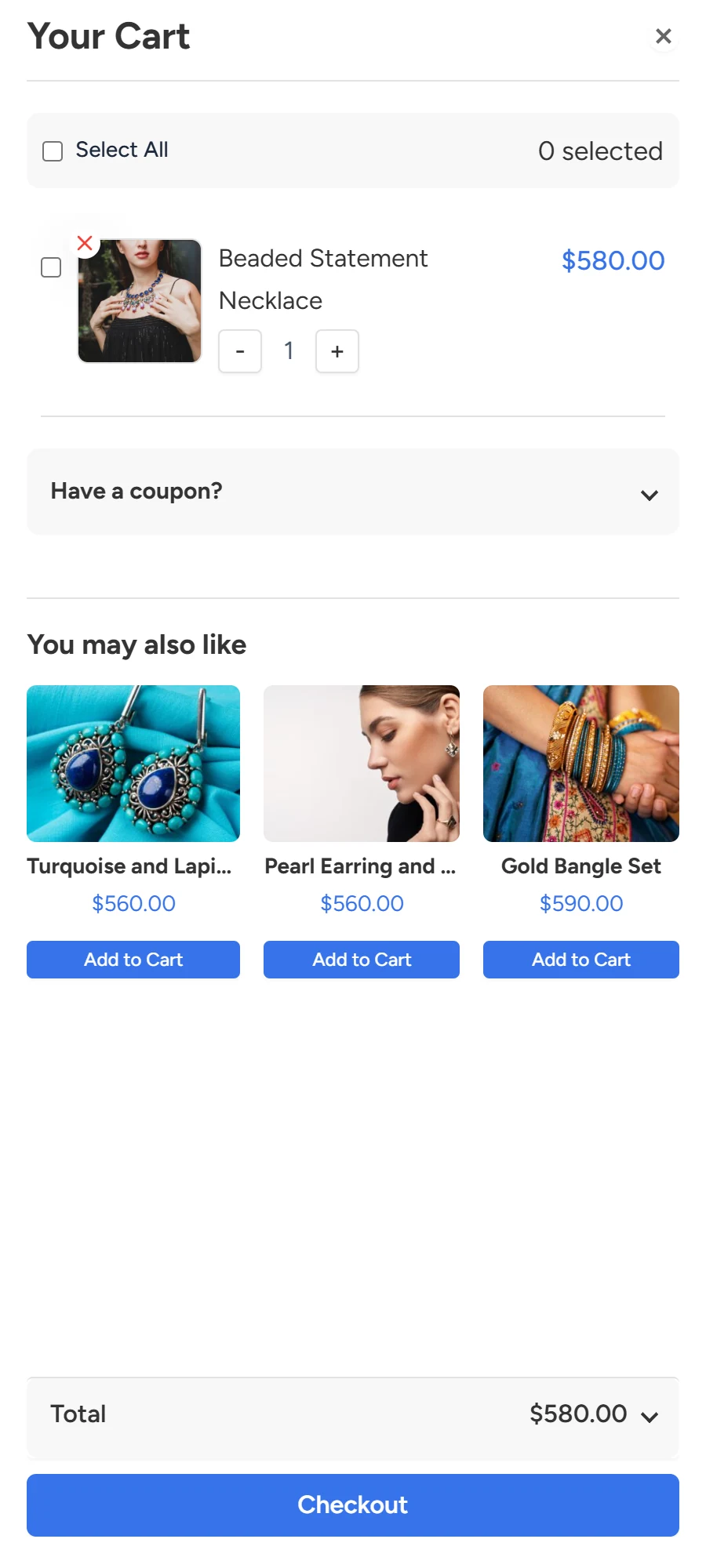
The floating cart is a small button that stays on the side of the screen on every page. When clicked, a drawer slides open with the shopper’s cart, so they can change it and go to checkout without leaving the page. The basic version is free. You can try it on the live demo.
Turn it on
- Go to Onpage Checkout > Floating Cart.
- Turn on Enable Sticky Cart.
- Click Save Changes.
- Open your shop, add a product and click the button on the side of the screen.
That is all. You do not need to place anything on a page, because the plugin adds the button to every page itself.
General Settings
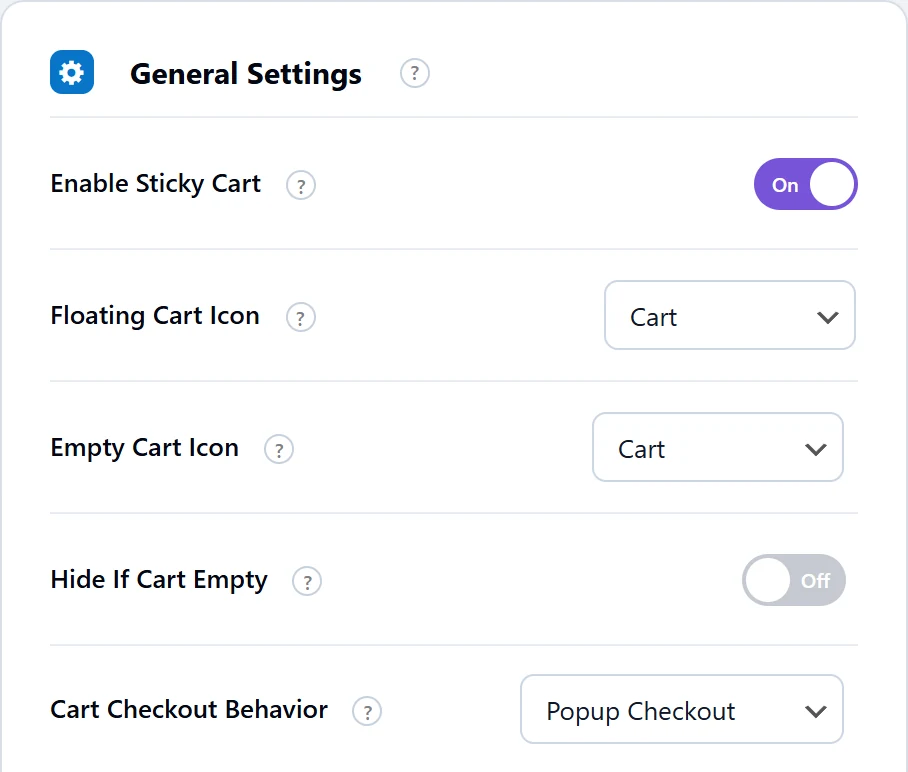
| Setting | What it does | Default |
|---|---|---|
| Enable Sticky Cart | Turns the button and drawer on. | Off |
| Floating Cart Icon PRO | The button’s icon: Cart, Shopping Bag or Basket. In the free plugin it is always the cart. | Cart |
| Empty Cart Icon PRO | The picture inside the drawer when the cart is empty: Cart, Basket, Shopping Bag, Package or Receipt. | Cart |
| Hide If Cart Empty PRO | Hides the button until something is in the cart. | Off |
| Cart Checkout Behavior PRO | What the drawer’s Checkout button does: Direct Checkout opens the checkout page, and Popup Checkout opens the checkout in a popup. | Direct Checkout |
Where the button sits
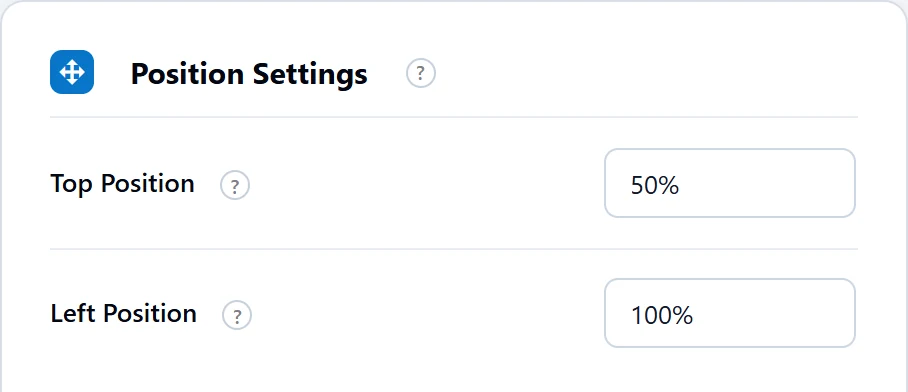
Under Position Settings, Top Position sets how far down the screen the button sits, and its default is 50%, the middle. Left Position sets how far across it is, and its default is 100%, the right edge. These work in the free plugin too.
Which side the drawer opens from
With Enable Sticky Cart, the drawer always opens from the right. To open it from the left, use the cart drawer shortcode or the Floating Cart block or Elementor widget, with their drawer position setting.
Colours
You can change the button’s colours and shape on the same tab. The floating cart design guide explains these, along with what the drawer shows.
What the drawer shows in the free plugin
The free drawer always shows product picture, name, price, quantity, remove button, tick boxes, a coupon form, related products, subtotal, discount, total and a Checkout button. Pro lets you turn each of these off, and adds shipping and tax rows.
How it compares
| Feature | Best when |
|---|---|
| Floating cart | Shoppers buy several items and want to see the cart while browsing. This suits fashion, groceries and large ranges. |
| Direct Checkout | Shoppers usually buy one thing and want to pay at once. |
| Popup Checkout PRO | You want checkout on the same page, without a drawer. |
The count on the button reassures shoppers that their product was added. If you hide the button when the cart is empty, it appears as soon as they add something.
The Buy Now method Side Cart Slide-in also opens this drawer, and needs Enable Sticky Cart on.