
All sections
This guide is for the free plugin. The Text Manage tab lets you change the wording on your checkout and in the cart drawer, without editing any code. Pro has no such tab. There, you use the Pro text settings instead.
How to use it
- Go to Onpage Checkout > Text Manage.
- Type new words into the boxes you want to change. Leave the rest empty to keep the default.
- Click Save Changes.
- Open your checkout page to check.
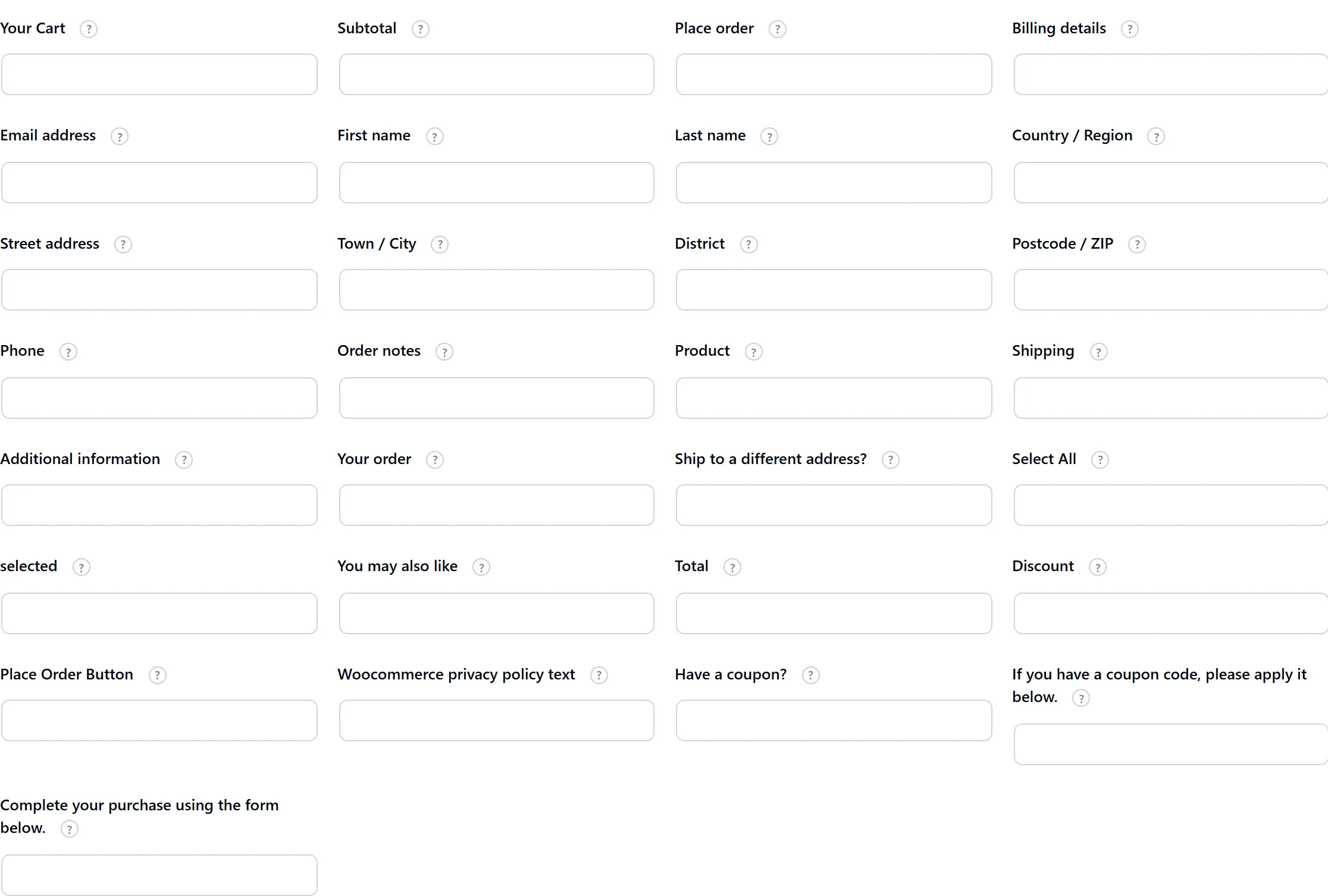
What you can change
| Group | Fields |
|---|---|
| Drawer and cart | Your Cart, Subtotal, Discount, Total, Select All, selected, You may also like |
| Checkout headings | Billing details, Additional information, Your order, Ship to a different address?, Product, Shipping |
| Fields | Email address, First name, Last name, Country / Region, Street address, Town / City, District, Postcode / ZIP, Phone, Order notes |
| Coupon and messages | Have a coupon?, If you have a coupon code, please apply it below., Complete your purchase using the form below. |
| Button | Place order |
District renames the state field.
Renaming the order button
Use the Place order field. It also changes the Checkout button in the cart drawer and the popup’s heading, so choose wording that fits all of these.
The list also has Place Order Button and Woocommerce privacy policy text boxes, but at present these two make no change.
Good wording
- Use words your customers use, such as “Mobile number” instead of “Phone”.
- Keep labels short, so they fit on phones.
- Translate them if your store is in another language.
To remove a field instead of renaming it, read our guide to managing checkout fields.