
The WooCommerce Quick View Popup feature allows customers to view product details in a convenient popup, enhancing their shopping experience by reducing the need to navigate away from the current page.
Step 1: Install the Plugin
Before configuring the Quick View Popup settings, ensure the plugin is installed. For detailed installation steps, please visit the Installation Guide Documentation Page.
Step 2: Enable Quick View
If Quick View is not enabled, please enable it from the General Settings. Learn more about this by visiting the General Settings Documentation.
Step 3: Navigate to Popup Manage
- Log in to your WordPress admin dashboard.
- Go to Onpage Checkout in the sidebar.
- Click on Quick View and then select Popup Manage.
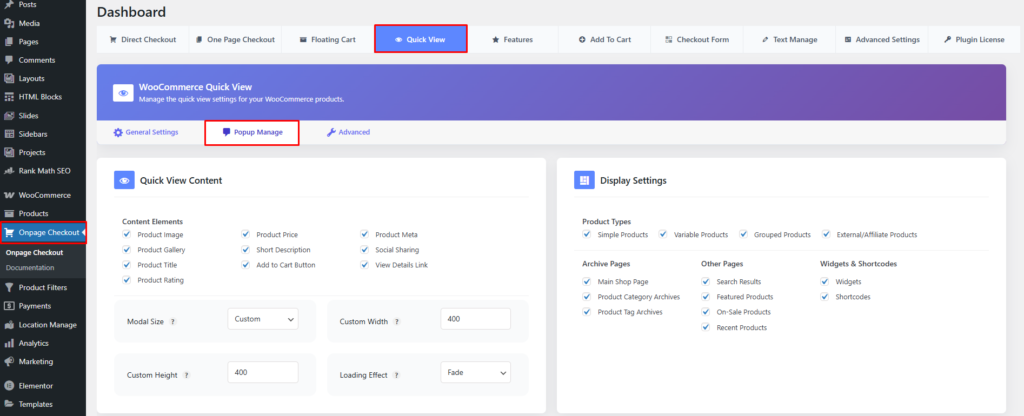
Configuration Options
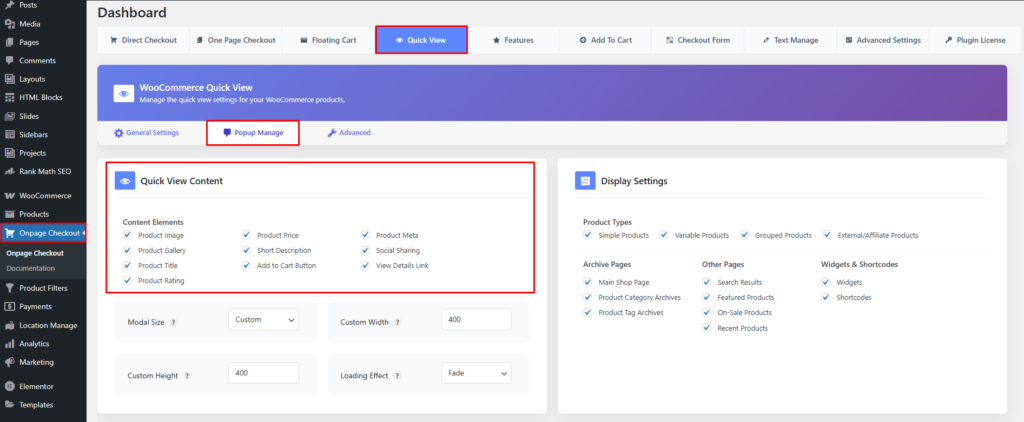
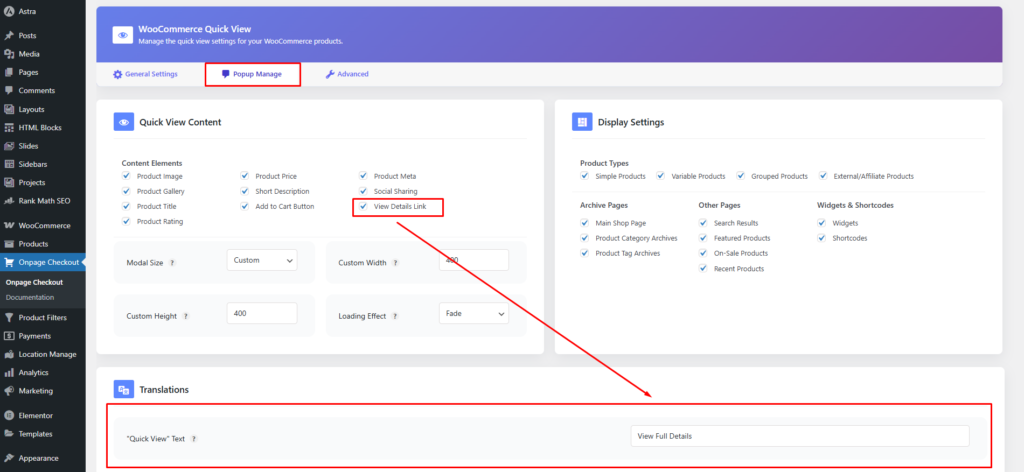
Quick View Content
Select which product elements should be displayed in the quick view popup:
- Product Image
- Product Gallery
- Product Title
- Product Rating
- Product Price
- Short Description
- Add to Cart Button
- Product Meta
- Social Sharing
- View Details Link
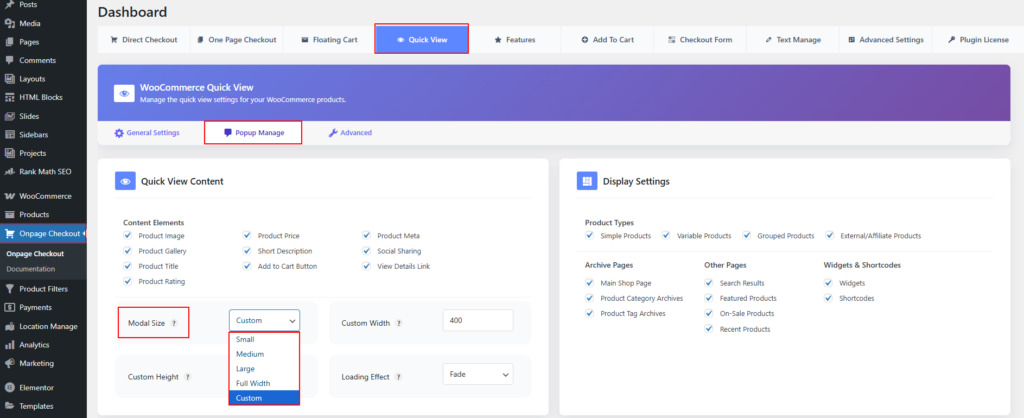
Modal Size
Choose the size of the quick view modal popup:
- Small
- Medium
- Large
- Full Width
- Custom
Custom Height
Define the exact overhead clearance or long-form proportions needed for your specific layout.
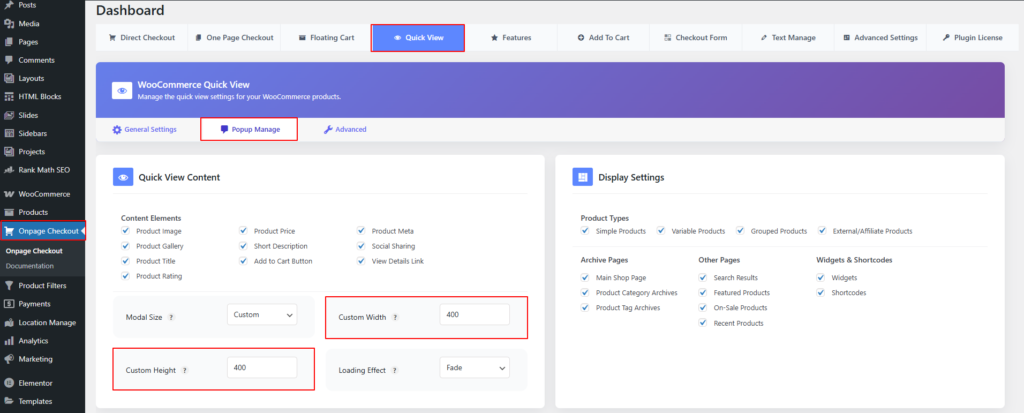
Custom Width
Control the lateral boundaries of your project to optimize readability and maximize available surface area.
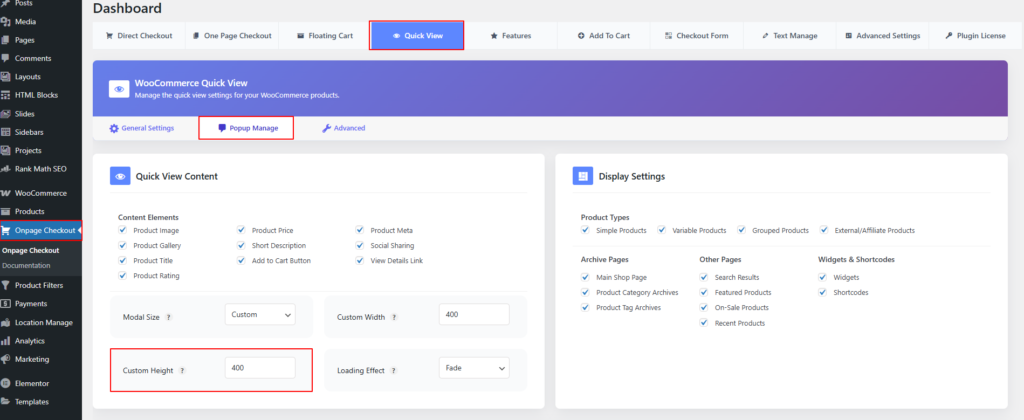
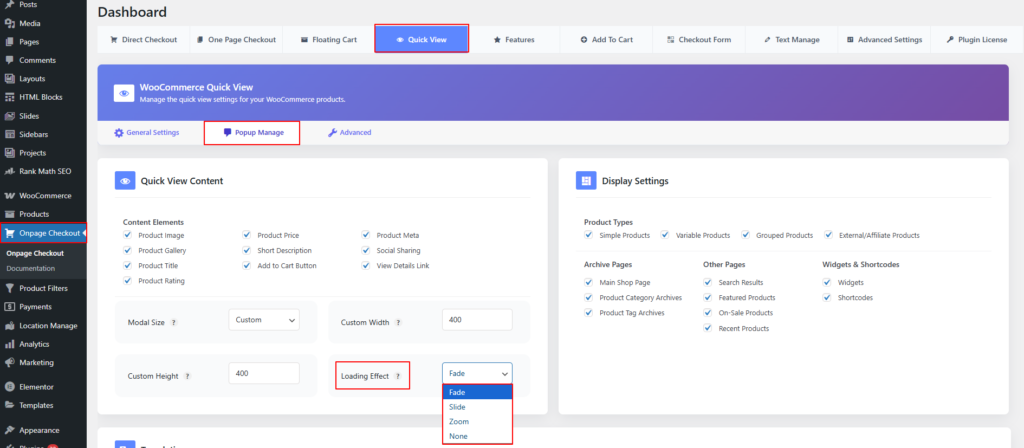
Loading Effect
Choose the animation effect when opening the quick view modal:
- Fade
- Slide
- Zoom
Step 4: Navigate to Display Settings
- Log in to your WordPress admin dashboard.
- Go to Onpage Checkout in the sidebar.
- Click on Quick View and then select Display.
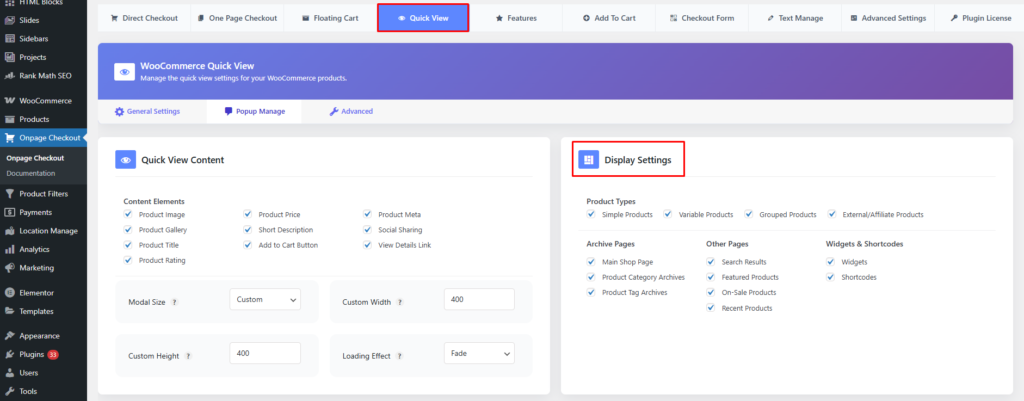
Configuration Options
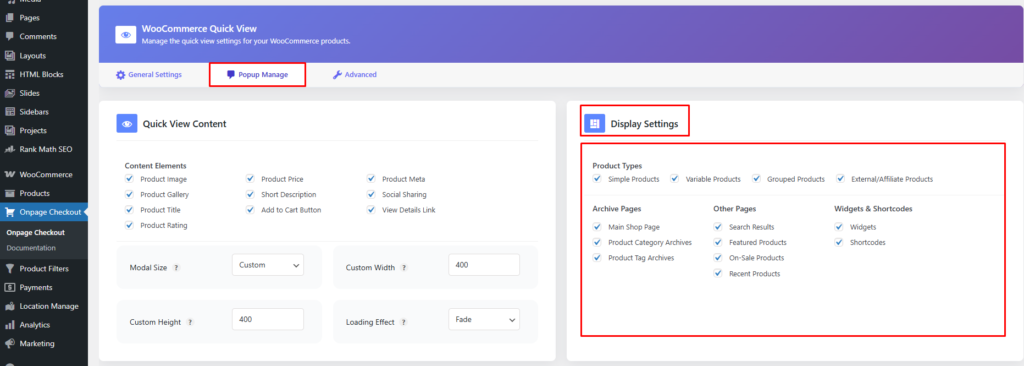
Product Types
Select which product types should have the Quick View feature enabled:
- Simple Products
- Variable Products
- Grouped Products
- External/Affiliate Products
Archive Pages
Enable Quick View for the following archive pages:
- Main Shop Page
- Product Category Archives
- Product Tag Archives
Other Pages
Select additional pages for Quick View functionality:
- Search Results
- Featured Products
- On-Sale Products
- Recent Products
Widgets & Shortcodes
Enable Quick View for:
- Widgets
- Shortcodes
Translations
Customize the text displayed in the Quick View popup:
- “View Details” Text: Customize the text for the “View Full Details” link. If you enable ‘ View Details Link ‘ in the Quick View Content option, then “Quick View” text will be available
This documentation provides a comprehensive guide for managing the WooCommerce Quick View Display settings in the One Page Quick Checkout for WooCommerce. For further assistance, please refer to our support section or contact our support team.