
All sections
These settings cover closing the popup, the keyboard, analytics and how the plugin loads. Go to Onpage Checkout > Quick View > Advanced. Most people can leave them alone.
Advanced Options
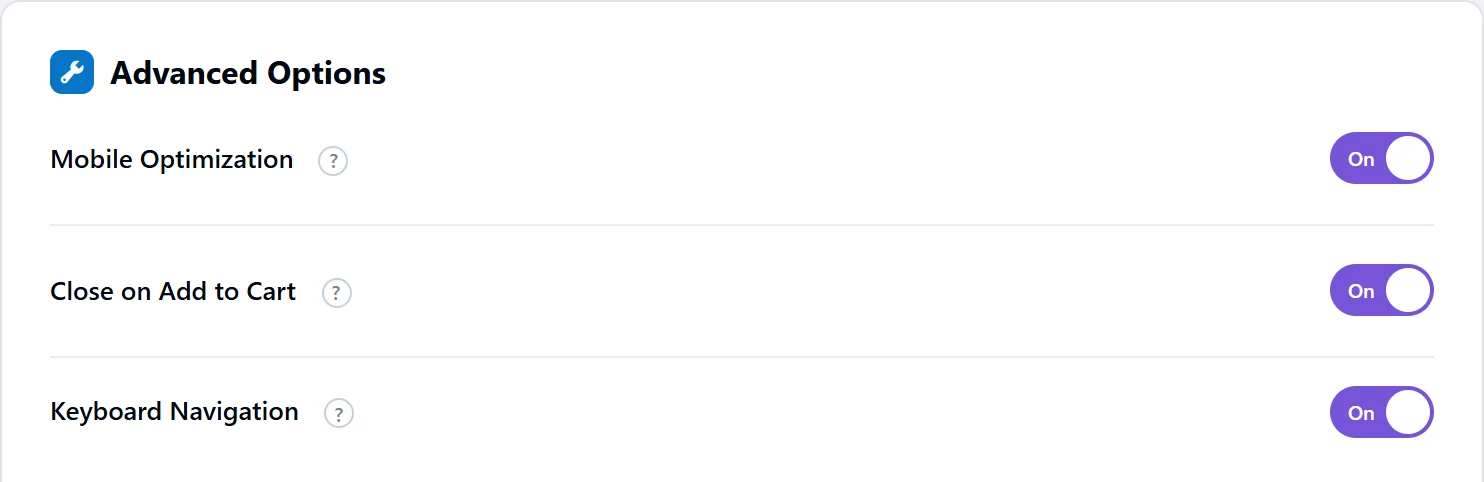
| Setting | What it does | Default |
|---|---|---|
| Mobile Optimization PRO | The switch is there, but at present it makes no visible change. The popup is the same on phones with it on or off. | Off |
| Close on Add to Cart PRO | Closes the popup after a product is added. | Off |
| Keyboard Navigation | The left and right arrow keys move to the previous or next product, except when typing. | On |
The Esc key always closes the popup, whatever this setting says. The Tab key stays inside the popup while it is open.
Analytics Integration PRO
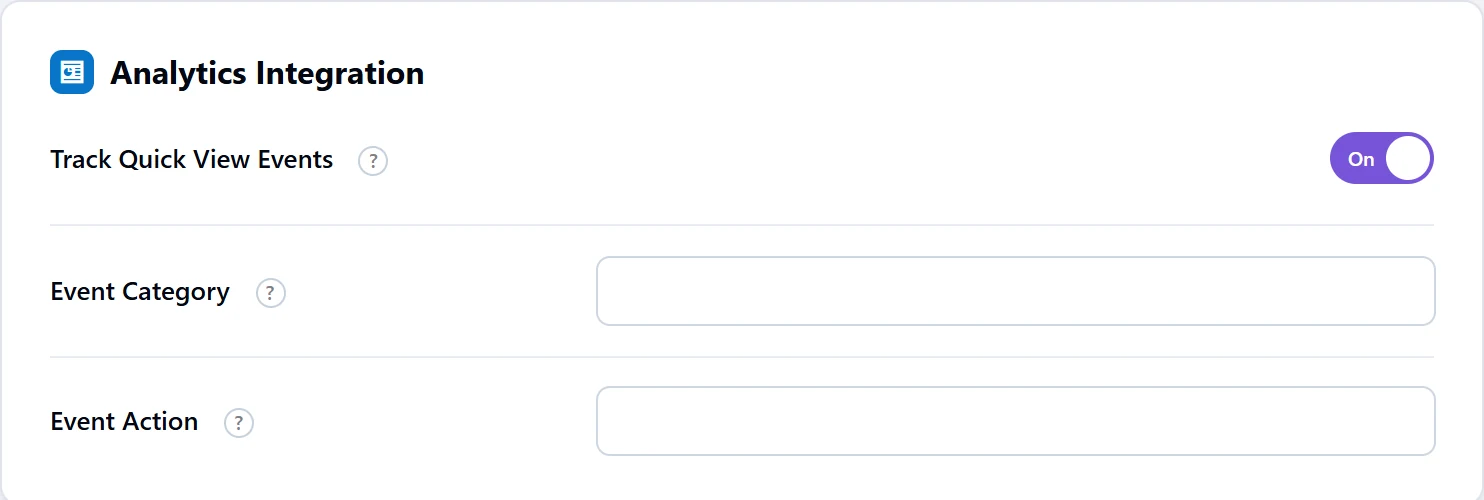
This counts how often the popup is opened, in your analytics tool.
| Setting | What it does | Default |
|---|---|---|
| Track Quick View Events | Sends an event each time the popup opens, through Google Analytics or Google Tag Manager, if your site has one. | Off |
| Event Category | The event’s category name. | WooCommerce |
| Event Action | The event’s action name. | Quick View |
To check it, turn it on and open a popup, then look at your analytics tool’s real-time report.
Compatibility Settings
Load Scripts On PRO
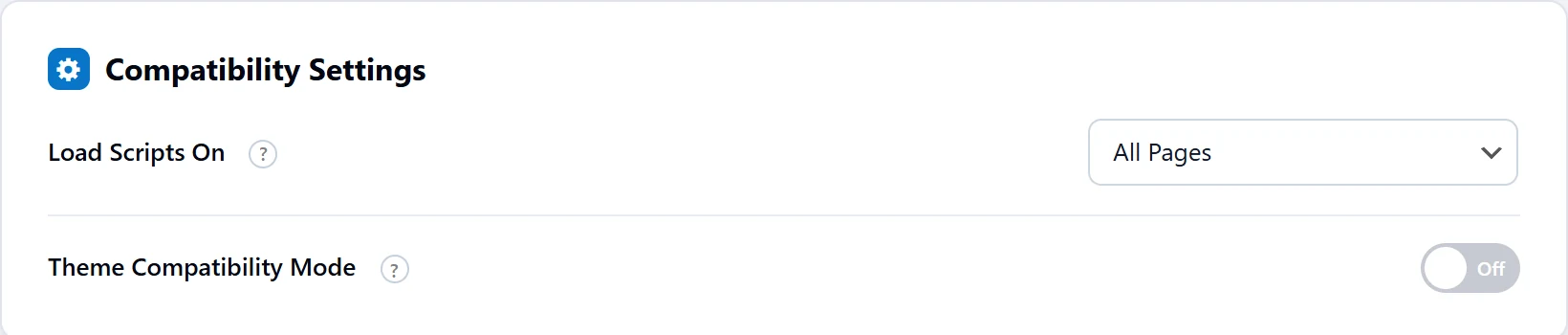
This chooses where the plugin’s files load. It can help page speed, but it does not choose which products show the button. That is done under Display Settings.
- All Pages: loads everywhere. Use it if you show products on many kinds of pages.
- WooCommerce Pages Only: the default. Loads on pages you allowed in Display Settings, and wherever products show.
- Specific Pages Only: loads only on the page IDs you enter under Specific Pages IDs, separated by commas. Test this one, because your shop page may not count as a normal page and could lose its buttons.
Theme Compatibility Mode
Turn this on if the popup looks wrong with your theme, for example if it sits behind other items or its text looks odd. It places the popup on top and resets some styles inside it. It is off by default.
Quick View shortcode PRO
Show the button anywhere with this shortcode:
[plugincy_quick_view product_id="123" button_text="Quick Preview"]Enable Quick View must be on, the product ID must be valid, and the product type and page must be allowed. If you leave out button_text, the plugin uses your normal Button Text. The shortcode is not in the free plugin.
The button itself is covered in the Quick View general settings.