
All sections
These settings control what happens when a shopper clicks Add to Cart, and the message they see. Go to Onpage Checkout > Add To Cart > Button Behavior. You can try this on the live demo.
Customizable Add to Cart must be on in General Settings, or these settings do nothing.
Display Settings
Button Display has three choices:
- Default (WooCommerce Setting): the button shows as normal.
- Always Show: at present, this behaves the same as Default.
- Always Hide: hides the button on product pages, and on simple products in lists. Variable products in lists keep theirs. The rest of this tab is greyed out when you choose it.
Add To Cart Behavior
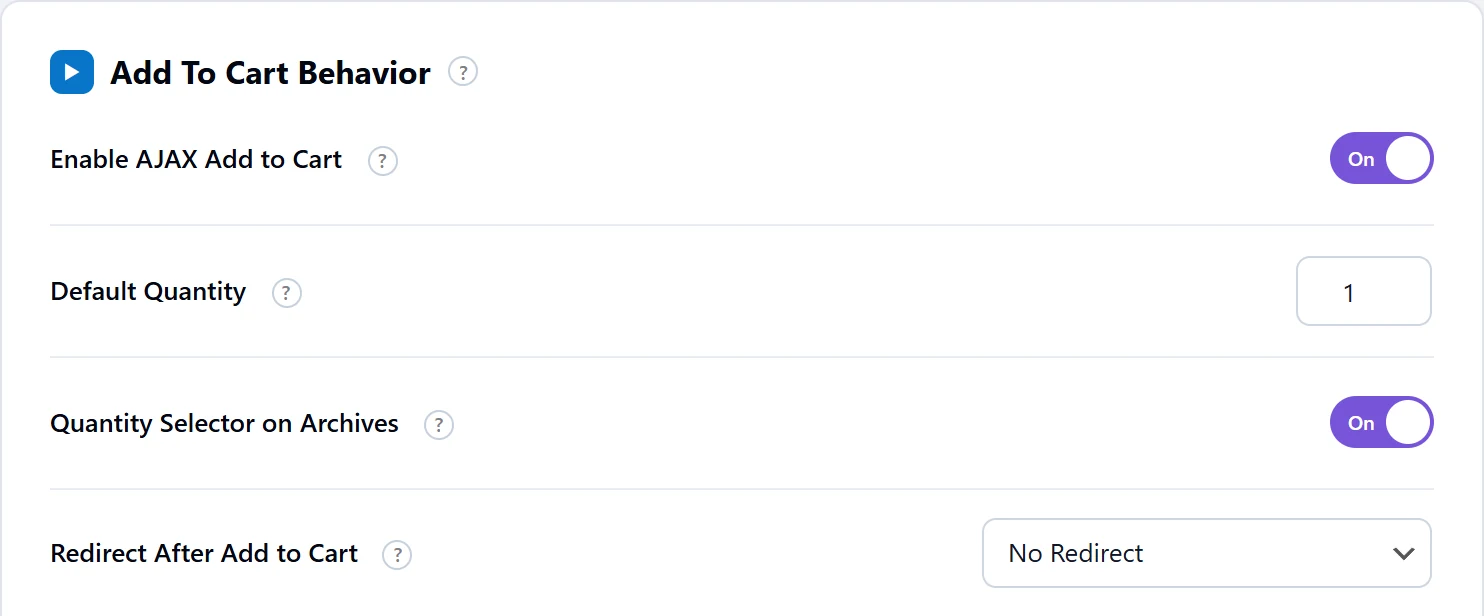
| Setting | What it does | Default |
|---|---|---|
| Enable AJAX Add to Cart | Adds products on shop pages without reloading the page. The other settings in this block, and the Notifications block, turn grey when it is off. | On |
| Default Quantity PRO | How many are added per click. It stays within the product’s limits. In the free plugin it is always 1. | 1 |
| Quantity Selector on Archives PRO | Shows a quantity box on shop pages. | Off |
| Redirect After Add to Cart | No Redirect stays on the page. The other choices go to the Cart Page or Checkout Page. The cart choice is greyed out when Disable Cart Page is on. | No Redirect |
If you choose a redirect, the Notifications block below is greyed out, as shoppers leave the page.
Notifications PRO
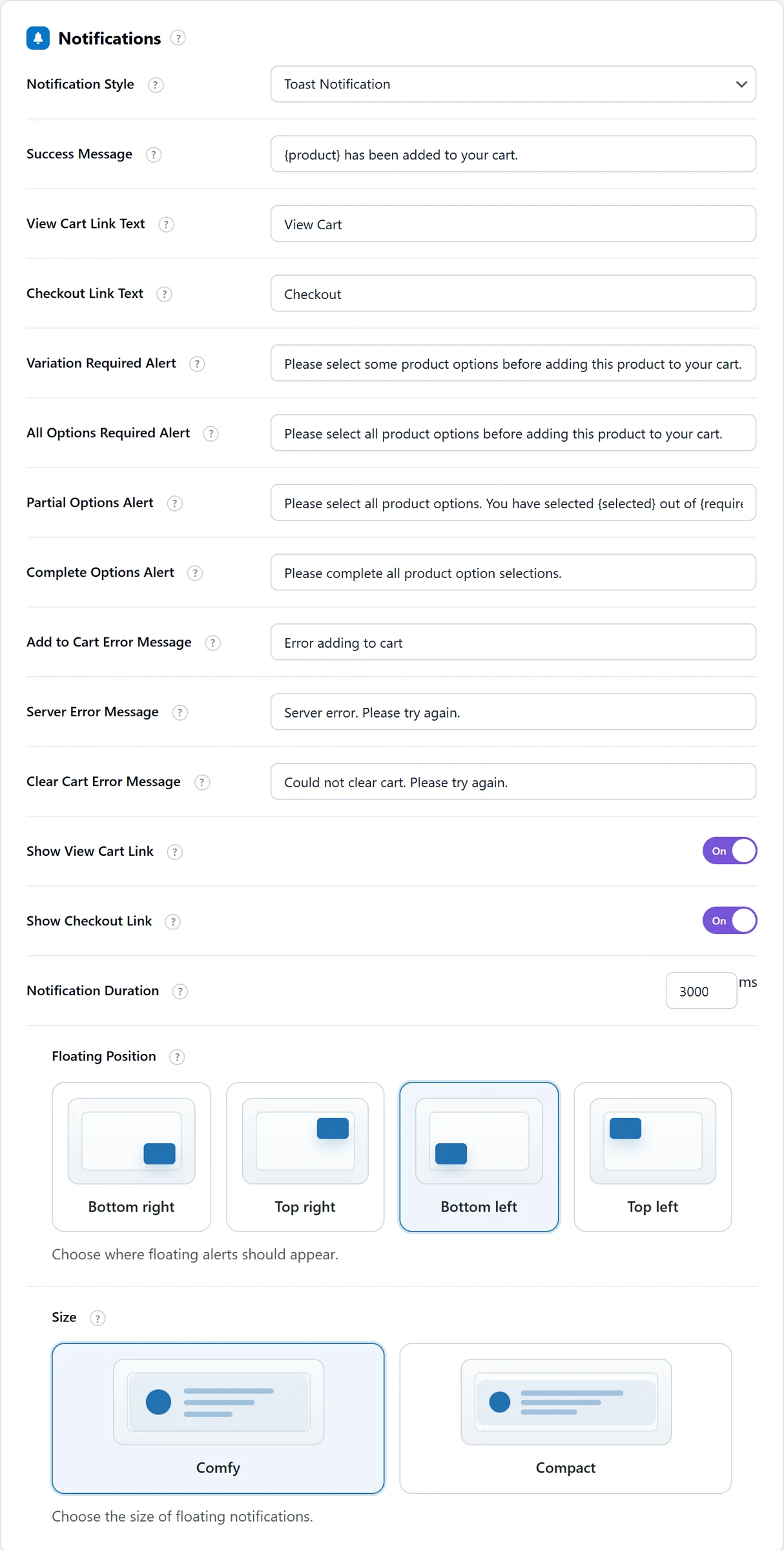
Notification Style chooses how the message looks: Default WooCommerce Notices, Popup Message or Toast Notification, which is a small message that appears and fades away.
| Setting | What it does | Default |
|---|---|---|
| Success Message | The message after adding. {product} becomes the product’s name. | {product} has been added to your cart. |
| View Cart Link Text, Checkout Link Text | The words on the links in the message. | |
| Show View Cart Link, Show Checkout Link | Which links show. | View cart on, checkout off |
| Notification Duration | How long it stays, in milliseconds. 3000 is 3 seconds. | 3000 |
| Floating Position | The screen corner, for toasts: Bottom right, Top right, Bottom left or Top left. | Top right |
| Size | Comfy or Compact, for toasts. | Comfy |
Error messages
You can also change the wording of these messages:
- Variation Required Alert, when no option is chosen.
- All Options Required Alert and Partial Options Alert, for missing choices. The second can use
{selected}and{required}. - Complete Options Alert, when choices are incomplete.
- Add to Cart Error Message, Server Error Message and Clear Cart Error Message, for when something fails.
Click Save Changes, then add a product on your shop page to see it. In the free plugin, the message wording is fixed.