
Location-wise currency allows you to show product prices in a different currency based on the customer’s selected store location. This is useful for stores that sell across multiple countries, regions, branches, or service areas.
For example:
| Location | Currency |
|---|---|
| United States Store | USD |
| United Kingdom Store | GBP |
| Canada Store | CAD |
| UAE Store | AED |
Before enabling this feature, it is important to understand how location-wise currency works with pricing, cart behaviour, order assignment, mixed-location carts, and split orders.
Location-Wise Currency Requires Location-Wise Pricing
Location-wise currency works together with Location-Wise Pricing.
This means you must enable location-wise pricing before location-wise currency can work correctly.
If location-wise pricing is disabled, location-wise currency will not be applied.
Recommended setup
- Go to the plugin settings.
- Enable Location-Wise Pricing.
- Enable Location-Wise Currency.
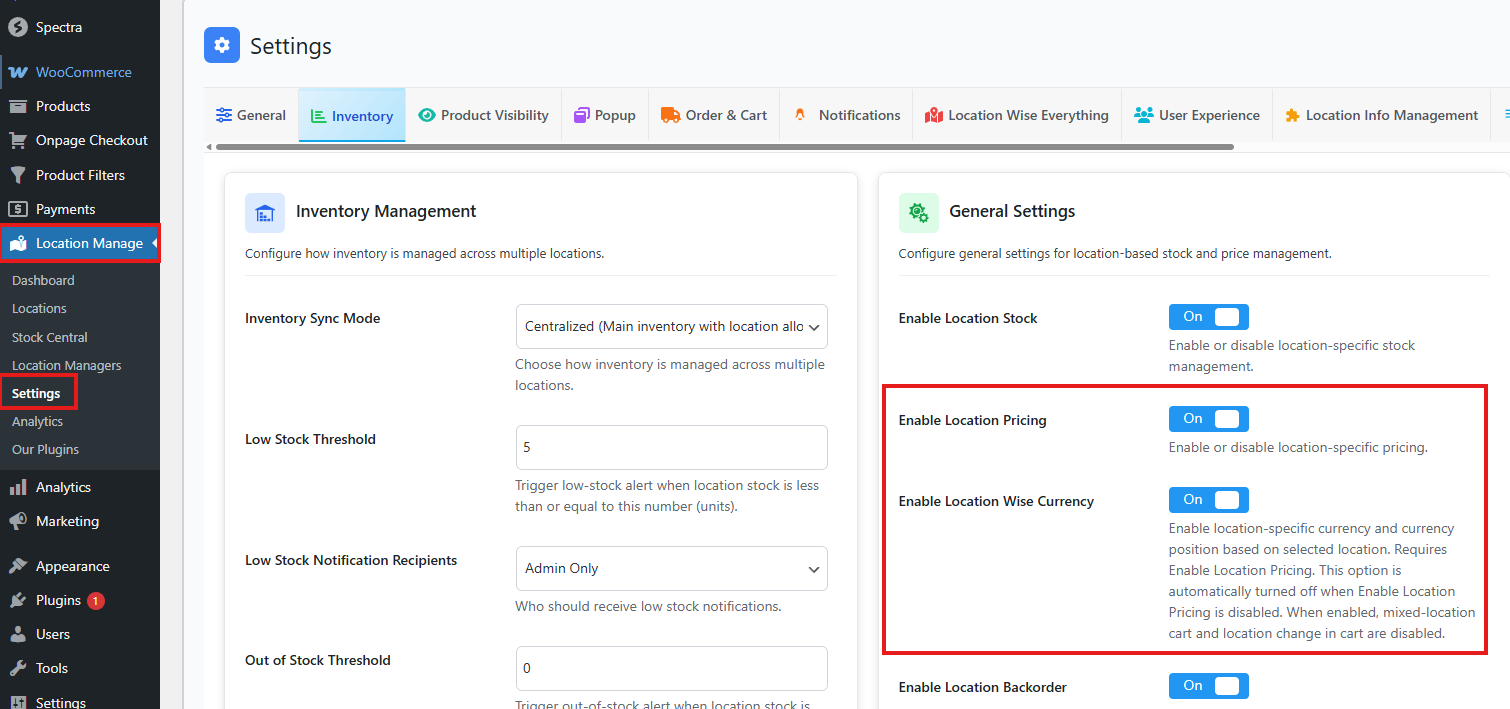
- Configure the currency for each store location.
- Configure the currency rate or exchange rate settings.
- Save the settings.
- Test the frontend by selecting different locations.
Why Location-Wise Pricing Is Required
WooCommerce calculates cart totals, product prices, taxes, discounts, and checkout values based on the active product price.
Location-wise currency changes the display and calculation context based on the selected location. Because of this, the plugin needs location-wise pricing to be active first.
This ensures that each location can have its own pricing and currency configuration.
Feature Compatibility Matrix
Some cart and order features are not available when location-wise currency is enabled.
| Feature | Works with Location-Wise Currency? | Notes |
|---|---|---|
| Location-wise product price | Yes | Required before currency can work |
| Single-location cart | Yes | Normal supported use case |
| Mixed-location cart | No | Disabled automatically |
| Change location in cart | No | Disabled automatically |
| Split order by location | No | Disabled automatically |
| Manual order assignment | Limited | Forced to proximity-based internally |
Recommended Cart Workflow
When location-wise currency is enabled, the recommended workflow is:
- Customer selects a store location.
- Product prices are displayed in that location’s configured currency.
- Customer adds products from the selected location to cart.
- Customer checks out using one location and one currency.
This creates a stable checkout experience because WooCommerce processes the cart using one active currency.
Why Mixed-Location Cart Is Disabled
Mixed-location cart allows customers to add products from multiple store locations into one cart.
For example:
| Product | Location | Currency |
|---|---|---|
| T-Shirt | United States Store | USD |
| Shoes | United Kingdom Store | GBP |
| Watch | Canada Store | CAD |
WooCommerce checkout normally uses one active checkout currency. If products from multiple locations with different currencies are placed into the same cart, cart totals, taxes, coupons, shipping, and payment gateways can become inconsistent.
For this reason, mixed-location cart is disabled when location-wise currency is enabled.
Why Cart Location Switching Is Disabled
Cart location switching allows customers to change the selected store location from the cart page.
When location-wise currency is enabled, changing the location can also change:
- Product prices
- Currency code
- Currency symbol
- Currency position
- Exchange rate
- Stock availability
- Shipping methods
- Payment methods
- Tax rules
- Coupon availability
To prevent incorrect cart totals or checkout conflicts, cart location switching is disabled when location-wise currency is active.
Why Split Order by Location Is Disabled
Split order by location is designed for carts that contain products from multiple locations.
Since mixed-location cart is disabled when location-wise currency is enabled, split order by location is also disabled.
Use split order by location only when your store uses the same checkout currency across locations.
Manual Order Assignment with Location-Wise Currency
When location-wise currency is enabled, manual order assignment is limited.
The plugin automatically handles manual assignment as proximity-based assignment internally. This helps keep location, price, currency, and checkout calculations consistent.
What this means
If you enable location-wise currency, the final order location should be determined based on the customer’s selected or nearest location, not manually changed after checkout to a different currency location.
This avoids situations where an order is placed in one currency but later assigned to a location that uses another currency.
Currency Symbol Compatibility
Some stores use other currency switcher plugins or custom WooCommerce currency filters. These tools can sometimes return the active currency symbol even when WooCommerce requests a different currency symbol.
To prevent incorrect currency symbols, the plugin uses WooCommerce’s currency symbol map to resolve the correct symbol for each currency code.
For example:
| Currency Code | Correct Symbol |
|---|---|
| USD | $ |
| GBP | £ |
| EUR | € |
| CAD | $ |
| AED | د.إ |
This helps keep product prices and cart totals aligned with the selected location’s currency.
Recommended Settings by Store Type
International store with different currencies
Use this setup if each country or region uses a different currency.
| Setting | Recommended Value |
|---|---|
| Location-wise pricing | Enabled |
| Location-wise currency | Enabled |
| Mixed-location cart | Disabled |
| Change location in cart | Disabled |
| Split order by location | Disabled |
| Order assignment | Customer selection or proximity-based |
Multi-warehouse store using one currency
Use this setup if all locations use the same currency but stock is managed by warehouse or branch.
| Setting | Recommended Value |
|---|---|
| Location-wise pricing | Optional |
| Location-wise currency | Disabled |
| Mixed-location cart | Enabled if needed |
| Change location in cart | Optional |
| Split order by location | Enabled if needed |
| Order assignment | Inventory-based or proximity-based |
Local pickup store
Use this setup if customers choose a pickup branch.
| Setting | Recommended Value |
|---|---|
| Location-wise pricing | Optional |
| Location-wise currency | Usually disabled |
| Mixed-location cart | Usually disabled |
| Cart location switching | Optional |
| Local pickup | Enabled |
| Order assignment | Customer selection |
Common Questions
Why is location-wise currency not working?
Check that Location-Wise Pricing is enabled first. Location-wise currency depends on location-wise pricing.
Why is mixed-location cart not working?
Mixed-location cart is disabled when location-wise currency is enabled. Disable location-wise currency if you need customers to add products from multiple locations to one cart.
Why is split order by location not working?
Split order by location requires mixed-location cart. Since mixed-location cart is disabled with location-wise currency, split order is also unavailable in that setup.
Why can’t customers change location in the cart?
Cart location switching is disabled when location-wise currency is enabled to prevent cart total and currency conflicts.
Why does manual assignment change behaviour?
When location-wise currency is enabled, manual assignment is handled as proximity-based assignment internally so the order remains consistent with the customer’s pricing and currency context.
Best Practices
Use Location-Wise Currency when each customer should shop from one selected location using one currency.
Use Mixed-Location Cart and Split Order by Location when customers need to buy from multiple locations in one checkout and all locations use the same currency.
Do not use location-wise currency and mixed-location cart together, because they are designed for different checkout workflows.